
Upsell display settings
Change how upsells look in your cart - display type, position, heading, colors, frames and variant images - in the Cart designer.
Last updated
Which products your upsells show is set under Upsells. How they look is set in the Cart designer. This article walks through every setting under Cart designerUpsells.
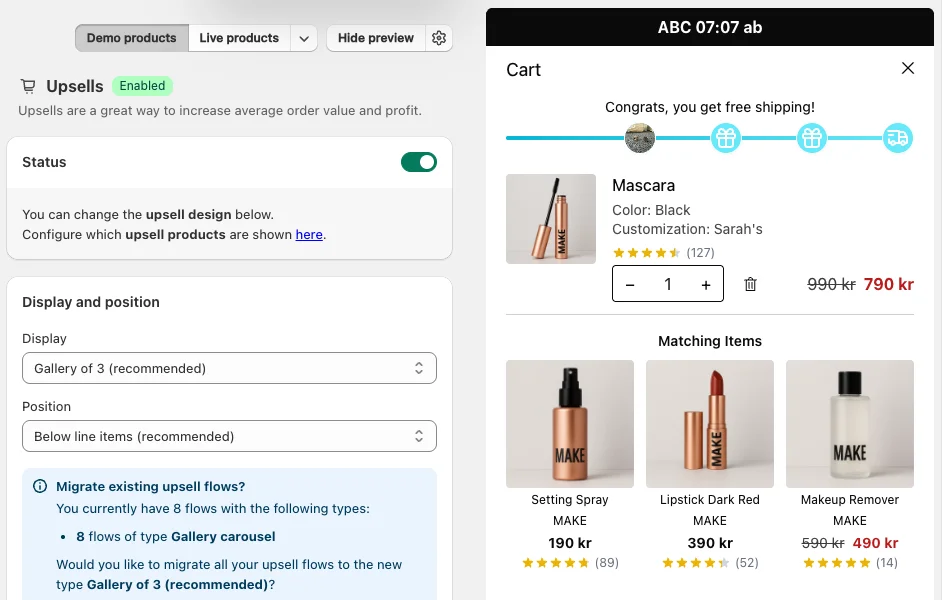
Status
The Status toggle switches cart upsells on or off. When it is off, no upsells show in the cart, whatever flows or AI settings you have. The note below it links to the Upsells page, where you choose the products.
Display and position
Display sets the layout:
| Display | Shows |
|---|---|
| Gallery of 3 (recommended) | 3 products side by side |
| Gallery of 6 | 2 rows of 3 products |
| Gallery of 9 | 3 rows of 3 products |
| Gallery carousel | Gallery cards in a row the customer can scroll |
| Simple (single product) | 1 product |
| Simple carousel | Simple cards the customer can scroll through |
| Vertical stack of 3 | Up to 3 simple cards stacked, each with the image beside the details |
The products show in the order you set in the flow. If one is sold out or already in the cart, the next one takes its place.
Position sets where upsells sit in the cart: Below line items (recommended), Above line items, Above cart summary or Below checkout button.
Display here vs. in a flow
The Display here is the default. New flows start with it, and AI recommendations use it. Each flow also has its own Display type under Advanced settings on the flow page, so one flow can be a carousel while another is a gallery.
When you change Display here and you already have flows, a banner asks Migrate existing upsell flows? and lists how many flows use which type. Tick Yes, migrate my existing upsell flows to the new type to switch them all, or leave it unticked and change flows one by one.
Colors and style
- Background and frame color, Text color (simple and carousel only), Add to cart button color and Add to cart button text color.
- Show product title in gallery upsells.
- Show frames (gallery only).
- Show border, which adds a Border color field.
- Left-align texts.
General colors and corner rounding for the whole cart are in Colors and styles.
Heading and subheading
Tick Show to display a Heading and Subheading above the upsells, for example "You might also like". Both support rich text and translations.
On the Professional plan, each flow can have its own Flow-specific heading and Flow-specific subheading under Advanced settings on the flow page. A flow heading replaces the default heading for that flow; leave it empty to use the default. This works per language: a flow with an English heading but no German one uses the default heading in German. If Show is off here, no headings show at all, flow headings included. Flow headings are not available on Essentials or the legacy Professional plan.
Other settings
- Show variant title instead of product title if a single variant was selected as upsell.
- Show product vendor below the title.
- Show the image of the offered variant instead of the product's featured image. The card always shows the variant that Add to cart will add, and skips sold-out variants.
- Link product image to product page (gallery only): clicking the image opens the product page instead of adding the product.
- Smartly pre-select variants: for example, pre-selects size M if another product in size M is in the cart.
- Limit length of product title: Don't limit, Limit to one row or Limit to two rows.
Still stuck?
Chat with us and we'll help you get your cart live. Or email contact@elitecart.app.