
Subscription upgrades
Let customers switch a one-time purchase to a subscription right in the cart, with the savings shown on the button.
Last updated
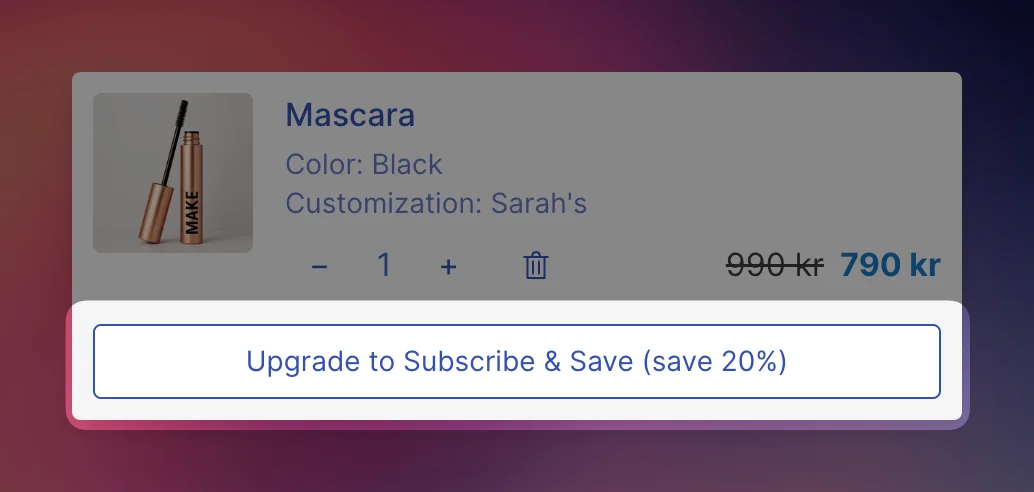
With subscription upgrades, customers can turn a one-time purchase into a subscription without leaving the cart. An upgrade button below the product shows how much they save. After upgrading, they can switch between delivery frequencies in a dropdown.
You need a Shopify subscription app, such as Shopify Subscriptions or Recharge, with subscription plans set up on your products.
Turn on subscription upgrades
Open Subscription upgrades
Go to Cart designerSubscription upgrades.
Switch it on
Switch on the toggle in the Status card.
Check the texts
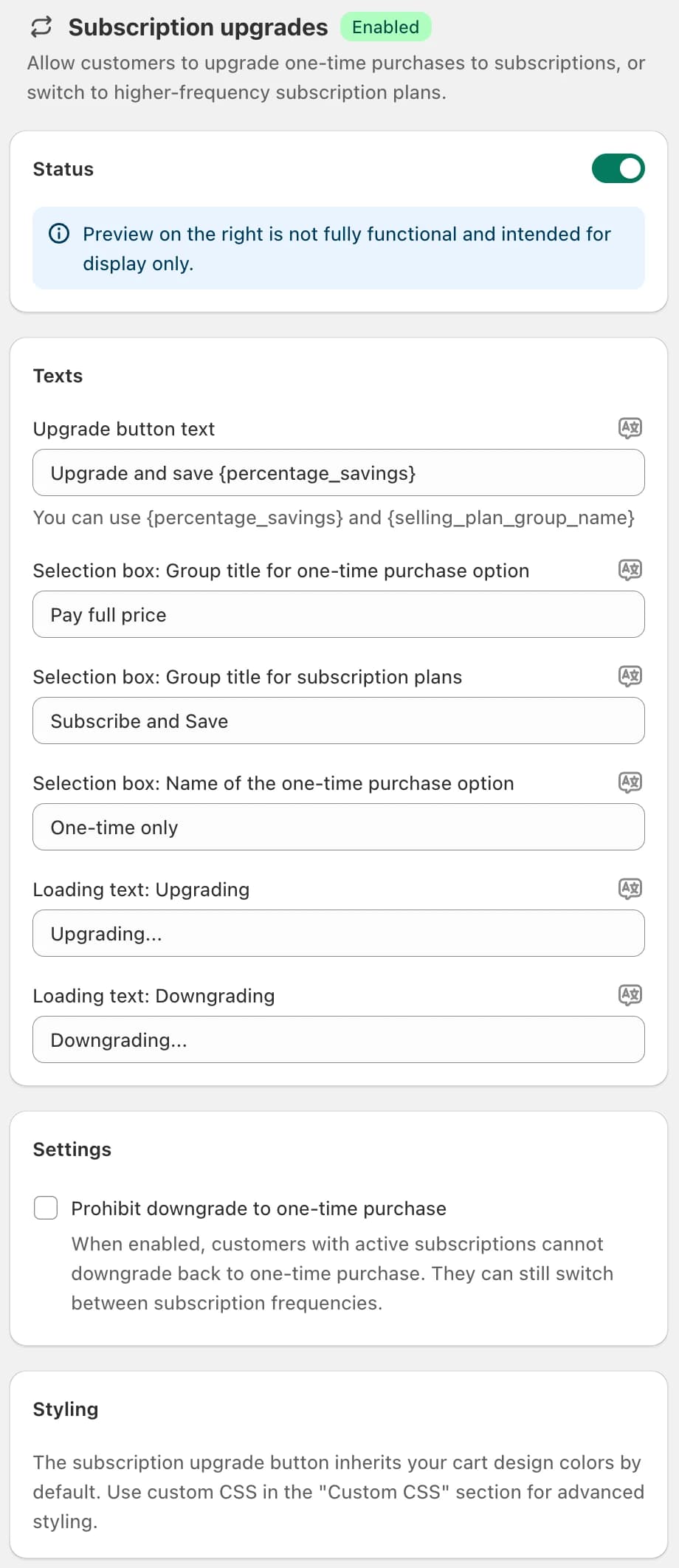
Adjust the texts in the Texts card if you like (see below).
Save
Click Save in the save bar.
To see the button in the preview, switch to demo products: the section shows Switch to demo products for this. The preview is for display only, the buttons don't work there.
How it works for customers
One-time purchase in the cart: a button appears below the product with the highest saving available, for example "Upgrade and save 15%". A click applies the subscription plan with the biggest discount. The button then turns into a dropdown.
Subscription in the cart: the dropdown shows the current plan. Customers can switch to another frequency, or back to a one-time purchase unless you prohibit that.
The button only shows for a product when:
- the product has subscription plans in Shopify, and
- the selected variant is part of a plan, and
- at least one plan is cheaper than the one-time price.
Texts
All texts are in the Texts card and can be translated with the translate icon next to each field.
| Field | Default |
|---|---|
| Upgrade button text | Upgrade and save {percentage_savings} |
| Selection box: Group title for one-time purchase option | Pay full price |
| Selection box: Group title for subscription plans | Subscribe and Save |
| Selection box: Name of the one-time purchase option | One-time only |
| Loading text: Upgrading | Upgrading... |
| Loading text: Downgrading | Downgrading... |
In Upgrade button text you can use {percentage_savings} for the saving and {selling_plan_group_name} for the name of the subscription plan group.
The error message "Failed to update subscription", shown if a change fails, is edited under Language & translations.
Settings
Prohibit downgrade to one-time purchase: customers with a subscription in the cart can't switch back to a one-time purchase. They can still switch between frequencies.
Styling
The button uses your cart colors by default. For more control, add CSS under Cart designerCustom CSS. These classes are available:
.ec-subscription-upgrade-container: the wrapper.ec-subscription-upgrade-button: the upgrade button.ec-subscription-upgrade-select: the dropdown
For example, a filled button:
.ec-subscription-upgrade-button {
  background-color: black;
  color: white;
}
Still stuck?
Chat with us and we'll help you get your cart live. Or email contact@elitecart.app.