
Change wording and edit translations
Change any text in your cart and translate it for every language your store sells in, on one page or right next to each field.
Last updated
You can change every text the cart shows, such as the cart title, the checkout button or the empty cart message, and translate it into each language your Shopify store uses. There are two places to do this: the Language & translations page, and the translate button next to text fields in the Cart designer.
Change wording on the Language & translations page
Open the page
In the EliteCart menu, click Language & translations.
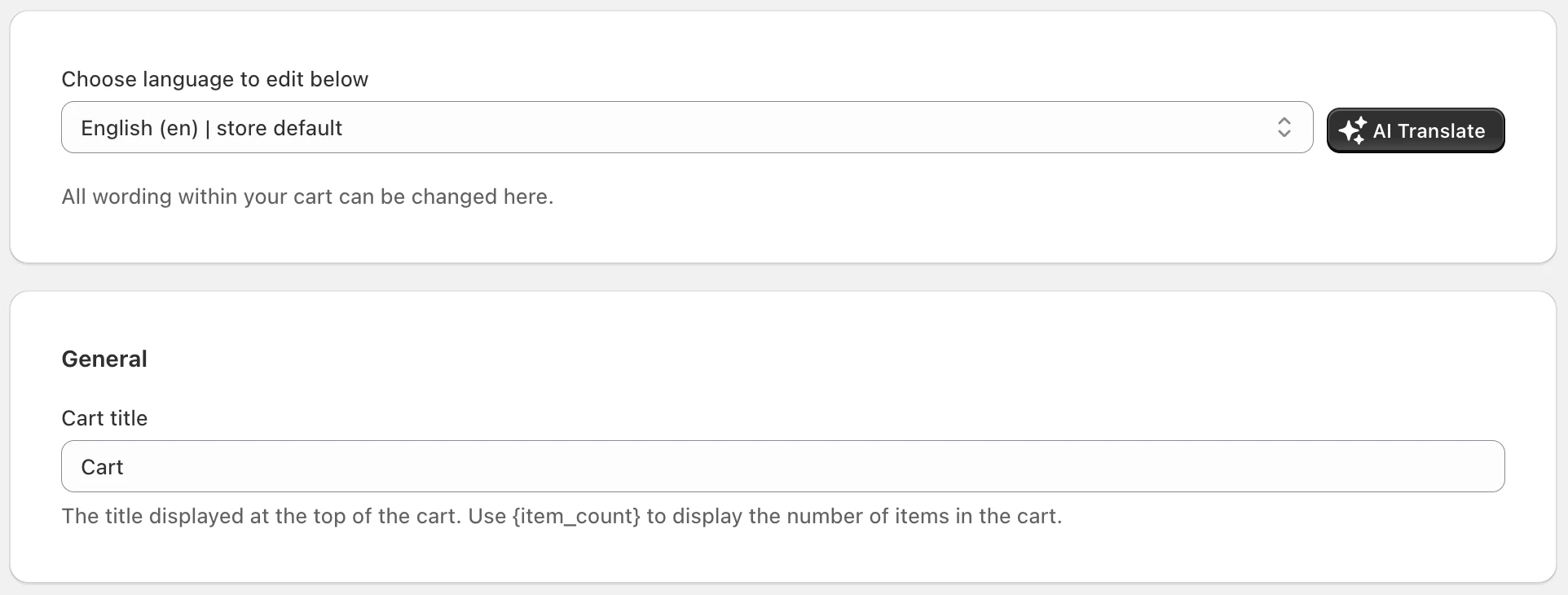
Pick a language
Under Choose language to edit below, select the language. Your store's default language is marked | store default. Languages you have added in Shopify but not published are marked | not published. The picker only shows when your store has more than one language.
Edit the texts
The texts are grouped by part of the cart, for example General, Cart summary or Discounts. Each field shows the default text as a placeholder and a short note on where the text appears. See Translatable texts reference for the full list.
Save
Click Save in the bar at the top. Discard undoes your unsaved changes.
Some fields, such as the banner texts, add-on titles, trust text, upsell heading and reward bar texts, are rich text fields, so you can format them (bold, links, colors).
Use placeholders in curly brackets
Some texts take placeholders, for example {amount}, {title}, {price} or {count}. The cart replaces them with the real value, so "You're {amount} away from free shipping!" becomes "You're $12.00 away from free shipping!". Keep the placeholder exactly as written in every language, and don't translate the word inside the brackets. The note under each field tells you which placeholders it supports.
Translate next to a field in the Cart designer
Most text fields in the Cart designer, and the text fields of upsell flows, have a translate button (the language icon) on the right. You only see it when your store has more than one language.
- Green: every language has a text.
- Red: at least one language is missing a text ("Translations missing. Click to translate.").
Open the translations
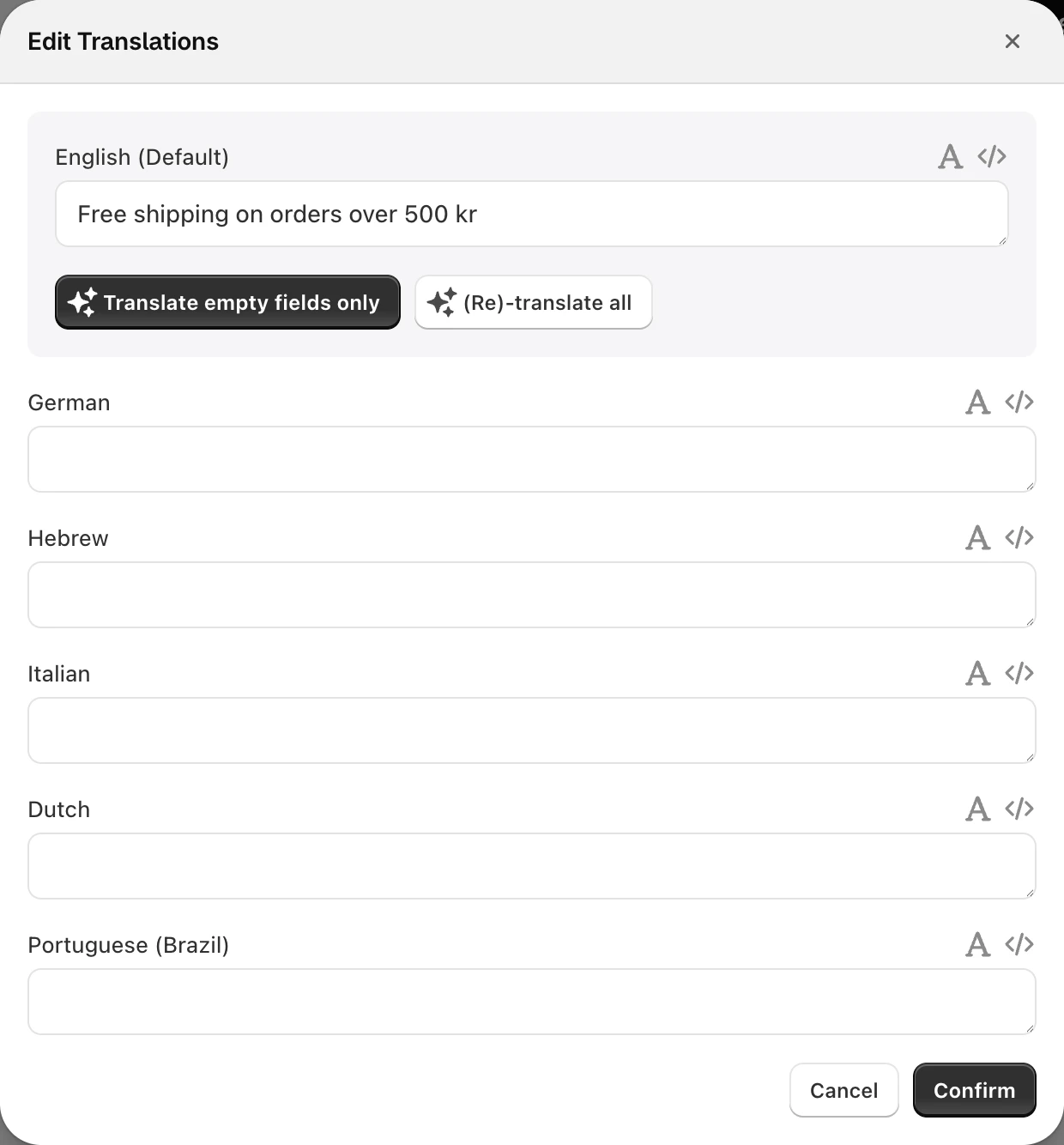
Click the translate button. The Edit Translations window shows the default language first, then one field per language.
Fill in the languages
Type the texts yourself, or let AI fill them: Translate empty fields only fills the missing languages, (Re)-translate all overwrites all of them. Both need a text in the default language first.
Confirm and save
Click Confirm, then save your changes in the Cart designer.
Many Cart designer fields are the same texts as on the Language & translations page, so a change in one place shows in the other. Texts that belong to a single reward or a single upsell flow, such as a reward's Away from reward and Reward achieved texts, are only translated next to their field.
Reset a language to the default texts
At the bottom of the Language & translations page, Reset texts for this language puts every text of the selected language back to EliteCart's defaults. Nothing changes until you click Save, so you can still Discard.
Languages with built-in texts
EliteCart ships ready-made texts for English, German, Spanish, French, Swedish, Danish and Norwegian. You can change them as described above. For any other language, the fields start with the English texts: translate them yourself or with AI Translate (see AI Translate and new languages).
Still stuck?
Chat with us and we'll help you get your cart live. Or email contact@elitecart.app.