
Checkout reviews
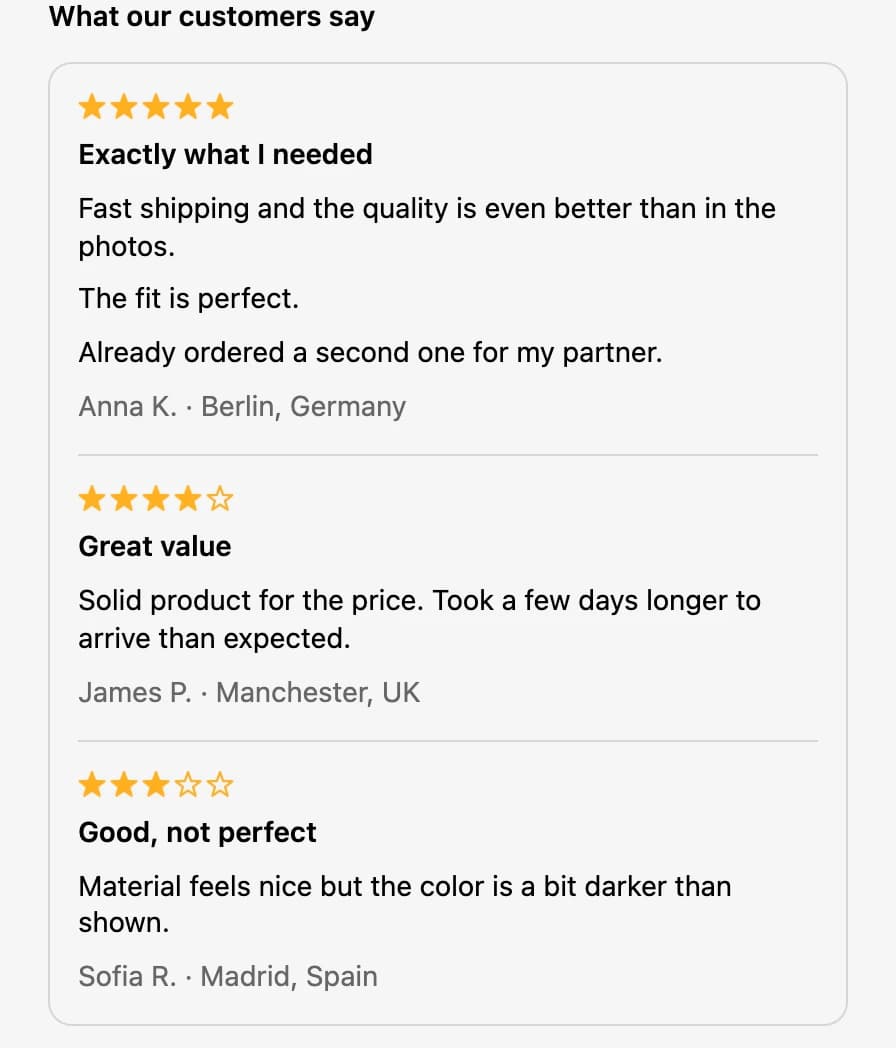
Show customer reviews you've collected on the Shopify checkout page, with star ratings, as cards or a list, with the Reviews module.
Last updated
The Reviews module shows customer reviews right on Shopify's checkout page, so shoppers read what other customers say just before they pay. You type in testimonials you've collected, each with a star rating, and place the block wherever it fits your checkout.
Set up the Reviews block
Create the module
In EliteCart, go to Checkout and click Create module. Choose Reviews and click Create module.
Name and activate it
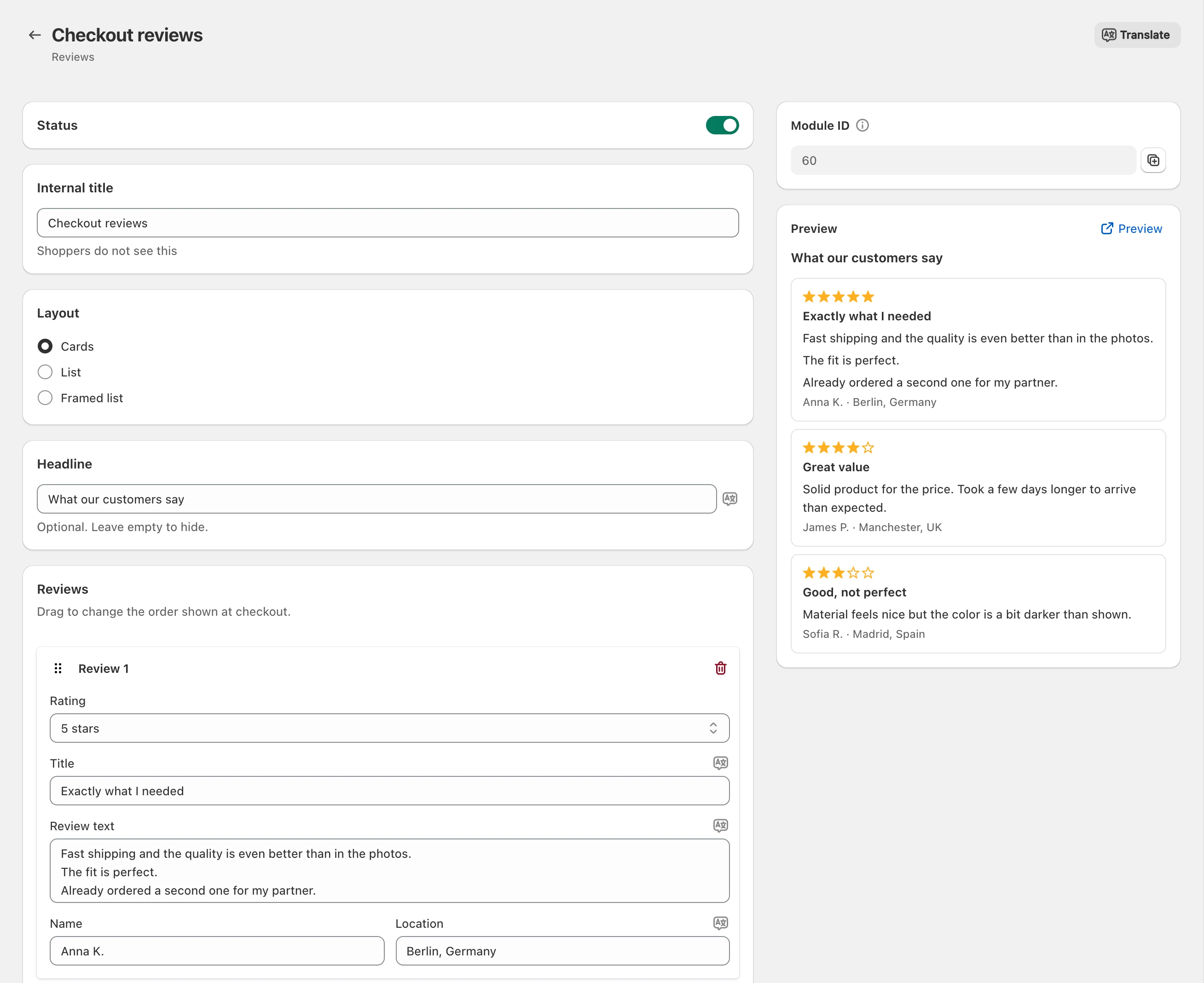
Switch on the Status toggle and give the module an Internal title (only shown in the admin), such as "Checkout reviews".
Choose the layout and headline
Under Layout, pick how the reviews are shown (see Layouts below). Under Headline, type the line shown above the reviews, such as "What our customers say", or leave it empty to hide it.
Add your reviews
Click Add review and fill in the review's fields (see below). Repeat for each review, then click Save. The preview on the right updates as you type.
Copy the Module ID
In the Module ID card, click Copy ID.
Place the block in checkout
Click Open checkout editor. Add the EliteCart Static Reviews block where you want it, paste the ID into its Module ID setting and save the checkout editor.
Review fields
| Field | What it shows |
|---|---|
| Rating | 1 to 5 gold stars. |
| Title | A short bold line, such as "Exactly what I needed". |
| Review text | The review itself. Each line break starts a new paragraph. |
| Name | Optional. The customer's name, such as "Anna K.". |
| Location | Optional. Where the customer is from, such as "Berlin, Germany". Shown after the name. |
Each review needs a title, a review text or both. Add up to 10 reviews per module. To change the order shoppers see, drag a review by its handle. To remove one, click the trash icon next to it.
Use reviews your customers actually wrote, for example from review emails, your product pages or support messages. Short, specific reviews about shipping, quality or fit read best at checkout.
Layouts
- Cards: each review sits in its own bordered box.
- List: reviews are stacked as plain rows with a thin line between them, for a lighter look.
- Framed list: one bordered box holds all reviews, with a thin line between them and the headline above the box.
Translate your reviews
The headline, title, review text and location are translated per language. The name stays the same in every language.
- If your store sells in more than one language, click Translate at the top of the module page to translate everything side by side. Pick the Language, click AI translate empty fields (or AI retranslate all), check the text, click Apply translations and save the module.
- To translate a single field, click the language icon next to it.
A review shows in a language only when it has a title or a review text in that language. Reviews you haven't translated stay hidden for shoppers checking out in that language, so you can also show different reviews per language.
Checks in the checkout editor
Shopify's checkout editor shows a notice on the block when it can't show anything yet. Shoppers never see these notices.
| Notice | What to do |
|---|---|
| "EliteCart: Module ID required" | Paste the Module ID into the block's settings. |
| "This ID belongs to a different module type." | Paste the ID of a Reviews module. Each module type has its own block. |
| "No active EliteCart module has this ID." | Check the ID, and switch on the module's Status in EliteCart. |
| "This module has no reviews in this language yet." | Add reviews or translations for the language the editor previews. |
Test it
Go to checkout
Add any product to the cart and go to checkout.
Check the block
Confirm the reviews show where you placed the block, in the order you set.
Check other languages
Switch the store language and confirm the translated reviews show.
Still stuck?
Chat with us and we'll help you get your cart live. Or email contact@elitecart.app.