
Create Your First Upsell Flow
Learn how to create upsell flows with triggers and upsell products.
Last updated
Let's dive into setting up your first upsell flow! This is an exciting step towards boosting your revenue and enhancing your customers' shopping experience.
Inside the EliteCart App, begin by clicking Upsells in the left-hand menu. Then click Add Flow.
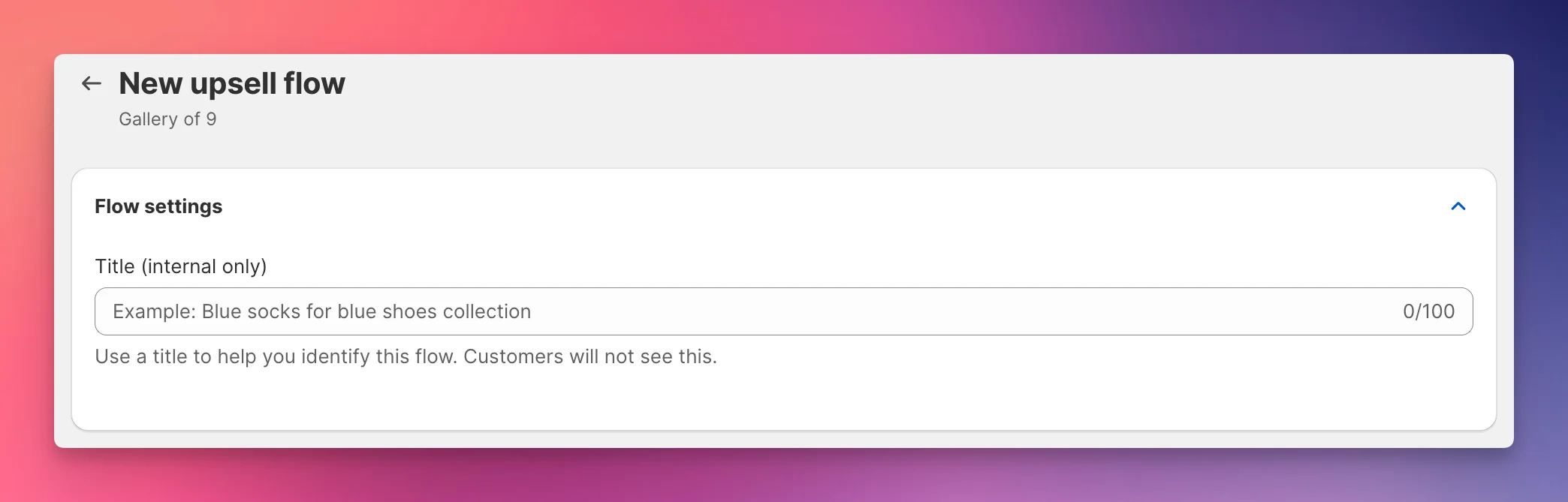
Title
Start by choosing a title. Make it descriptive, as this is internal use only and won't be visible to your customers.
Trigger
Next, choose your Upsell Trigger. This trigger determines which product needs to be in the cart to display the upsell offer you're setting up.
E.g. if you select the product Nike Air Jordan 3 here, every time this product is in the cart, this flow will show. Unless another higher-ranked flow is triggered first. More on that below.
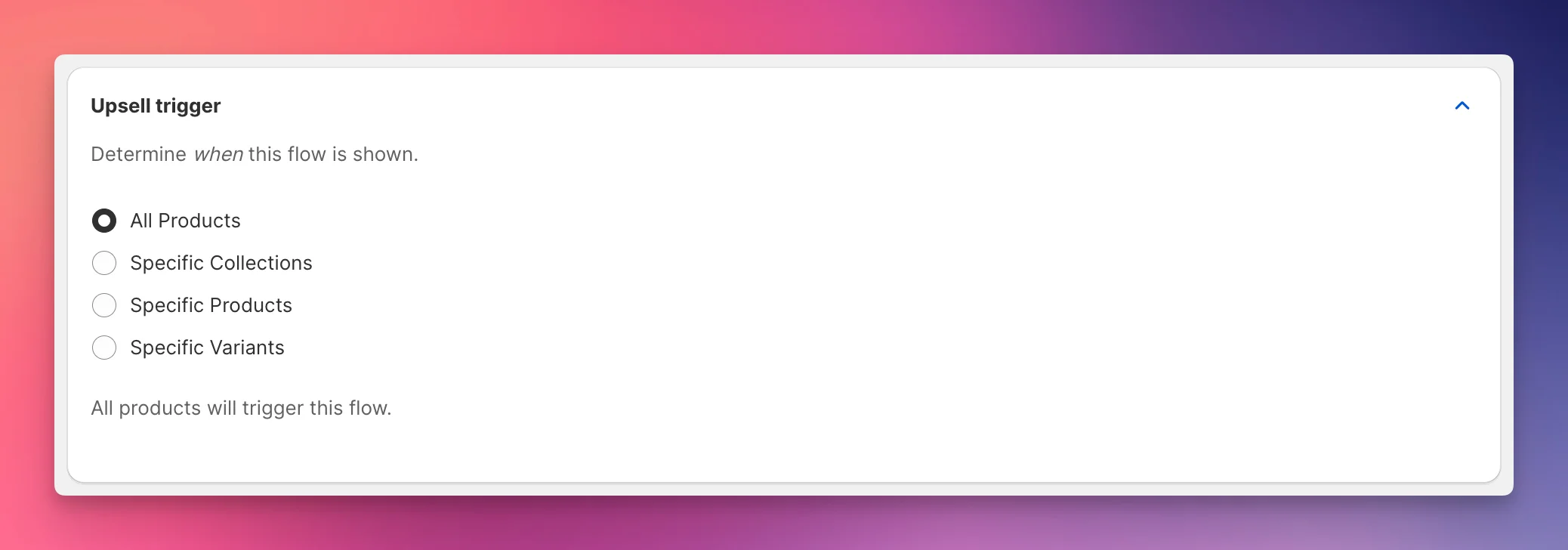
You have four options with different specificity:
- all products
- collections
- specific products
- specific variants
We typically recommend to start broad, i.e. with one or several collections. You can later create additional upsell flows targeting more specific products or even variants.
Upsell Product
Next up: Choose your upsell products. These are the products that will be displayed to your customers in the cart. Depending on the collection you chose as a trigger earlier, let's pick something fitting and appealing – ideally a popular and affordable item.
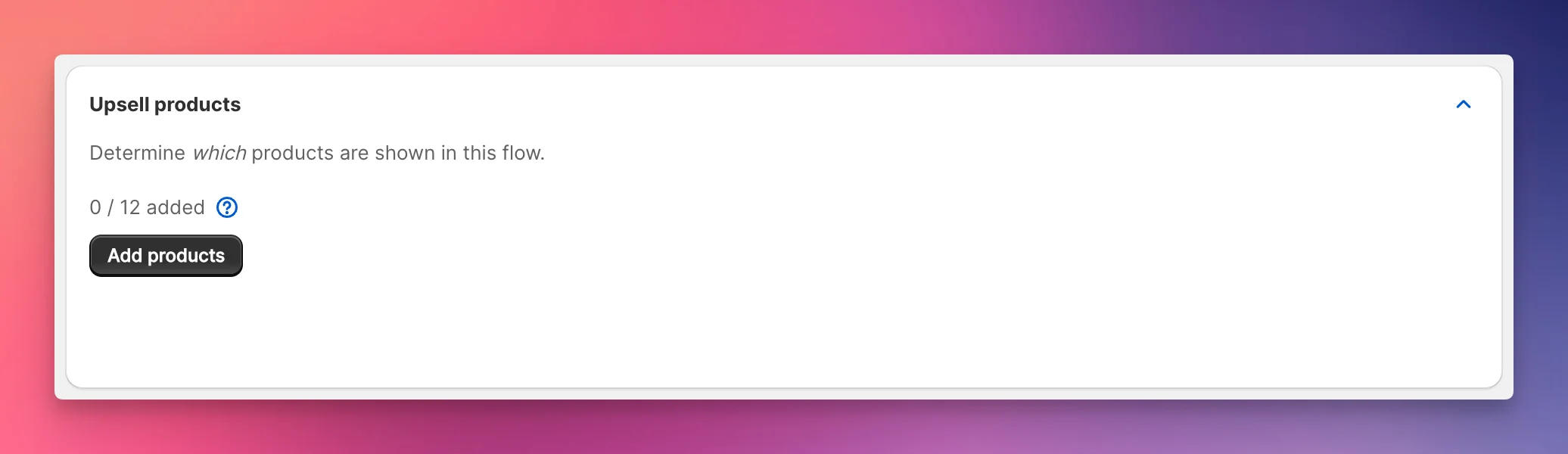
We recommend picking several products - at minimum three, because:
- If one of your chosen products is already in the customer’s cart, EliteCart intelligently skips it and displays the next product instead.
- If a product is sold out, the same thing happens.
Once you are happy with your choices, hit save.
Promotional Pricing (Optional)
You can optionally enable promotional pricing to show strikethrough prices on this flow's upsell products. When enabled, customers see the original price crossed out with the discounted price directly on the upsell card — before they add the product to cart.
To set up a promotion:
- Scroll to the Promotion card on the flow edit page
- Check Enable promotional pricing for this flow
- Enter a Discount percentage (e.g., 15 for 15% off)
- Optionally set a Discount title (shown at checkout — defaults to "Promotion" if left blank)
- Optionally enable per-product discount overrides to set different percentages for individual products in the flow
- Optionally check Require trigger products in cart for discount (Buy X Get Y) — when enabled, the promotion discount only applies at checkout if the customer still has at least one of the flow's trigger products in their cart. This option is only available when the trigger type is set to specific products, specific variants, or collections (not "All products").
Note: Promotional pricing requires the Professional or Enterprise plan. This creates a Shopify Automatic Product Discount behind the scenes — the discount only applies to products added as upsells from this flow. When the "Buy X Get Y" prerequisite is enabled, the discount is further restricted to only apply when trigger products are present in the cart at checkout.
For more details on promotional vs. advanced discounts, see Flow Promotions vs. Upsell Discounts.
Prioritizing, hiding, duplicating
Now hit the back button to view all of your upsell flows. You will see the flow you just created. Now you can repeat the process and create another flow.
You can also prioritize your flows to determine which flow shall show first. Logically, this is what happens:
- EliteCart checks flow 1: Has the trigger been met?
- If yes, we we will show that flow
- If not, we will skip this flow and check the next one.
- EliteCart checks flow 2: ...
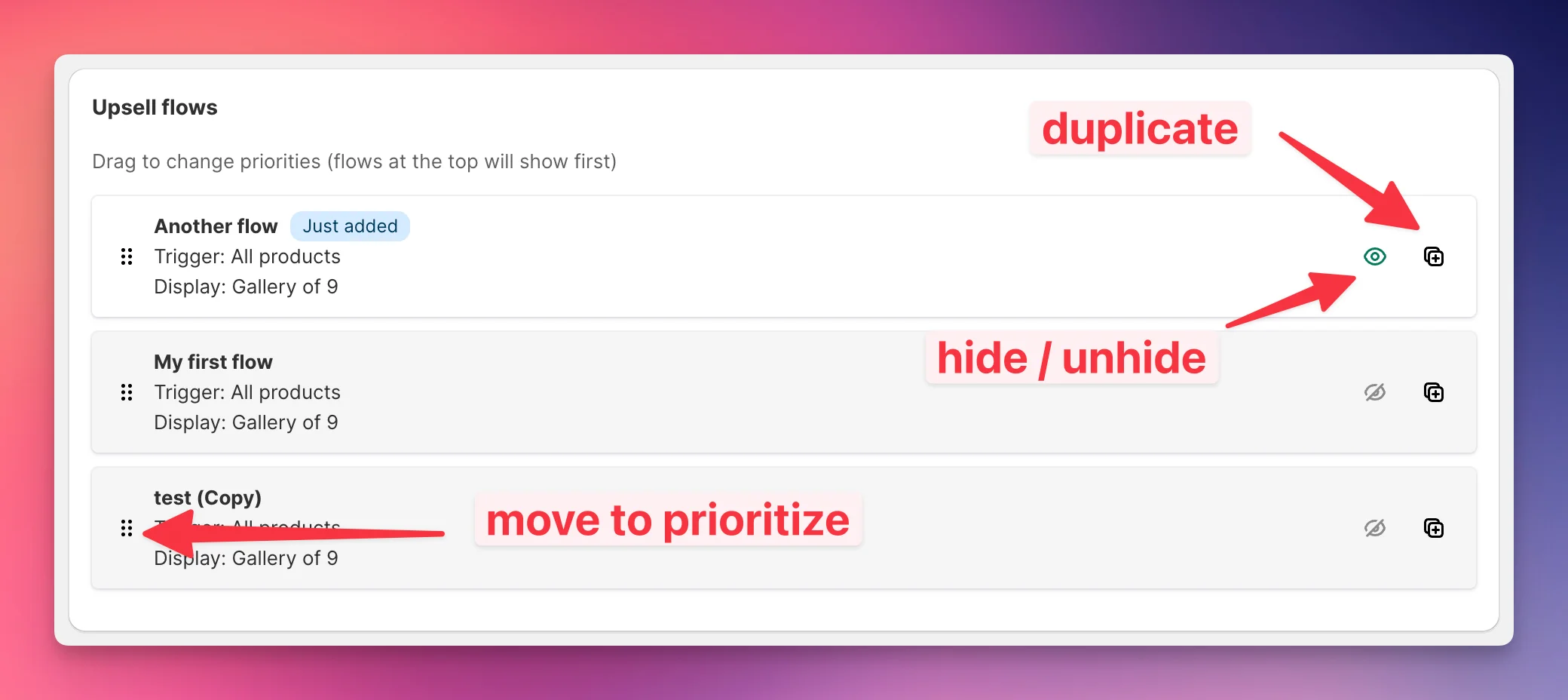
You can also disable a flow by clicking the green eye on the right. To duplicate a flow, simply click the duplicate button.
Great job! You've successfully set up your first upsell flow. This is just the beginning of your journey towards higher average order value and increased revenue. Keep experimenting with different triggers and products to find what resonates best with your customers.
Products Already in the Cart (optional)
- In the Products already in the cart section, choose what the flow does when one of its upsell products is already in the customer's cart:
- Hide products that are already in the cart (recommended): EliteCart hides the product that is already in the cart and shows the next one in line.
- Show products even if they're already in the cart: The product keeps showing, which is useful for consumables or refills.
- Skip this whole flow if [1] or more of its products are in the cart: As soon as the cart holds that many of the flow's upsell products, no matter how they got there, EliteCart skips the entire flow. The next matching flow (by priority) will be evaluated instead. Leave the number at 1 to skip as soon as any of them is in the cart. Every unit counts, so 2 of the same product count as 2. Example: for "30% off a second item", set it to 2 so the offer disappears once the customer has two.
- Skip this whole flow if a product was already added from it: EliteCart skips the entire flow only once the customer added a product from this flow, in the cart, on the product page, or in checkout. A product that was added from its product page shortly after the customer saw it in this flow counts too. Products that Smart Insert or Smart Extend added to the flow do not count. Until then, products already in the cart are hidden as with the recommended option.
When is skipping the whole flow useful?
- When all your upsell products in a flow are closely related and showing the remaining ones doesn't make sense once one is already purchased (e.g., a bundle of similar accessories)
- When you want to ensure customers always see fresh, relevant recommendations
- When a flow makes a one-per-order offer, like a warranty, and should step aside once the customer accepted it (use Skip this whole flow if a product was already added from it)
Flow-Specific Heading (optional)
You can optionally choose a flow-specific heading and subheading. These headings are displayed on top of the upsell flow if enabled in the Cart Designer. If your store has multiple languages, you will see the familiar translate button next to the flow.
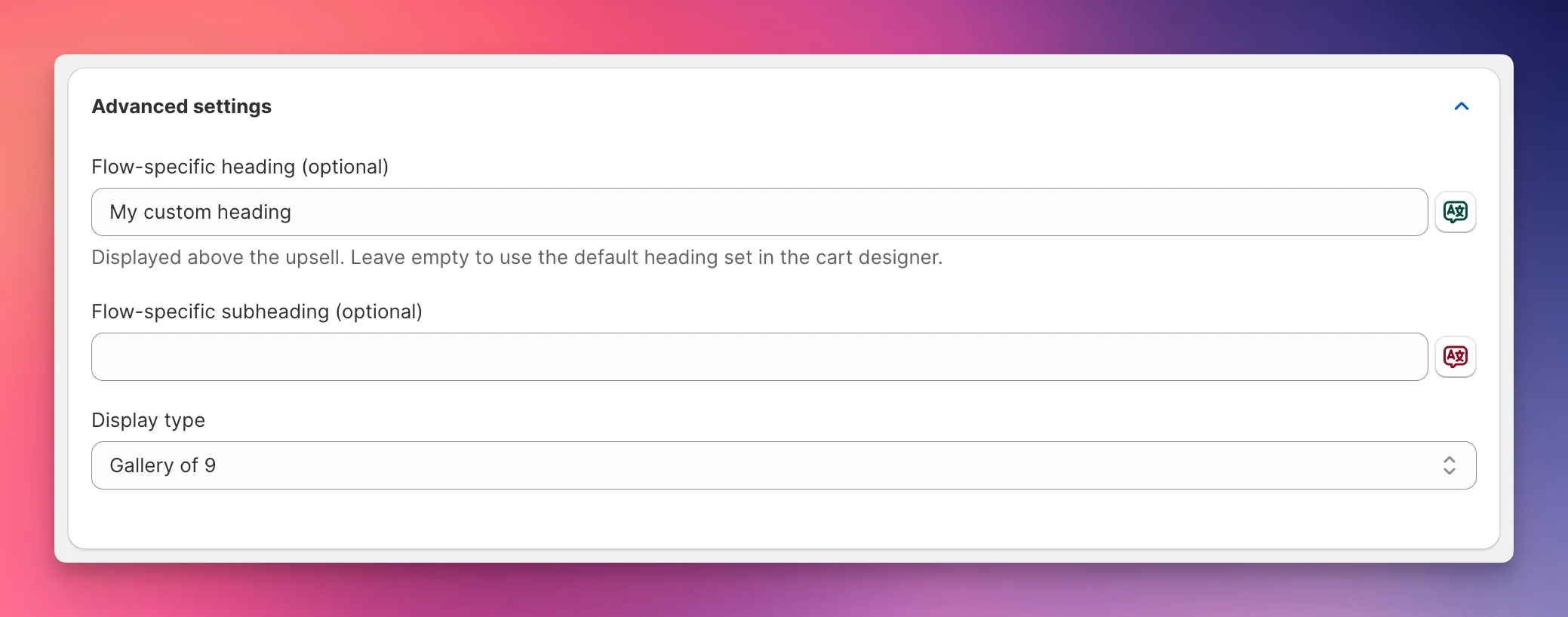
If you leave this field empty, EliteCart will instead show the default heading set in the Cart Designer. This fallback mechanism operates independently for each language configured in your store. For instance, if a flow-specific heading is set in English but not in German, the system will use the default heading for German while displaying the custom heading for English.
Also note that, if the heading is disabled in the Cart Designer, no flow-specific headings will be shown at all, regardless of any custom headings set for different languages. This ensures a consistent and streamlined presentation based on your configuration preferences in the Cart Designer.
Still stuck?
Chat with us and we'll help you get your cart live. Or email contact@elitecart.app.