
Onward VIP Protection+
Show Onward's package protection option at the EliteCart checkout button, and what to do when Shadow DOM is on.
Last updated
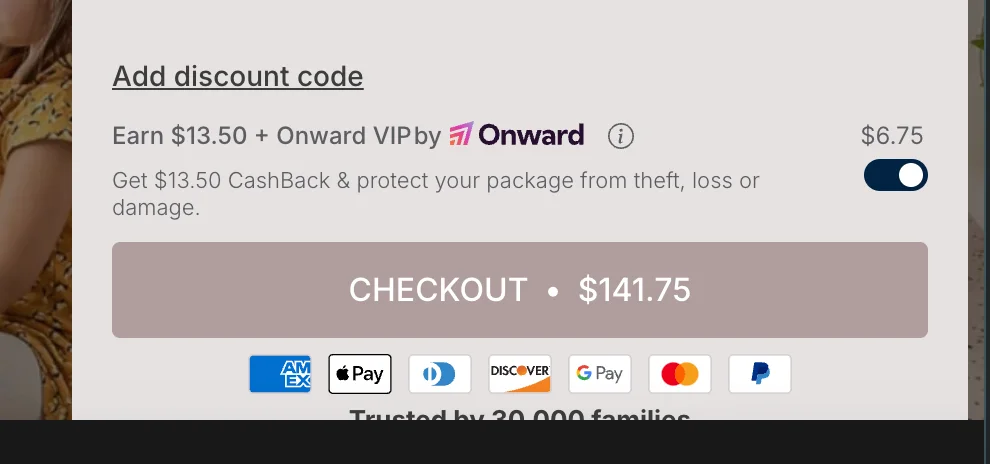
Onward adds an opt-in package protection option next to the checkout button. This article shows how to connect Onward to the EliteCart checkout button with a short script in your theme, and what to check if your cart uses Shadow DOM.
What you need
- The Onward app installed and set up with the Onward team
- Access to edit your theme code
- EliteCart on any plan
Check Shadow DOM first
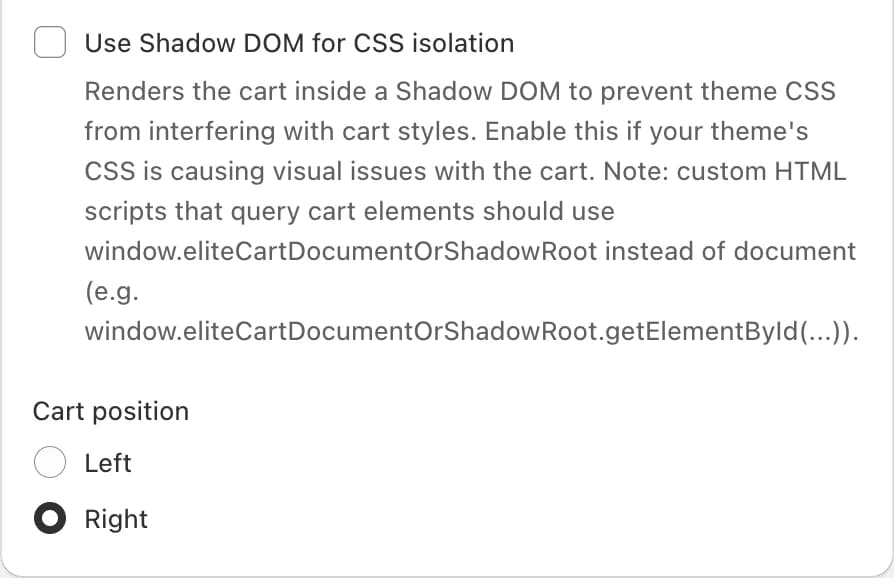
Onward's script looks for EliteCart's checkout button on the page. With Use Shadow DOM for CSS isolation on, which is the default for new installs, the cart sits in an isolated part of the page that outside scripts can't search, so the Onward option may not appear.
For this integration, turn the setting off:
Open the Advanced settings
In EliteCart, go to Cart designerOtherAdvanced.
Turn off Shadow DOM
In "General settings", untick Use Shadow DOM for CSS isolation and click Save.
Check the cart's look
Open the cart on your store. Without Shadow DOM, your theme's CSS can affect the cart, for example fonts or button styles. If something looks off, fix it with Custom CSS or contact us.
Add the Onward script
Open your theme code
In Shopify admin, go to Online StoreThemes, click the three dots next to your live theme and choose Edit code.
Paste the script
Open
theme.liquidand paste the script below just before the closing</body>tag. Save.Test
In a private browser window, add a product to the cart, open the cart and check the protection option at the checkout button. Tick and untick it and check the cart total. Then place a test order.
<script>
  window.addEventListener('DOMContentLoaded', () => {
    const onward = new OnwardSetup();
    onward.addContainer('.ec-checkout-buttons-container', { position: 'afterbegin' });
    onward.attachCheckoutButton('.ec-checkout-buttons-container button[name="checkout"]', {
      optOutSelector: '.ec-checkout-buttons-container',
      optOutPosition: 'beforeend'
    });
  });
</script>
The script tells Onward to place its option inside EliteCart's checkout area and to watch EliteCart's checkout button. Styling, pricing and claims are handled by Onward.
If it still doesn't show
- Check that Use Shadow DOM for CSS isolation is off and saved.
- Check your browser console for errors from Onward.
- Contact Onward support with this article, or chat with us. If you'd rather keep Shadow DOM on, tell us; we can look at other ways to place the option.
Still stuck?
Chat with us and we'll help you get your cart live. Or email contact@elitecart.app.