
Trust badges
Show payment icons, a short trust message and a trust badge under the checkout button to reassure customers at the moment they decide.
Last updated
New visitors may not know your store yet, but they know Visa, PayPal or Klarna. Trust badges shows those signals right below the checkout button, where customers decide whether to buy. You can combine three elements: payment provider icons, a short trust text and a trust badge image.
Open the section under Cart designerTrust badges. Each element has its own card with its own on/off toggle.
Payment providers
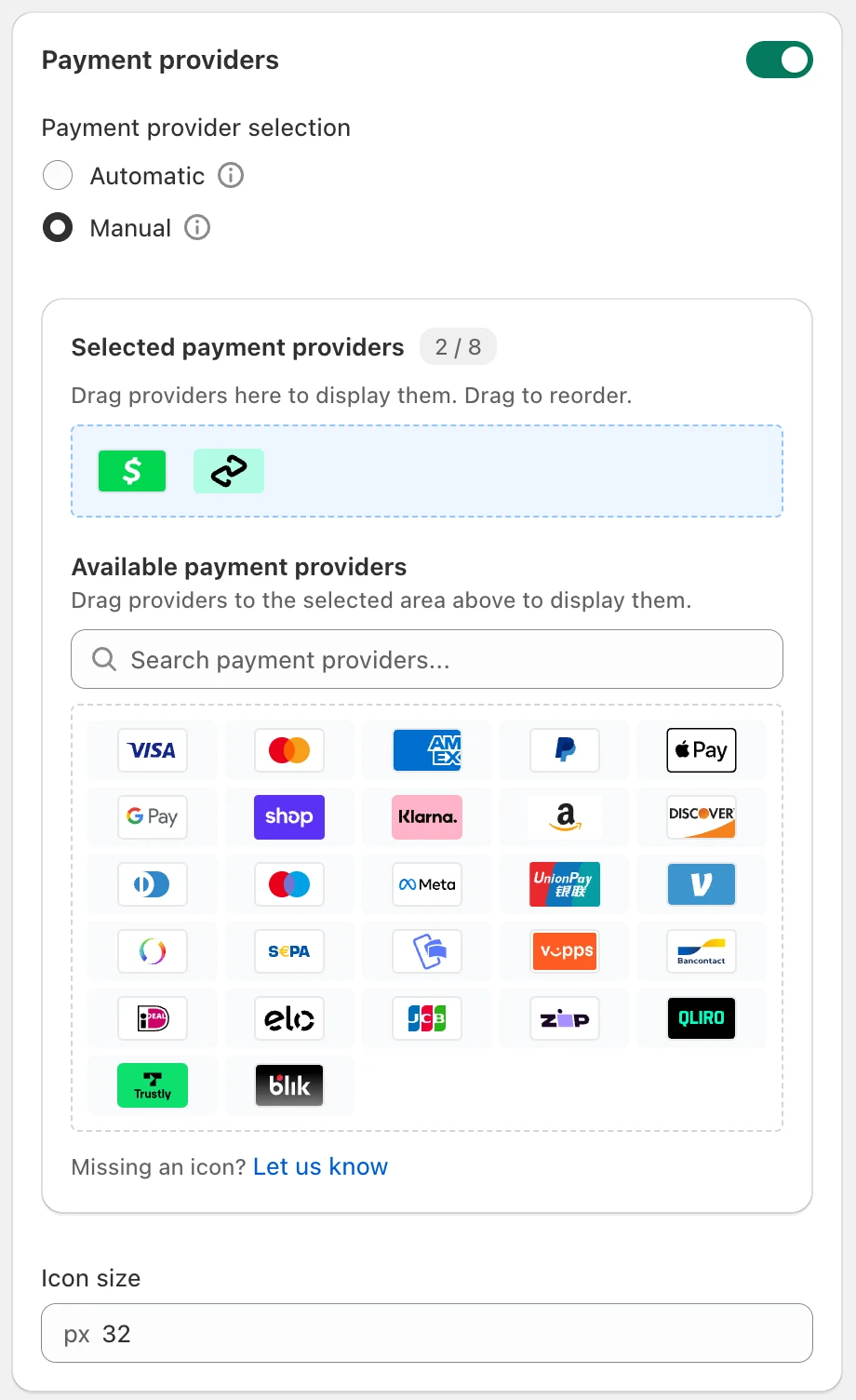
Switch on the toggle in the Payment providers card, then choose under Payment provider selection:
- Automatic: EliteCart shows the providers that are active in your Shopify payment settings. Only providers EliteCart has icons for are shown. In this mode the preview shows example icons, not yours.
- Manual: you pick the icons and their order. Drag providers from Available payment providers into Selected payment providers, and drag them to reorder. Use the search field to find a provider quickly.
Up to 8 icons show in either mode. Icon size sets their height in pixels (default 32).
If a provider you need has no icon yet, click Let us know under Missing an icon?.
Trust text
Switch on the toggle in the Trust text card and write a short message in the Trust text field, for example:
- "30-day money-back guarantee"
- "Free returns and exchanges"
- "Trusted by 1000+ happy customers"
Keep it to one short line. Set the Text color (empty uses your normal text color) and Text size in pixels (default 14). Click the translate icon to add the text in your other languages.
Trust badge
A trust badge is an image, such as a guarantee seal or a "secure checkout" badge. Switch on the toggle in the Trust badge card and add the image:
Upload the image to Shopify
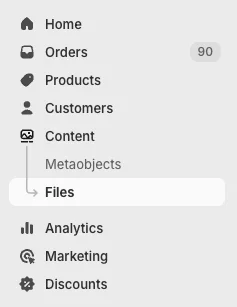
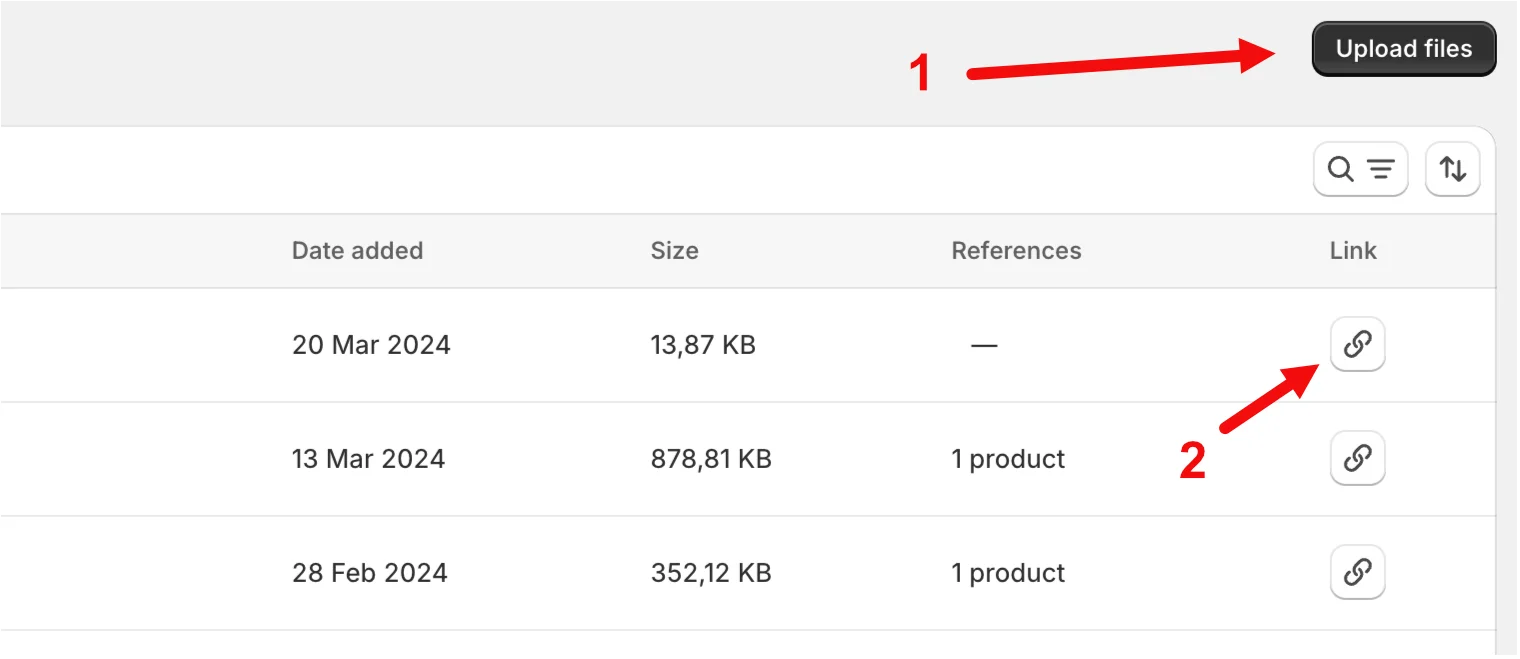
In your Shopify admin, go to ContentFiles and click Upload files. The files link in the field's help text takes you there.
Copy the link
Click the link icon next to the uploaded file to copy its URL.
Paste it into EliteCart
Paste the URL into Trust badge image URL. A width of 816px is recommended.
Set the height
Adjust Height in pixels (default 32) until the badge looks right in the preview, then click Save.
Files uploaded to Shopify load fast, because Shopify serves them from its global network. Like the texts, the image URL can differ per language, so you can show a badge with translated text.
Tips
- Use one or two elements, not all three at once, so the area under the checkout button stays calm.
- Only show promises you keep, such as a guarantee you actually offer.
Need more?
The card Looking for a more advanced trust area? points to two options: build your own section with images and links in Custom HTML, or add a review widget through Integrations, for example Trustpilot.
Still stuck?
Chat with us and we'll help you get your cart live. Or email contact@elitecart.app.