
Understanding your EliteCart analytics
What each number on the EliteCart Analytics page means: upsell and addon revenue, sources, indirect upsells, date ranges and the 60-minute delay.
Last updated
The Analytics page shows how much revenue your upsells and addons bring in, where in the store customers added them, and which EliteCart features you could still turn on. This article explains each part of the page and how the numbers are counted.
Open it with Analytics in the EliteCart menu.
Choose a date range
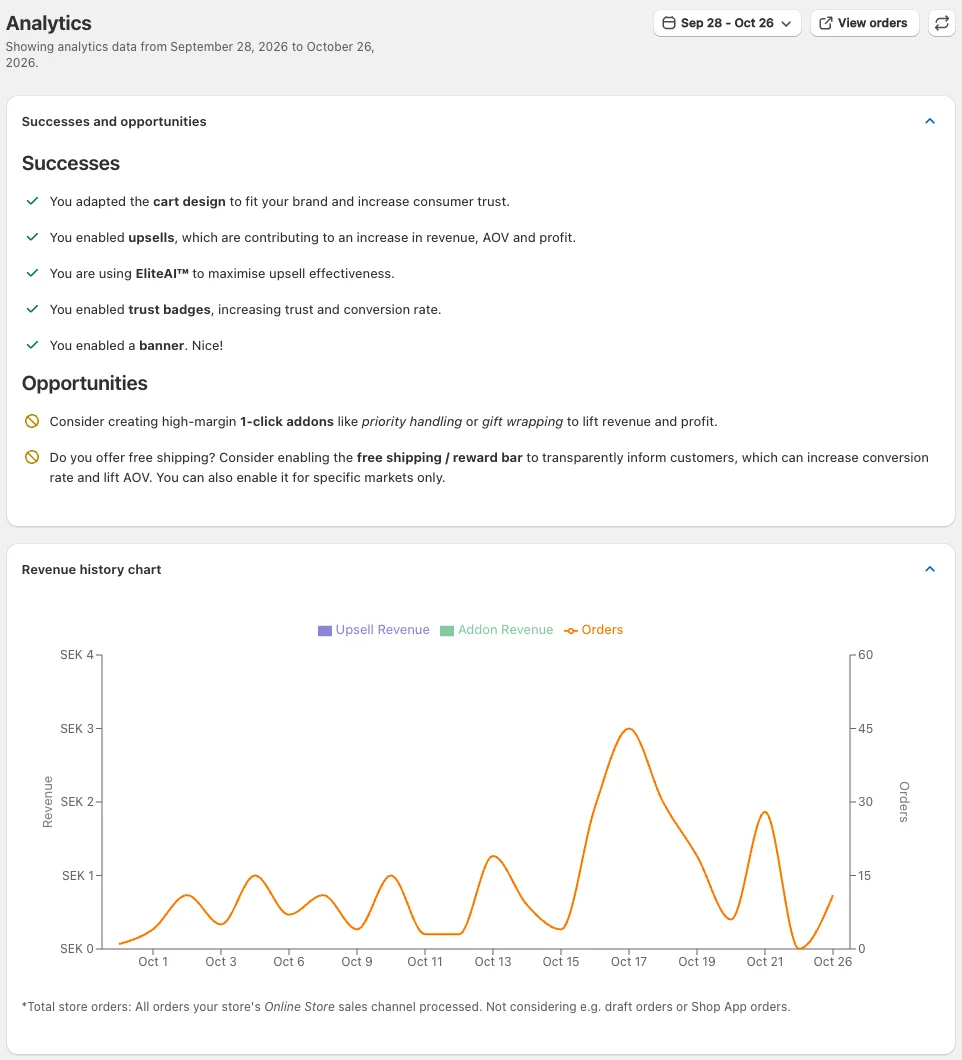
The page opens with the last 30 days, ending yesterday. Click the date range button at the top to pick Today, Yesterday, Last 7 days, Last 30 days, Last 90 days or All time, or select a custom range in the calendar and click Apply. The line under the page title confirms the range you're looking at ("Showing analytics data from ... to ...").
- Days follow your Shopify store's time zone.
- Analytics start when your EliteCart plan started. Earlier dates can't be selected, and All time begins on that day.
- The reload button next to the title fetches the latest numbers without reloading the page.
Successes and opportunities
This card lists the EliteCart features you already use (Successes) and those you haven't turned on yet (Opportunities): a customized cart design, upsells, EliteAI™, 1-click addons, the reward bar, trust badges and the announcement banner. When everything is in place, it says "You have implemented all our recommendations."
Revenue history chart
The chart shows one bar per day for Upsell Revenue and Addon Revenue (stacked, left axis) and a line for Orders (right axis). Upsell revenue here includes indirect upsells.
Orders are total store orders: all orders your store's Online Store sales channel processed, not only orders with an upsell. Draft orders and Shop App orders, for example, are not included.
Upsells
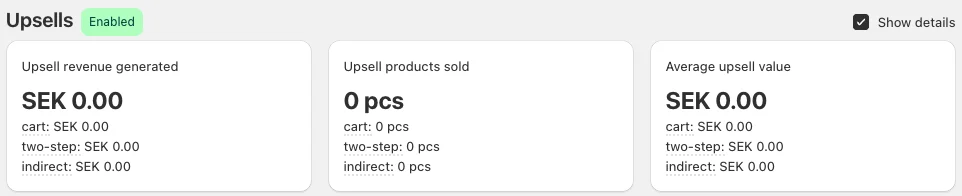
The Upsells section has a badge: Enabled if you use upsells, Opportunity if not. Its three cards:
| Card | What it shows |
|---|---|
| Upsell revenue generated | Revenue from upsell products in orders placed in the range, including indirect upsells |
| Upsell products sold | Number of upsell items sold, plus "sold in X orders (Y% of all orders)" |
| Average upsell value | Upsell revenue divided by upsell items sold |
Where customers added upsells
Tick Show details to split each card by source:
- cart: upsells added from the cart drawer or cart page.
- two-step: upsells added from the two-step cart.
- product page: upsells added from the product page (only shown when there are any).
- checkout: upsells added inside the Shopify checkout, from the checkout block module and the per-line popover (only shown when there are any).
- indirect: see below.
Source data exists from February 8, 2026. If your range starts earlier, a warning reminds you that the days before don't have a per-source split.
Indirect upsells
Indirect upsells are upsells added from the product page within a short time after being seen in the cart. For example, a customer sees a product in your cart's upsells, opens its product page and adds it to the cart there.
Their revenue is weighted by how quickly that happened:
- Added within 60 seconds: counted 100%.
- Between 60 seconds and 5 minutes: the share drops evenly from 100% to 0%.
- After 5 minutes: not counted as an upsell.
So an indirect upsell added after 3 minutes counts at 50% of its value in Upsell revenue generated. Upsell products sold counts each indirect item in full.
Addons
The Addons section works the same way for 1-click addons: Addon revenue generated, Addon products sold (with "sold in X orders (Y% of all orders)") and Average addon value.
Other
- Shipping bar and Trust badges show an estimated revenue contribution. It's a fixed percentage of the order value your store processed in the range, not measured per order. If the feature is off, the card shows the Estimated possible revenue and an Opportunity badge.
- Orders processed is the number of Online Store orders in the range.
How revenue is counted
- An item counts as an upsell or addon when the customer added it through EliteCart. EliteCart marks those cart lines, so buying the same product in another way doesn't count.
- Revenue is the item price times quantity, minus the discounts on that item, in your store currency. Shipping is not included.
- Only orders from your Online Store sales channel count.
- New orders appear with a delay: "Data may be delayed by up to 60 minutes."
For why these numbers can differ from your Shopify reports, see Why EliteCart revenue differs from Shopify.
See the orders in Shopify
View orders at the top opens your Shopify orders, searched for "EliteCart". EliteCart tags orders that contain an upsell (direct or indirect) with EliteCartUpsell, an addon with EliteCartAddon and a free gift with EliteCartGift, so you can also filter your orders by these tags.
Still stuck?
Chat with us and we'll help you get your cart live. Or email contact@elitecart.app.