
Activating EliteCart in a theme copy
Learn how to activate and deactivate EliteCart in a Shopify theme
Last updated
Why activate EliteCart on a theme copy first?
Before diving into the activation process, it's important to understand why you might want to activate EliteCart on a theme copy. Here are a few reasons:
- Testing: Activating EliteCart on a theme copy allows you to test and customize its features without affecting your live store.
- Development: It’s an excellent practice for developers to make changes in a theme copy to ensure stability before going live.
Step-by-step guide
-
Access your Shopify admin
Log in to your Shopify admin dashboard to start the process.
-
Navigate to themes
In your Shopify admin, go to Online Store > Themes. Here, you’ll find your current live theme and any theme copies you’ve created.
-
Create a theme copy
On your main theme, click the ... dropdown, then click "Duplicate".
-
Identify your theme copy
Locate the theme copy where you want to activate EliteCart. It's usually labeled with the theme name followed by copy or a custom name you've given it.
-
Open theme customizer
- Click on Customize to open the Theme Customizer
-
Activate EliteCart
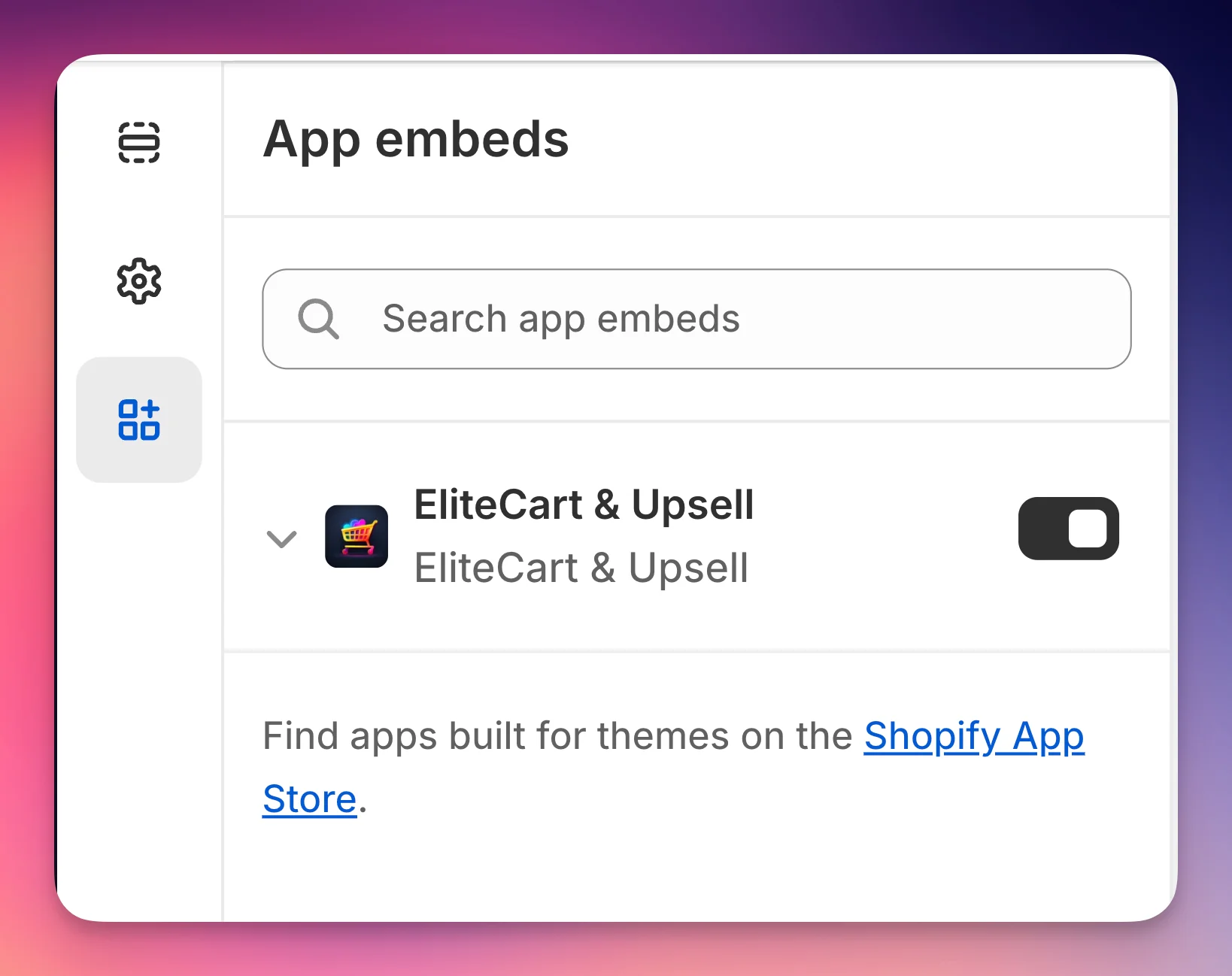
On the most left-hand side menu, find the App Embed section (marked in blue below), then activate EliteCart & Upsell.
-
Save changes
- Click Save. This action activates EliteCart functionalities on your theme copy.
-
Preview and test
- Use the Preview option available next to the Actions dropdown to see EliteCart in action on your theme copy.
You can refer to our test guide to see how to test your theme for compatibility.
Still stuck?
Chat with us and we'll help you get your cart live. Or email contact@elitecart.app.