
Checkout Line Item Upsells
Show pairing recommendations on every cart line at checkout
Last updated
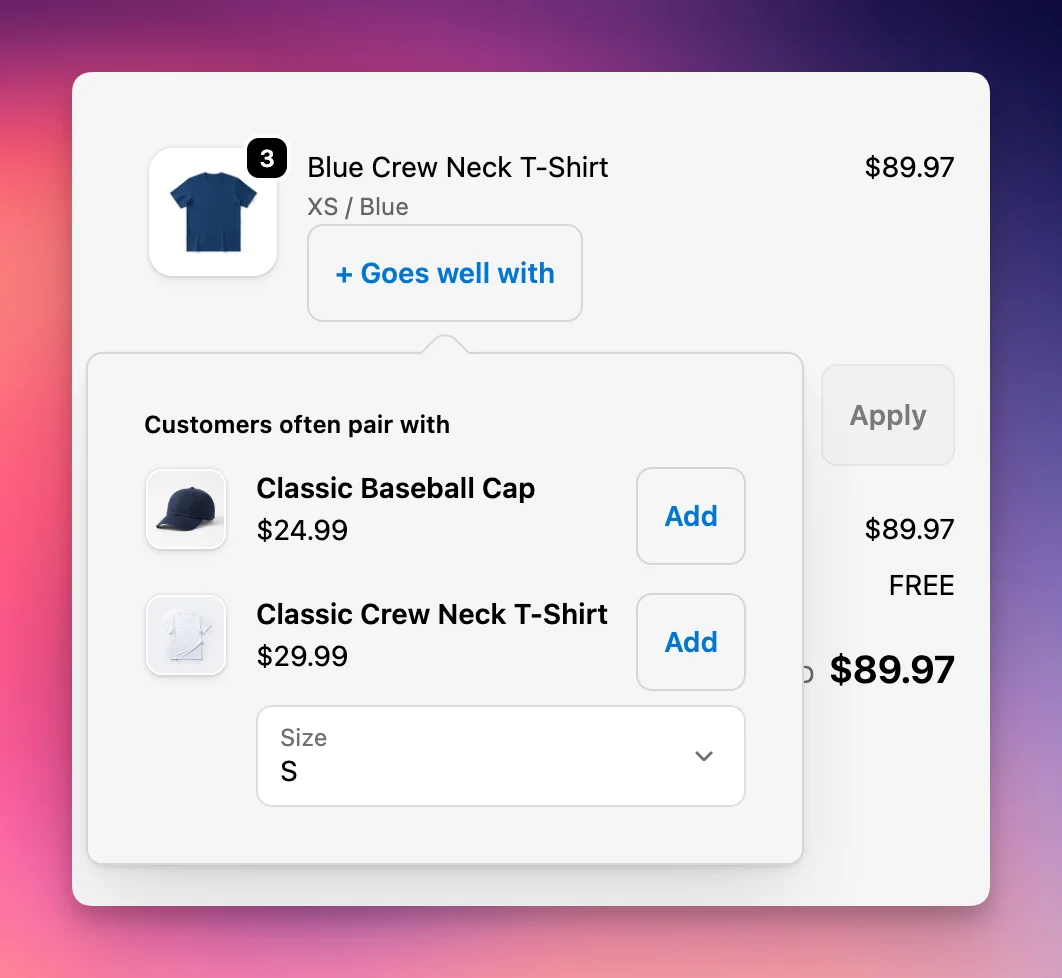
Line Item Upsells adds a small button next to each product in the checkout cart. Tapping it opens a popover with up to three pairing recommendations for that specific product, so shoppers can add a match without leaving checkout.
Requirements
- Shopify Plus
- EliteCart Professional plan or higher
There is only one Line Item Upsells module per store - it applies to every cart line automatically.
Set it up
1. Create the module
- In EliteCart, go to Checkout → Create module.
- In Add a checkout module, choose Line item upsells and click Create module.
Info: You can only have one Line item upsells module. If it already exists, open the existing one to edit it.
2. Configure it
The editor has two tabs: Features and design and Upsell setup.
- Set an Internal name and set Status to Active.
- Under Strategy, choose EliteAI™ Ultra, Upsell flows, or Hybrid: Flows + AI.
- If you use flows, open Upsell setup and Add flow to define which products pair with what. The first matching flow wins.
- Set the Trigger button label - the short text on the small button shown next to each cart line. Keep it short; the popover heading carries the rest of the message.
- Click Save.
3. Enable it in checkout
- Click Open checkout editor (or in Shopify admin go to Settings → Checkout → Customize).
- Enable the Line Item Upsells extension's per‑line‑item slot.
- Save. The popover renders automatically on every cart line once the slot is on - there is no Module ID to copy.
The status banner on the module page confirms when the slot is enabled.
Key settings
- Strategy - AI, your own flows, or a hybrid of both.
- Trigger button label - the text on the per‑line button (keep it short).
- Texts - Trigger button label, Heading, Subheading, and CTA button label. A separate Savings section holds the Savings label (use
{amount}for the saved amount). Translate these in Language & translations. - Display - the popover shows up to 3 products in a stacked list.
- AI enhancements (shown with the Upsell flows or Hybrid: Flows + AI strategy) - Smart Insert, Smart Boost, and Smart Extend refine flow results.
Tip: Build flows around genuine pairings - a case for a phone, refills for a device - so the per‑line suggestion feels relevant to the exact product the shopper is buying.
Test
- Save the module and the checkout editor.
- Add a product that has a matching flow to the cart.
- Proceed to checkout and confirm the trigger button appears next to that cart line.
- Tap it, add a recommended product, and verify it lands in the order.
Still stuck?
Chat with us and we'll help you get your cart live. Or email contact@elitecart.app.