
Create custom product fields for line item properties
Collect engraving text, gift messages or other custom input on the product page and pass it through EliteCart to checkout and the order.
Last updated
Custom product fields let shoppers enter extra information on the product page, for example an engraving text, a print name or a gift message. EliteCart adds what they enter to the cart line as line item properties, which then appear at checkout and on the order.
You have two options: use a product options app, or add the fields to your theme's Liquid code yourself.
Option 1: use a product options app
Product options apps add these fields without code. EliteCart works with them; for some there's a setting to turn on:
Option 2: add fields in your theme's Liquid code
The name attribute
When a product is added to the cart, EliteCart reads every field of the product form. Each field whose name has the format properties[Name] becomes a line item property called Name. This is the standard Shopify format. A data-name attribute is ignored, so the format must be in name.
<div class="custom-field">
  <label for="engraving">Engraving text:</label>
  <input type="text" id="engraving" name="properties[Engraving]">
</div>
Place the field in the product form
The field must belong to the product form, or EliteCart won't see it. Put it inside the <form> element:
<form action="/cart/add" method="post" enctype="multipart/form-data" id="product-form">
  <input type="hidden" name="id" value="{{ product.selected_or_first_available_variant.id }}">

  <div class="custom-field">
    <label for="engraving">Engraving text:</label>
    <input type="text" id="engraving" name="properties[Engraving]">
  </div>

  <button type="submit">Add to cart</button>
</form>
Or, if it sits elsewhere on the page, link it to the form with the form attribute and the form's ID:
<input type="text" id="engraving" name="properties[Engraving]" form="product-form">
Other field types
<select id="wrapping" name="properties[Gift wrap]">
  <option value="None">None</option>
  <option value="Classic">Classic</option>
</select>

<label>
  <input type="checkbox" name="properties[Rush order]" value="Yes"> Rush order
</label>
A checkbox only adds its property when it's ticked.
Make a field required
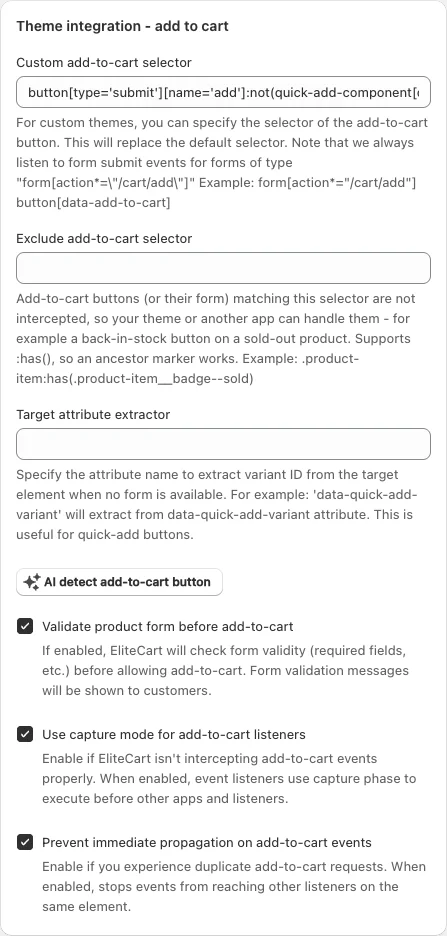
Add the required attribute to the field, then turn on Validate product form before add-to-cart at Cart designerOtherAdvanced in the Theme integration - add to cart section. EliteCart then only adds the product once all required fields are filled in, and the browser shows its message for the missing field.
Show or hide properties in the cart
Whether properties are shown on the cart line is set with Product properties at Cart designerDesignProduct display. They reach checkout and the order either way.
Test it
Fill in the field
Open a product page, fill in your custom field and add the product to the cart.
Check the cart
Open EliteCart and check the property on the cart line.
Check checkout
Go to checkout and check that the property is listed with the product.
Still stuck?
Chat with us and we'll help you get your cart live. Or email contact@elitecart.app.