
Reward conditions, markets and schedules
Show a reward only in some countries, to some customers or at certain times, with the Shopify Markets, Conditions and Schedule cards.
Last updated
Each reward can be limited to certain countries, customers or times. A reward that doesn't match isn't just hidden from the bar: it doesn't apply at all, so the gift isn't added and the discount isn't given.
You find three cards in each reward's settings, under Cart designerFeaturesRewards on the Rewards tab:
- Shopify Markets: different thresholds per country, or hide the reward in some countries.
- Conditions: rules about the customer and the cart.
- Schedule: days, times and dates.
A reward must pass all of its cards to apply: it must be enabled, inside its schedule, match its conditions and be allowed in the customer's country. In the reward list, the globe, filter and calendar icons turn green when a card is active.
Shopify Markets
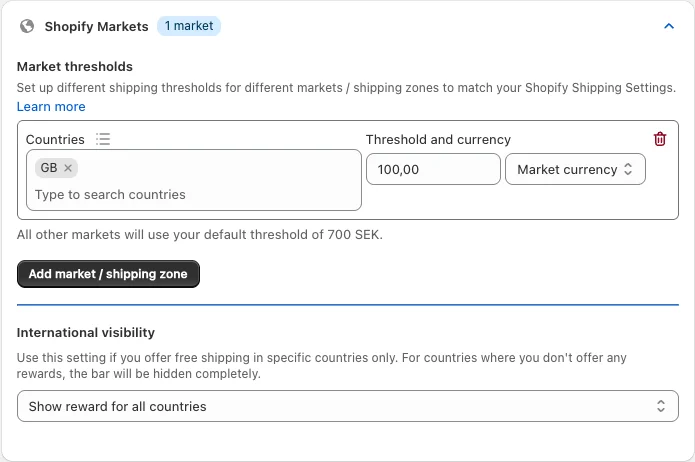
Use this card to set thresholds per country and to limit where the reward shows. It isn't available for Discount (legacy) rewards ("Not available for discounts"), because Shopify's own discount applies store-wide.
Market thresholds: click Add market / shipping zone (shipping rewards) or Add market (other rewards), pick the Countries and enter the Threshold and currency. Choose Store currency to have the amount converted for the customer, or Market currency to use the amount as-is in the customer's currency. All other countries use the reward's default threshold.
International visibility: choose one option.
- Show reward for all countries
- Show reward for all countries, except as specified below: then pick countries under Don't show reward for.
- Show reward for specific countries only: then pick countries under Only show reward for.
The country pickers have presets for EU Countries, EEA, North America, DACH, Nordic, UK & Ireland and Oceania, limited to countries you ship to. A full shipping example is in Shipping thresholds for multiple markets.
Conditions
Conditions are checked in the customer's browser while they shop.
Open Conditions
Expand the Conditions card of the reward.
Pick the logic
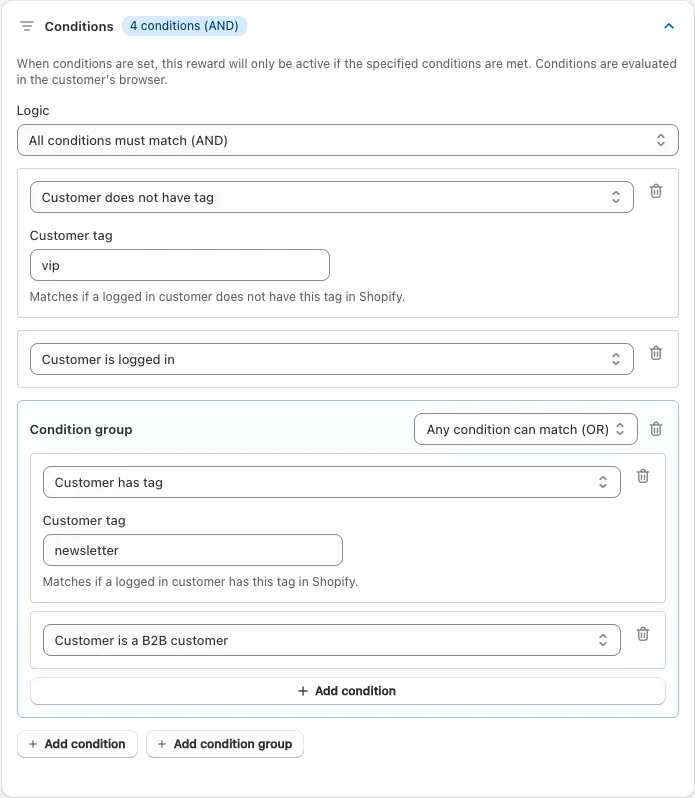
Choose All conditions must match (AND) or Any condition can match (OR).
Add conditions
Click Add condition, pick a Condition type and fill in its value.
Save
Click Save.
| Condition type | Matches when |
|---|---|
| Customer is logged in / Customer is not logged in | The customer is or isn't signed in. |
| UTM parameter equals, does not equal, contains, does not contain | A UTM parameter (utm_source, utm_medium, utm_campaign, utm_term or utm_content) from the link the customer came through. The value is remembered for 72 hours. |
| Product is in cart / Product is not in cart | Selected products are or aren't in the cart. "Is in cart" has a Minimum quantity in cart. |
| Collection is in cart / Collection is not in cart | A product from the selected collections is or isn't in the cart, with an optional Minimum quantity in cart. |
| Customer has tag / Customer does not have tag | A logged-in customer has the Shopify customer tag, for example VIP. Guests never match "has tag". |
| Customer is a B2B customer / Customer is not a B2B customer | The customer is signed in to a Shopify B2B company account. Guests count as not B2B. |
To mix AND and OR, click Add condition group: the group gets its own Group logic. You can add up to 5 conditions or groups, and up to 5 conditions per group.
A condition without a value, for example a tag condition with no tag, is ignored. After you save, the card warns "Some conditions are not finished" and marks each unfinished row. If all conditions are unfinished, the reward applies to everyone.
For Discount (legacy) rewards, UTM conditions aren't available, and conditions only affect the bar: the discount itself is applied by Shopify under the rules you set there. Discount (advanced) rewards support every condition type.
Schedule
Open Schedule
Expand the Schedule card of the reward.
Add a rule
Click Add schedule rule and pick the days of the week.
Narrow it down
Optionally add time ranges (24-hour) and a date range.
Save
Click Save.
You can add up to 3 rules per reward; the reward is active when any rule matches. Times use your shop's time zone. The card header shows the number of rules and whether the reward is Currently active or Currently inactive.
Examples: Saturday and Sunday all day for weekend free shipping, or December 1 to 24 for a holiday gift.
Rewards in the checkout reward bar
If you also show rewards in checkout with the Reward bar checkout module (Shopify Plus), rewards with a customer tag or UTM condition are left out there, because checkout can't read tags or UTM parameters. They still work in the cart. A gift already added in the cart stays.
Still stuck?
Chat with us and we'll help you get your cart live. Or email contact@elitecart.app.