
Checkout upsells (Upsell block)
Recommend products on the Shopify checkout page with the Upsell block, using EliteAI, your own flows or both, to lift order value before payment.
Last updated
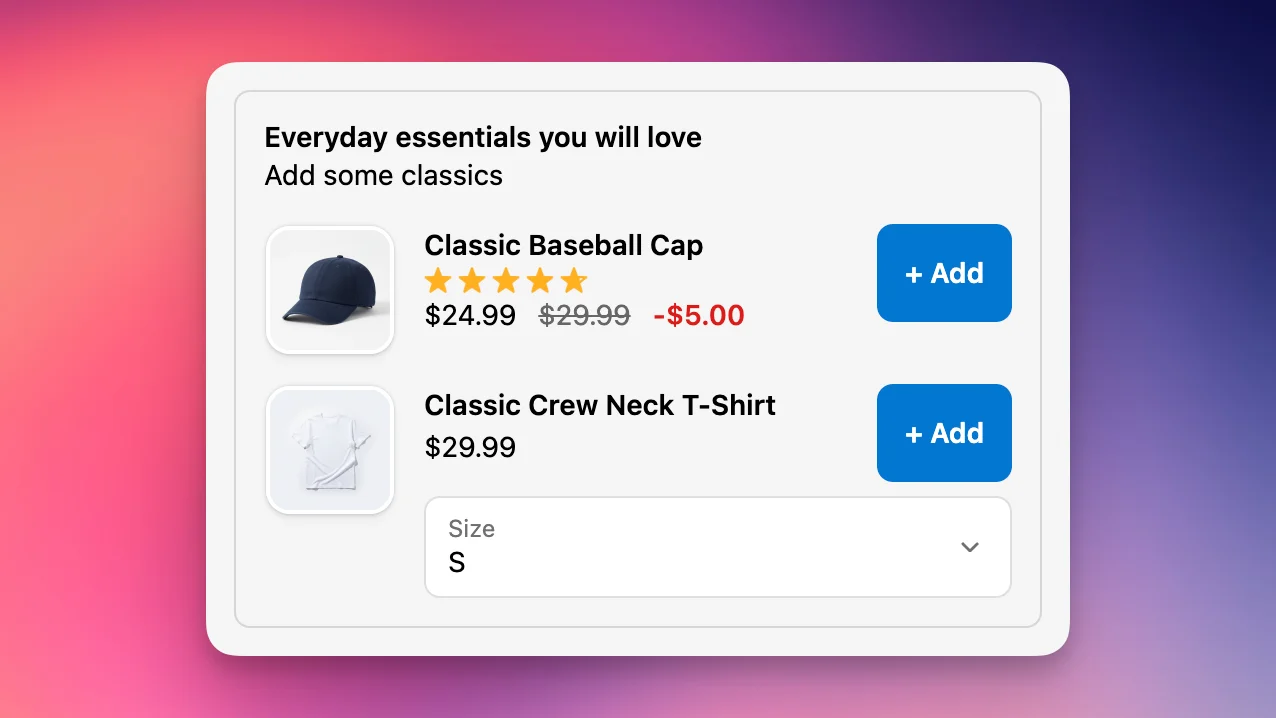
The Upsell block shows product recommendations on Shopify's checkout page, so shoppers can add one more item before they pay. You can place several blocks in different checkout spots, each bound to its own module. This guide takes you from creating the module to testing it.
Set up the Upsell block
Create the module
In EliteCart, go to Checkout and click Create module. Choose Upsell block and click Create module.
Name and activate it
On the Features and design tab, switch on the Status toggle and give the module an Internal name (only shown in the admin), such as "Order summary - accessories".
Choose how products are picked
Open the Upsell setup tab and pick a Strategy:
- EliteAI™ Ultra: AI-powered recommendations, no setup needed.
- Upsell flows: only the products you pick in your checkout flows.
- Hybrid: Flows + AI: your flows run first, AI fills the gap when no flow matches.
Design the block
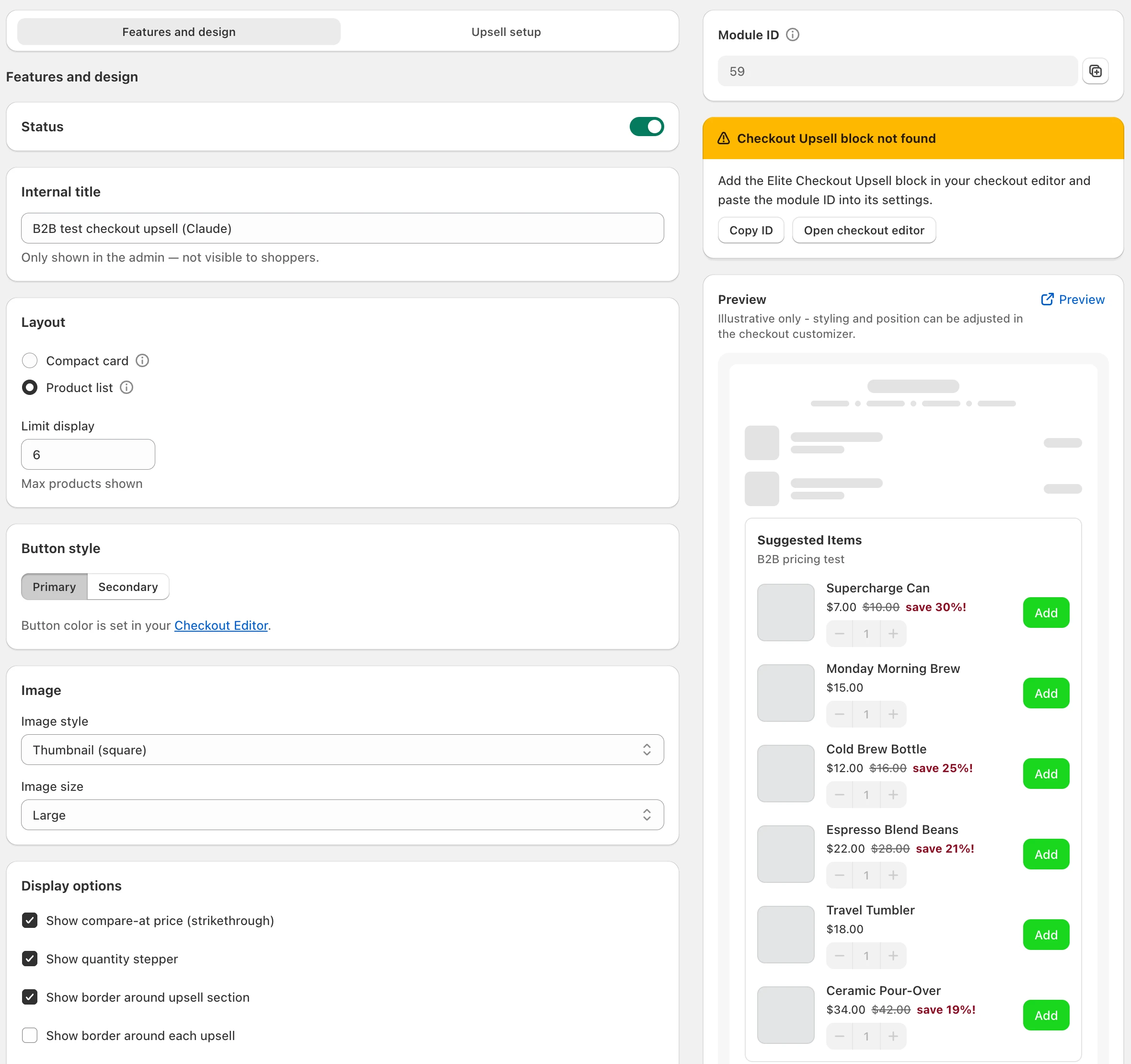
Back on Features and design, choose the layout, styles and texts (see the settings below), then click Save.
Copy the Module ID
In the Module ID card on the right, click Copy ID.
Place the block in checkout
Click Open checkout editor. Add the EliteCart Upsells block where you want it, paste the ID into its Module ID setting and save the checkout editor.
To show upsells in more than one spot, create a module for each spot and bind each block to its own Module ID.
Settings on the Features and design tab
| Setting | What it does |
|---|---|
| Layout | Compact card shows one product, best for tight spots like the order summary. Product list shows stacked rows. |
| Limit display | With Product list: the most products shown, up to 6. |
| Button style | Primary or Secondary. The color comes from your checkout editor branding. |
| Image | Image style (Hidden, Thumbnail (square) or Natural (original aspect ratio)) and Image size (Small, Medium, Large). |
| Display options | Show compare-at price (strikethrough), Show border around upsell section, Branded headline color. With Product list also Show quantity stepper and Show border around each upsell. |
| Savings | Show savings amount, the Savings label and the Savings text color (Red, Green or Default). |
| Product reviews | Enable product reviews shows star ratings, Show review count next to stars adds the count. |
| Texts | Heading, Subheading, CTA button label, and with Compact card a Description. |
In the Savings label, use {amount} for the money saved or {percentage} for the discount percentage, for example Save {amount} or -{percentage}.
Every text has its own translations: click the language icon next to the field. There is no English fallback: a text without a translation for the shopper's language doesn't show (only the savings label falls back to a built-in default). Translate every field you use.
Settings on the Upsell setup tab
| Setting | When it shows | What it does |
|---|---|---|
| Upsell flows | Upsell flows and Hybrid | Your checkout flows, in priority order. See Checkout flows. |
| AI enhancements | Upsell flows and Hybrid | Smart Insert adds a strong AI pick to a flow, Smart Boost brings the products most likely to convert to the front, Smart Extend keeps short flows full with well-matched AI picks. |
| AI recommendations | EliteAI™ Ultra and Hybrid | The Recommendation source (below). |
Recommendation source options:
- Bestsellers: your store's top-performing products, the same for every cart.
- EliteAI™ Ultra Original: learns from your orders what customers love to buy together with what's in the cart.
- EliteAI™ Ultra CrossCategoryBoost: surfaces complements from other departments of your catalog. Works best when your products have a Shopify product type.
- Your own fine-tuned engines, listed by name. Use or create a fine-tuned version to build one with filters and boosts. See Fine-tuning EliteAI Ultra.
If the AI hasn't been trained for your store yet, you see "Recommendations for your store haven't been trained yet." Training starts when you save and usually finishes within an hour. Recommendations then appear automatically.
Test the block
Add a product to the cart
Open your store and add a product that should trigger a recommendation.
Go to checkout
Confirm the recommendation appears where you placed the block.
Add the upsell
Click the add button and check that the product lands in the order at the right price.
B2B buyers see their company's catalog prices and quantity rules in the block, and products outside their catalog are hidden.
Still stuck?
Chat with us and we'll help you get your cart live. Or email contact@elitecart.app.