
Install EliteCart and turn it on in your theme
Go from install to a live cart in four steps - design, upsells, free trial and activation. No theme code changes, and you can switch it off anytime.
Last updated
This guide takes you from installing EliteCart to a live cart in your store. The Get started checklist on the app's Home page walks you through the same four steps, and you can stop at any point and come back later.
Install EliteCart
Open EliteCart in the Shopify App Store
Go to EliteCart on the Shopify App Store and click Install.
Approve the permissions
Shopify shows which store data the app needs. Confirm to finish the installation.
Open the app
EliteCart opens automatically after installing. Later, you find it in your Shopify admin under Apps → EliteCart & Upsell.
Work through the Get started checklist
The Get started checklist on Home shows how many steps you've completed. Click a step to open it.
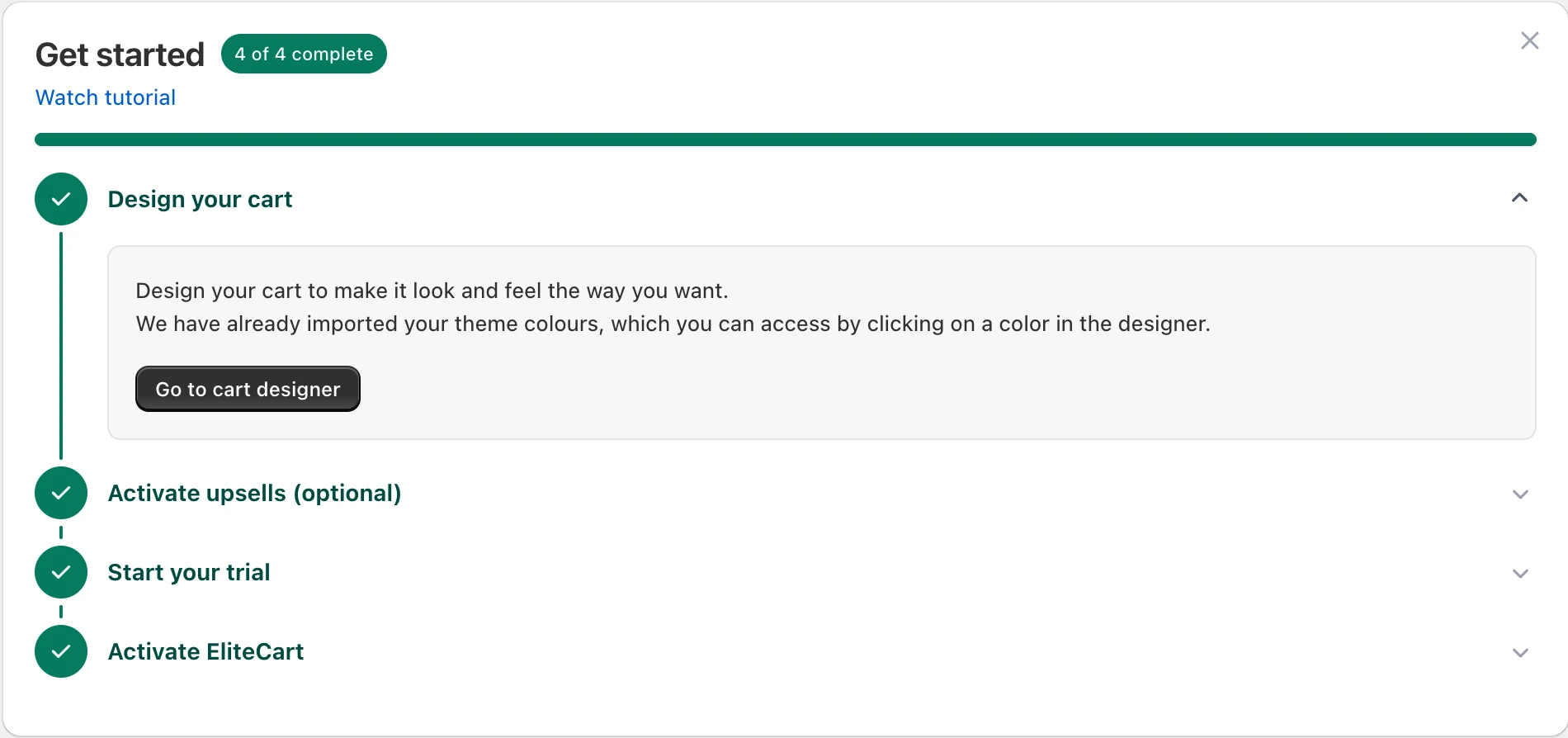
Design your cart
Click Go to cart designer and make the cart look the way you want. We have already imported your theme colours: click on any color in the designer to pick one of them.
Activate upsells (optional)
By default, EliteAI™ shows upsells to your customers automatically. If you want more control, click Go to upsells to create your own upsell flows, and adjust how upsells look in the Cart designer. See Create your first upsell flow.
Start your trial
Click View plans and pick a plan. You need a plan before you can activate EliteCart in your theme. Essentials and Professional come with a 15-day free trial: if you cancel within the trial, you aren't charged. Shopify Partner development stores have free access and don't need to subscribe. Details in Plans, free trial and billing.
Activate EliteCart
Click Activate EliteCart and choose how you want to go live (see the next section).
Activate EliteCart in your live theme
Activate EliteCart opens a window with two options:
- Activate EliteCart in live theme: opens the theme editor of your live theme with the EliteCart & Upsell app embed already switched on. Click Save in the top right of the theme editor. That's all; most themes work right away.
- Request activation assistance: opens a chat with our team, and we set up and test EliteCart in your theme for you. The service is free, we typically respond within 24 hours, and we speak English, German and Swedish.
Confirm that EliteCart is live
Back on Home, the EliteCart Status card shows EliteCart active on theme once the app embed is on in your live theme. The status refers to your live theme only, so a theme copy shows EliteCart not active on theme even when the embed is on there.
Then open your store, add a product to the cart and check that EliteCart opens. For a full 3-minute test, see Check that everything works as intended.
Once EliteCart is active, the card shows Manage theme extension (opens the theme editor again) and Request help (opens a chat with our team).
Deactivate EliteCart or go back to your old cart
EliteCart doesn't modify your theme code. To go back to your theme's original cart:
Open the theme editor
In Shopify, go to Online StoreThemes and click Customize on the theme. Or click Manage theme extension on the EliteCart Home page.
Switch off the app embed
Click App embeds in the left sidebar and switch off EliteCart & Upsell.
Save
Click Save. Your store shows the theme's original cart again right away.
Switching off the app embed doesn't cancel your plan. To stop billing, see Change or cancel your plan.
Still stuck?
Chat with us and we'll help you get your cart live. Or email contact@elitecart.app.