
Checkout text block
Show a short message on the Shopify checkout page, like a shipping cutoff or return promise, as plain text, a card or a colored banner.
Last updated
The Text block module shows a short message of your own right on Shopify's checkout page, such as a shipping cutoff, a return promise or a holiday notice. Add an optional headline and link, and show it as plain text, a card or a colored banner.
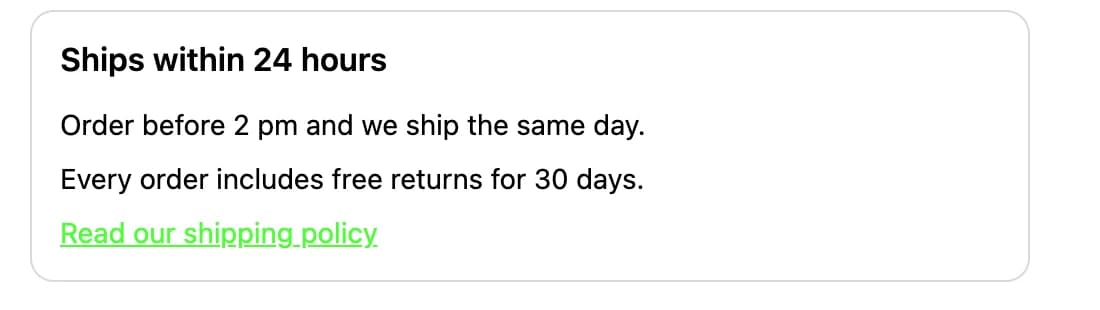
Set up the Text block
Create the module
In EliteCart, go to Checkout and click Create module. Choose Text block and click Create module.
Name and activate it
Switch on the Status toggle and give the module an Internal title (only shown in the admin), such as "Shipping promise".
Write your message
Under Headline, type the line shown above your message, such as "Ships within 24 hours", or leave it empty to hide it. Under Content, type your message in Text. To add a link, fill in Link text and Link URL (see below).
Pick a style
Under Style, choose Plain, Card or Banner (see Styles below), then click Save. The preview on the right updates as you type.
Copy the Module ID
In the Module ID card, click the copy button.
Place the block in checkout
Click Open checkout editor. Add the EliteCart Text Block where you want it, paste the ID into its Module ID setting and save the checkout editor.
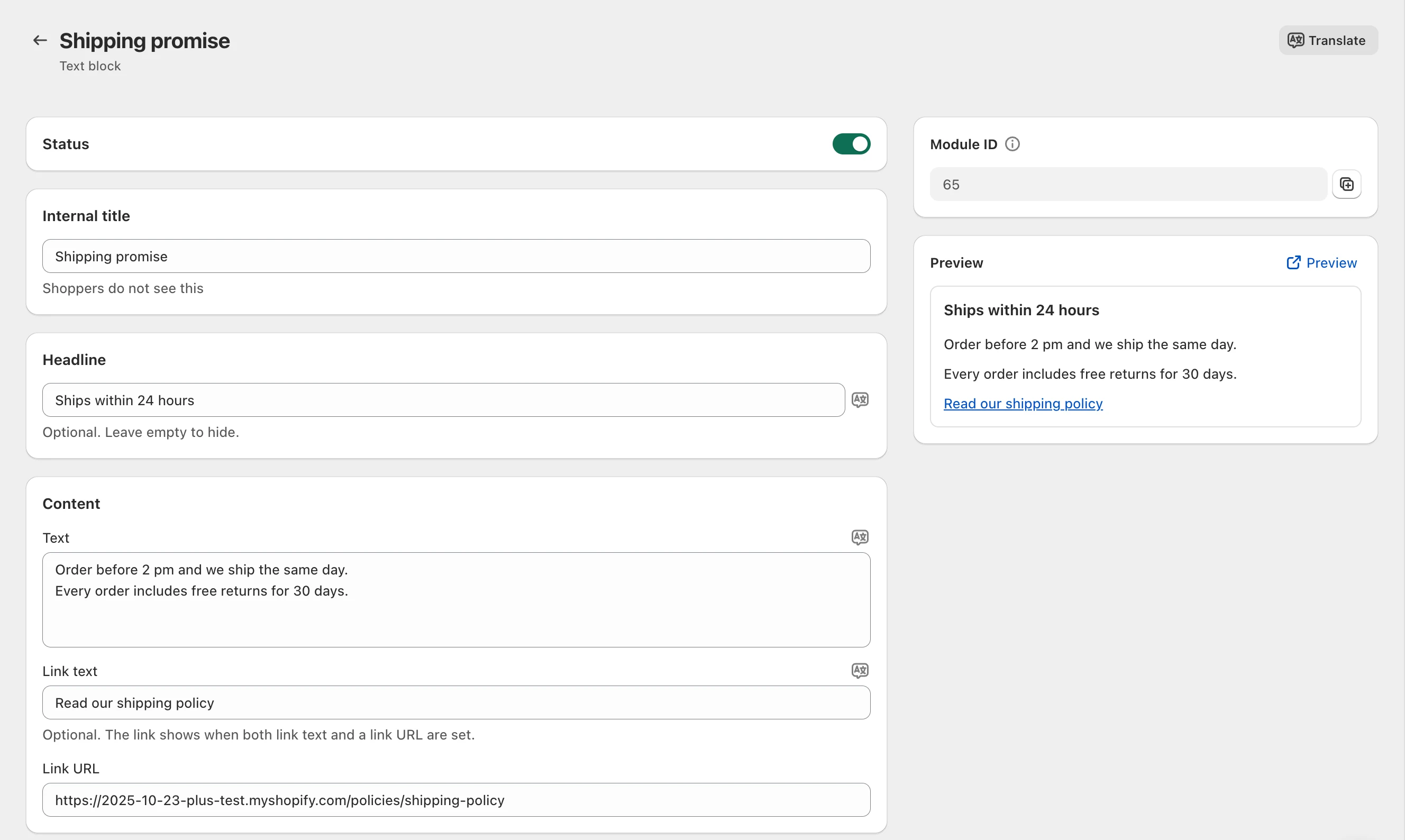
Text and link
- Text is plain text. Each line shows as its own paragraph.
- The link shows below your text and opens in a new tab. It shows only when both Link text and Link URL are set.
- Link URL takes a full web address, such as
https://example.com/policies/shipping-policy.
Keep the message short and useful right before payment. Ideas that work well:
- Shipping cutoffs: "Order before 2 pm and we ship the same day."
- Return promises: "Free returns for 30 days, no questions asked."
- Holiday notices: "Order by December 18 for delivery before Christmas."
Styles
- Plain: the headline and text without a box, so the message blends into the checkout.
- Card: the headline and text inside one bordered box.
- Banner: a colored checkout banner with the headline as its title. Pick the Banner color: Info, Success, Warning or Critical. Shopify shows Info in a neutral grey at checkout.
Translate your text block
The headline, text and link text are translated per language. The link URL stays the same in every language.
- If your store sells in more than one language, click Translate at the top of the module page to translate everything side by side. Pick the Language, click AI translate empty fields (or AI retranslate all), check the text, click Apply translations and save the module.
- To translate a single field, click the language icon next to it.
The block shows in a language only when it has a headline or text in that language. In a language you haven't translated, shoppers see nothing, so you can also show a message to one language only, such as a local holiday notice.
Checks in the checkout editor
Shopify's checkout editor shows a notice on the block when it can't show anything yet. Shoppers never see these notices.
| Notice | What to do |
|---|---|
| "EliteCart: Module ID required" | Paste the Module ID into the block's settings. |
| "This ID belongs to a different module type." | Paste the ID of a Text block module. Each module type has its own block. |
| "No active EliteCart module has this ID." | Check the ID, and switch on the module's Status in EliteCart. |
| "This module has no text in this language yet." | Add a headline, text or translations for the language the editor previews. |
Test it
Go to checkout
Add any product to the cart and go to checkout.
Check the block
Confirm your message shows where you placed the block, in the style you picked. Click the link to check it opens the right page.
Check other languages
Switch the store language and confirm the translated message shows.
Still stuck?
Chat with us and we'll help you get your cart live. Or email contact@elitecart.app.