
Globo Product Options
Keep Globo's required options enforced while the EliteCart drawer is active, with one exclude selector.
Last updated
Globo Product Options lets you add custom options, swatches, text fields and paid add-ons to your products, and mark options as required. EliteCart works with Globo out of the box. If you use required options, add one selector so EliteCart doesn't add the product before Globo has checked them.
Why this matters
Globo doesn't use the browser's built-in check for required fields. While a required option is still empty, it hides your theme's add-to-cart button and shows its own copy in its place. Clicking that copy shows Globo's "please choose an option" message.
EliteCart catches add-to-cart clicks so it can add the product and open the drawer, and by default that includes Globo's copy of the button. The product is added first, and Globo's warning only appears afterwards. The selector below tells EliteCart to leave that button alone.
What you need
- Globo Product Options with at least one required option
- EliteCart on any plan
Add the exclude selector
Open the Advanced settings
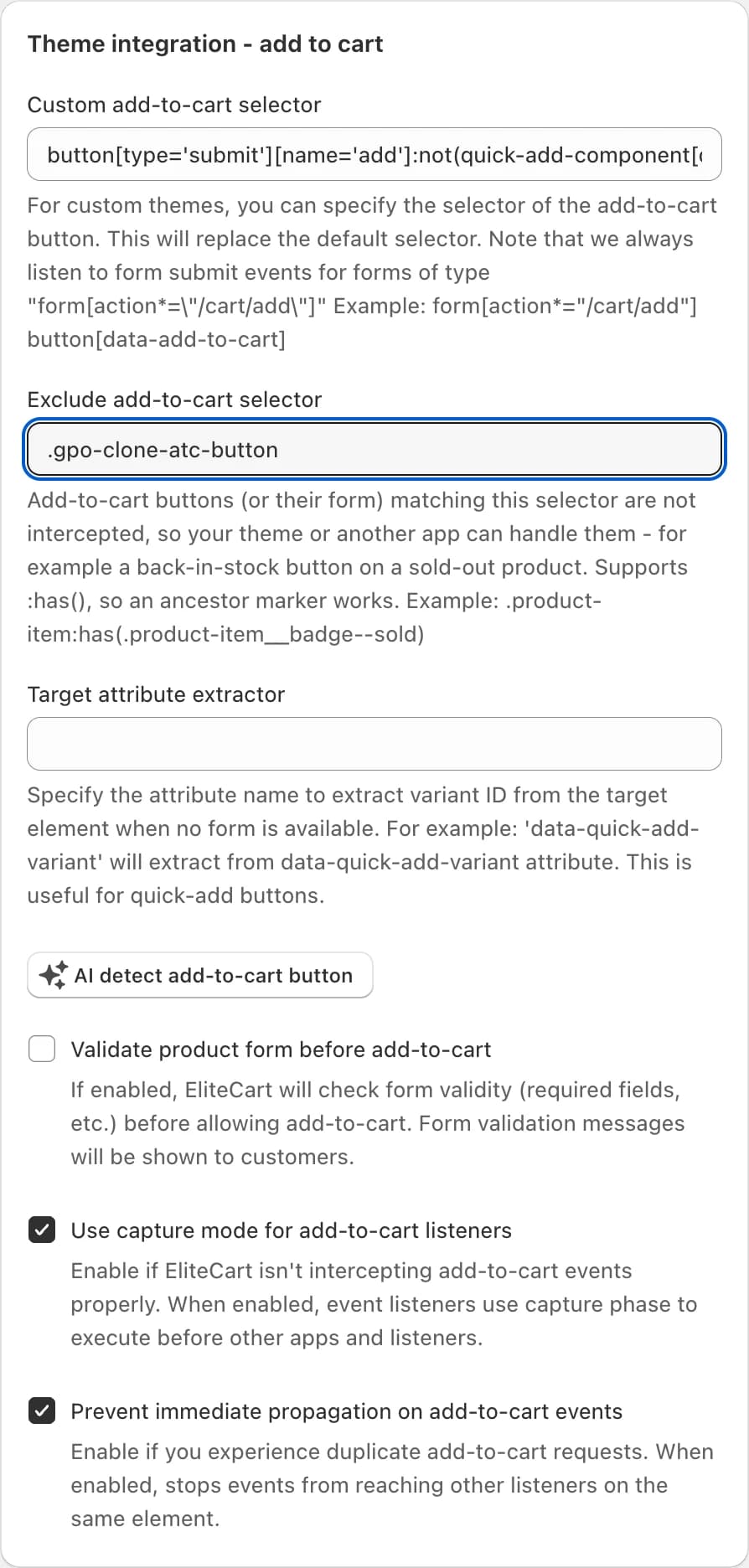
In EliteCart, go to Cart designerOtherAdvanced and scroll to the "Theme integration - add to cart" card.
Enter the selector
In Exclude add-to-cart selector, enter
.gpo-clone-atc-button. If the field already has a value, add it after a comma, for example.my-existing-selector, .gpo-clone-atc-button.Save
Click Save. Nothing changes inside Globo.
.gpo-clone-atc-button
Test it
Leave a required option empty
In a private browser window, open a product with a required Globo option, leave it empty and click add to cart. Globo's warning should appear, the drawer should stay closed and nothing should be added.
Fill it in
Fill in the option and add to cart again. The product should land in the cart with its options, and the EliteCart drawer should open.
Good to know
- The selector only matches Globo's stand-in button, which exists only while a required option is empty. Once it's filled in, Globo puts your theme's button back and EliteCart handles the add as usual.
- Chosen options are carried into the cart as line item properties either way.
- The setting is safe to leave on. Products without Globo options are unaffected.
- If Globo add-on products should appear as their own cart lines and don't, also tick Pass through the full html product form (for bundle / product-option apps) in "General settings". See YMQ Product Options for how that setting works.
Still stuck?
Chat with us and we'll help you get your cart live. Or email contact@elitecart.app.