
Terms and conditions checkbox
Ask customers to accept your terms before they check out, with a checkbox in the cart that links to your policy pages.
Last updated
Add a checkbox to the cart that customers must tick before they can check out, for example "I agree to the terms and conditions." The text can link to one or two of your policy pages.
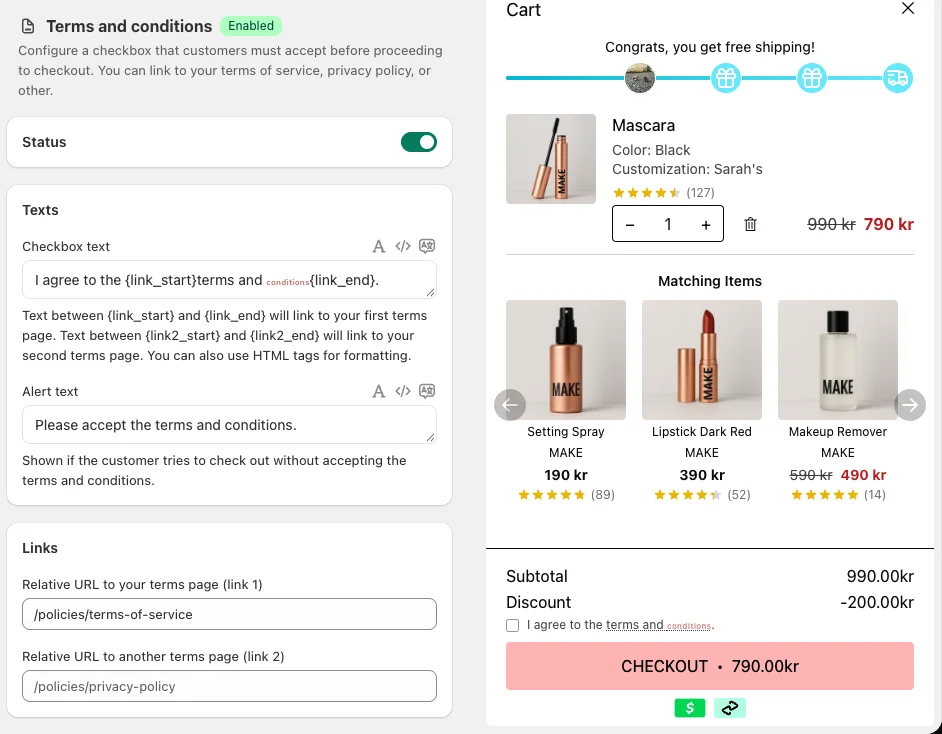
The checkbox appears in the cart summary, below the totals. If a customer clicks the checkout button without ticking it, the browser shows your alert text and the customer stays in the cart.
Turn on the checkbox
Open Terms and conditions
Go to Cart designerTerms and conditions.
Switch it on
Switch on the toggle in the Status card.
Write the checkbox text
Edit Checkbox text and Alert text in the Texts card (see below).
Add your links
In the Links card, enter the page the text should link to.
Save
Click Save in the save bar, then test it in your store.
Write the checkbox text
Checkbox text is the label next to the checkbox. Mark the words that should become a link:
- Text between
{link_start}and{link_end}links to your first page. - Text between
{link2_start}and{link2_end}links to your second page.
Example with two links:
I agree to the {link_start}terms of service{link_end} and the {link2_start}privacy policy{link2_end}.
You can also use simple HTML tags, such as <b> for bold.
Alert text is the message customers see if they try to check out without ticking the box. The default is "Please accept the terms and conditions."
Click the translate icon next to each field to add the texts in your other languages.
Add the links
- Relative URL to your terms page (link 1), for example
/policies/terms-of-service. - Relative URL to another terms page (link 2), for example
/policies/privacy-policy.
Enter only the part after your domain. EliteCart adds the customer's language to the link, so customers land on the page in their language. If you leave a URL empty, the matching text shows without a link.
Checked by default
Under Advanced, Checked by default pre-ticks the box. Customers can still untick it. Leave it off if customers must actively agree.
Once a customer ticks or unticks the box, the cart remembers that choice until they close the browser tab.
Only need a tax notice?
If you only want to tell customers that taxes and shipping are calculated at checkout, you don't need a checkbox. Turn on Show tax notice under Cart designerCart summary instead.
Still stuck?
Chat with us and we'll help you get your cart live. Or email contact@elitecart.app.