
My checkout module does not show
A checklist for an Upsell block, line item upsells, reward bar or add-on that doesn't appear in Shopify checkout, starting with the status banner.
Last updated
If a checkout module doesn't appear at checkout, work through this checklist. Most cases come down to the block not being placed, the module being inactive, or the strategy having nothing to show for that cart.
1. Read the banner on the module page
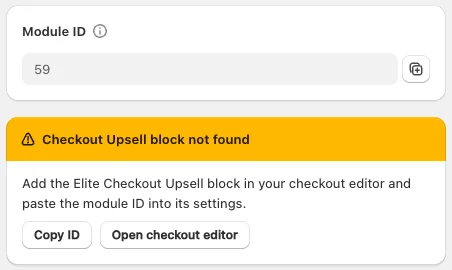
Open the module under Checkout. If EliteCart can't find its block in your checkout, the right side of the page shows a warning with an Open checkout editor button:
| Module | Warning | What to do |
|---|---|---|
| Upsell block | "Checkout Upsell block not found" | Add the EliteCart Upsells block in the checkout editor and paste the Module ID into its settings. |
| Line item upsells | "Cart-line Line Item Upsells target not enabled" | Enable the Line Item Upsells extension's per-line-item slot in the checkout editor. |
| Reward bar | "Reward bar block not found" | Add the Reward Bar block in the checkout editor. There is no Module ID. |
| Add-on | "Add-on block not found" | Add the Addon block in the checkout editor and paste the Module ID into its settings. |
Save the checkout editor, then come back to the EliteCart tab. The banner checks again on its own. For the reward bar it then reads "Reward bar block placed in checkout".
2. Is your store on Shopify Plus and EliteCart Professional?
- No Checkout item in the EliteCart navigation, or a Shopify Plus only banner: checkout modules only run on Shopify Plus.
- A Professional plan only banner: your store is on Plus but EliteCart is on Essentials. Click View plans to upgrade.
3. Is the module active?
The module list on the Checkout page shows Active or Inactive for every module. Open an inactive one, switch on the Status toggle and click Save. An inactive module shows nothing, even when its block is placed.
4. Is the right Module ID in the block?
This applies to the Upsell block and the Add-on. Compare the ID in the block's Module ID setting in the checkout editor with the ID column on the Checkout page. An Upsell block ID only works in the Upsells block, and an Add-on ID only in the Addon block. Line item upsells and the reward bar don't use an ID.
5. Does the strategy have something to show?
For the Upsell block and Line item upsells, open the Upsell setup tab:
- Upsell flows: if no active flow's trigger matches the cart, nothing shows. Check that your flows are switched on and that the test cart contains a trigger product. To always show something, choose Hybrid: Flows + AI. See Checkout flows.
- EliteAI™ Ultra or Hybrid: "Recommendations for your store haven't been trained yet." means training is still running. It starts when you save and takes 5 to 60 minutes. "Last training run failed" means you should contact us.
- Upsell products with an Unavailable, Not supported or Gift product badge in a flow don't show at checkout.
6. Module-specific checks
- Reward bar: needs Rewards V2. Rewards with a customer-tag or UTM condition are hidden at checkout, so a bar where every reward uses one of these shows nothing. See Checkout reward bar.
- Add-on: the block hides when the variant is sold out or removed, when Hide once added is on and the add-on is in the cart, and during express checkouts such as Apple Pay or Shop Pay. See Checkout add-on.
- B2B buyers: the Upsell block and Line item upsells hide products that aren't in the buyer's catalog.
7. Is a heading or label missing?
Checkout texts have no English fallback. If the module shows but a heading, label or button text is missing, that text has no translation for the shopper's language. Click the language icon next to the field and add it.
Still not showing?
Make sure you saved both the module in EliteCart and the checkout editor in Shopify, then open checkout in a private browser window. If it still doesn't show, contact us through Help & support and tell us the module's name and ID.
Still stuck?
Chat with us and we'll help you get your cart live. Or email contact@elitecart.app.