
Make gifts free automatically
Compare the three ways to give a gift for free (Cart Transform, Automatic discount or a $0 gift product) and set up the one that fits your store.
Last updated
When a customer reaches a gift reward, EliteCart adds the gift to the cart at the product's price in Shopify. To make it free, you have three options. This article compares them and shows how to turn on the two automatic ones.
Compare the methods
| Cart Transform | Automatic discount | Dedicated $0 gift product | |
|---|---|---|---|
| Requirements | Shopify Plus and EliteCart Professional or Enterprise | Any plan | Any plan |
| How the gift becomes free | Its price is set to $0 at checkout | A Shopify discount takes 100% off it | It's a separate product priced at $0 |
| Gift product | Your regular product | Your regular product | A duplicate of your product |
| Inventory | One product, one stock | One product, one stock | Two products, stock not synced |
| Your other discounts | Not affected | Must be set to combine with product discounts | Not affected |
| Uses one of Shopify's 25 automatic discounts | No | Yes | No |
| Works with Gift eligibility enforcement | No | Not needed | Yes |
There is no single best method; it depends on your store. Things to weigh:
- Your Shopify plan. Cart Transform needs Shopify Plus.
- Your other discounts. With the Automatic discount, any automatic discount or code you also run must be set to combine with product discounts, or the gift won't be free alongside it.
- Inventory. If you also sell the gift product, a duplicate $0 product means keeping two stocks in sync. See Handling inventory for free gift products.
- Bookkeeping. With Cart Transform the order shows the gift at $0, not as a discounted product.
You can only use one of Cart Transform and Automatic discount at a time. The $0 gift product is set up in Create a free gift product.
What both automatic methods do
Both work on gifts that EliteCart added to the cart, and only while the customer still qualifies. They check the same rules as the reward: threshold (including Scope threshold), excluded products, market thresholds and, for the Automatic discount, conditions. If the customer drops below the threshold at checkout or raises the gift's quantity above 1, the gift is charged at its regular price. That's why neither needs Gift eligibility enforcement on top.
They check the cart value before discount codes, so a customer's code never makes a qualified gift cost money. See How discount codes affect rewards.
Gift product health adapts: once one of them is on, it recommends giving gift products a regular price instead of $0. See Gift product health.
Turn on Cart Transform
Open the settings
Go to Cart designerFeaturesRewards and open the Settings & design tab.
Find the card
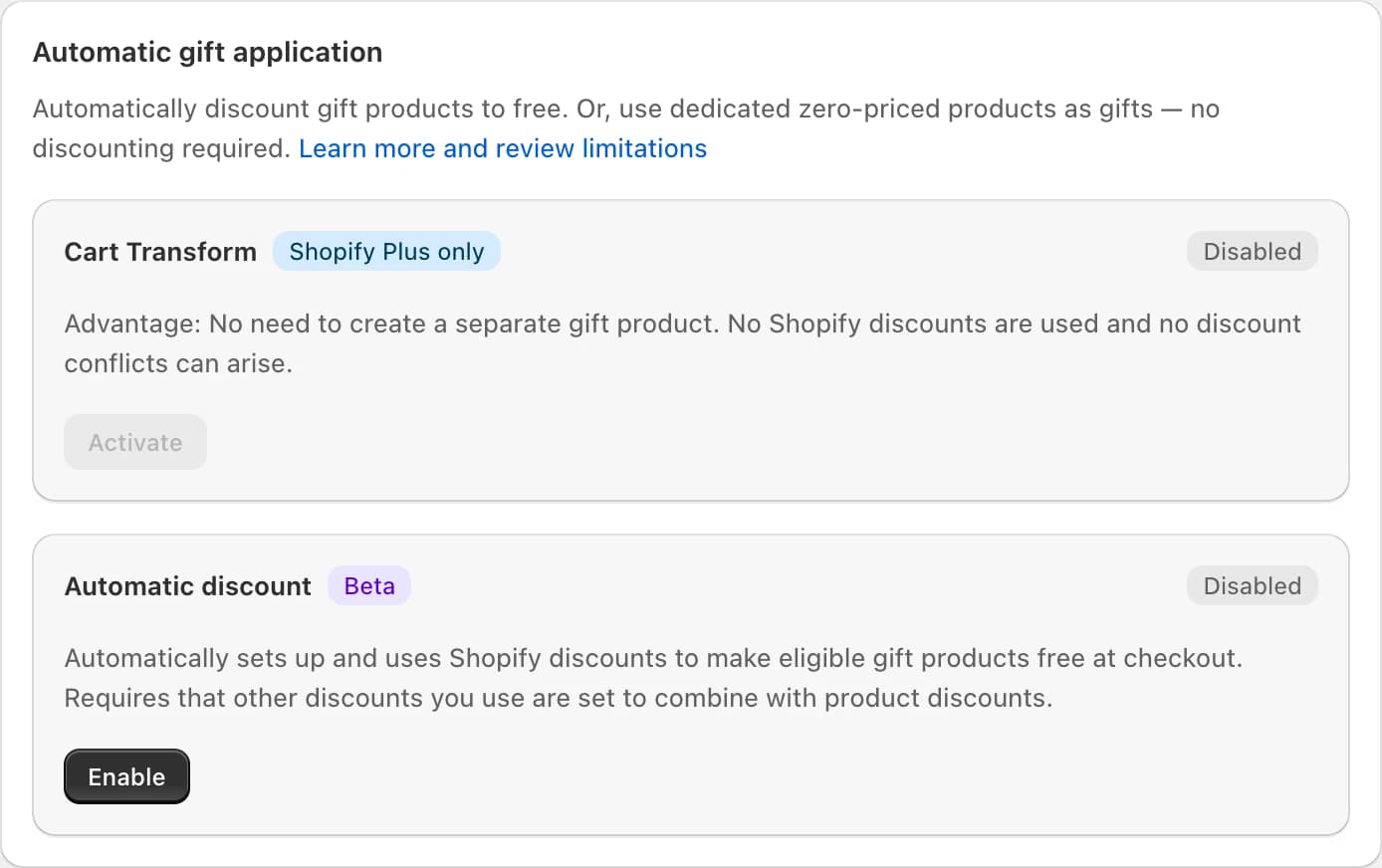
Scroll to Automatic gift application and find Cart Transform (marked Shopify Plus only).
Enable
Click Enable. The badge changes to Enabled.
Use regular products
In each gift reward, pick your regular products as gifts.
If the button is greyed out, your store isn't on Shopify Plus (the greyed-out button then reads Activate), your EliteCart plan is below Professional, or Gift eligibility enforcement or the Automatic discount is on. Turn those off first.
Turn on the Automatic discount
Check the requirements
Your store must be on Rewards V2 and have at least one Single gift or Multi gift reward.
Find the card
On the Settings & design tab, scroll to Automatic gift application and find Automatic discount.
Enable
Click Enable. The badge changes to Enabled.
Check your other discounts
In Shopify, open each automatic discount and code you use and make sure Combinations includes product discounts.
Name the discount line
Optionally, in each gift reward, set the Discount label customers see on the gift in the cart and at checkout. It defaults to "Free gift" and can be translated.
EliteCart creates a Shopify automatic discount called "EliteCart Gift Discount" and keeps it up to date every time you save. Don't edit it in Shopify. It also applies to subscription items. If you remove or disable all gift rewards, the discount is deactivated; it comes back on the next save after you add a gift reward again.
Switch or turn off a method
Click Disable on the active method; it takes effect right away. To switch between Cart Transform and the Automatic discount, disable the active one first, then enable the other.
When you move from $0 gift products to an automatic method, point each gift reward at the original product instead of the duplicate. When you turn an automatic method off, gifts are charged at their Shopify price again, so switch them to $0 gift products first.
Still stuck?
Chat with us and we'll help you get your cart live. Or email contact@elitecart.app.