
EliteCart does not open, or the theme cart opens instead
Fix a cart that doesn't open, a theme cart that shows up instead, products added twice or a quick-shop window that stays open.
Last updated
If EliteCart doesn't open, or your theme's own cart shows up instead, EliteCart usually hasn't recognised your theme's cart icon or add-to-cart button. You can fix most of these cases yourself in a few minutes. Every setting below is in Cart designerOtherAdvanced. Change one at a time, click Save and test again in your store.
First, check the basics
- The EliteCart & Upsell app embed is on and saved in the theme you're looking at. The EliteCart Status card on Home only checks your live theme. For a theme copy, check App embeds in the theme editor.
- You have a plan selected under Plans (not needed on development stores).
- Deactivate drawer in the Advanced settings is off. With it on, EliteCart's drawer never opens.
- No customer tag of yours matches Deactivate drawer for logged in customer with tag if you're logged in to your store while testing.
The theme's cart opens when you click the cart icon
EliteCart needs to know which element in your header is the cart icon.
Let AI find the cart icon
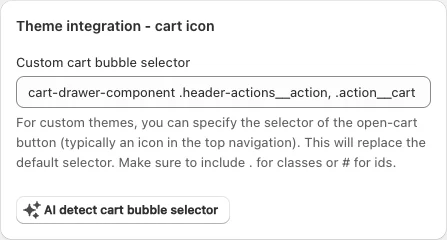
Under Theme integration - cart icon, click AI detect cart bubble selector. When it succeeds, it fills in Custom cart bubble selector.
Or enter it yourself
If you know the icon's CSS selector, enter it in Custom cart bubble selector. Include
.for classes or#for IDs, for example#cart-icon-bubble. Your value replaces EliteCart's default selector.Save and test
Click Save, reload your store and click the cart icon.
The theme's cart opens after add to cart, or both carts open
- Switch your theme's cart to the cart page in the theme editor, as described in Check that everything works as intended. This alone fixes most cases.
- If it still happens, see the next section: EliteCart probably doesn't catch that add-to-cart button yet.
Nothing happens on add to cart, or EliteCart doesn't open
- Check that Open cart automatically when customer adds product to cart (recommended) is on under General settings.
- Under Theme integration - add to cart, click AI detect add-to-cart button, or enter your button's selector in Custom add-to-cart selector. EliteCart always listens to standard Shopify product forms; this adds buttons that work differently.
- For quick-add buttons that carry the variant in an attribute, enter that attribute's name in Target attribute extractor, for example
data-quick-add-variant. - If another script handles the click first, turn on Use capture mode for add-to-cart listeners.
Products added by another app or a theme feature (not through EliteCart) need Detect external cart changes. Turn on Open cart drawer on external add-to-cart too if the cart should open for them.
The product is added twice
Turn on Prevent immediate propagation on add-to-cart events. It stops other scripts on the same button (usually your theme's own add-to-cart code) from adding the product a second time.
A "Notify me" or sold-out button opens the cart
Enter a selector for those buttons in Exclude add-to-cart selector. EliteCart then leaves them to your theme or app. :has() works, for example .product-item:has(.product-item__badge--sold).
The quick-shop window stays open
When a customer adds to cart from a quick-shop or quick-view window, EliteCart clicks that window's close button for you. It knows the close buttons of common themes. If yours stays open, enter its close button's selector in Custom close quick-shop selector. You can use {productId} in it, for example #ModalClose-{productId}.
Still not working?
Open Help & support and click Chat with us. Tell us which page and which button, and we'll take a look in your theme.
Still stuck?
Chat with us and we'll help you get your cart live. Or email contact@elitecart.app.