
Show upsells by display location
Choose where each upsell flow appears - cart, two-step cart or product page - and which EliteAI source fills in on each location.
Last updated
EliteCart can show upsells in three places in your store: the Cart, the Two-step cart and the Product page. You decide per location which manual flows may appear there, and which AI source fills in when no flow matches. For example, a "Complete the look" flow only on product pages, and bestsellers as the AI fallback there.
Two settings work together:
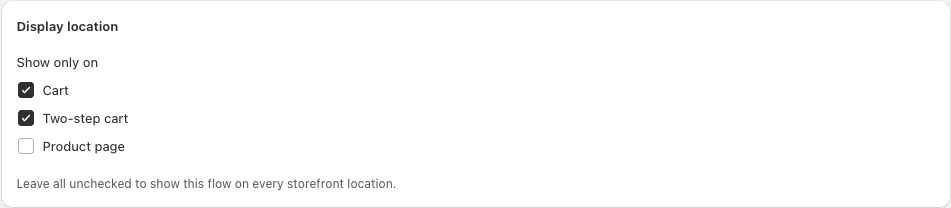
- Display location on each flow decides where that manual flow may show.
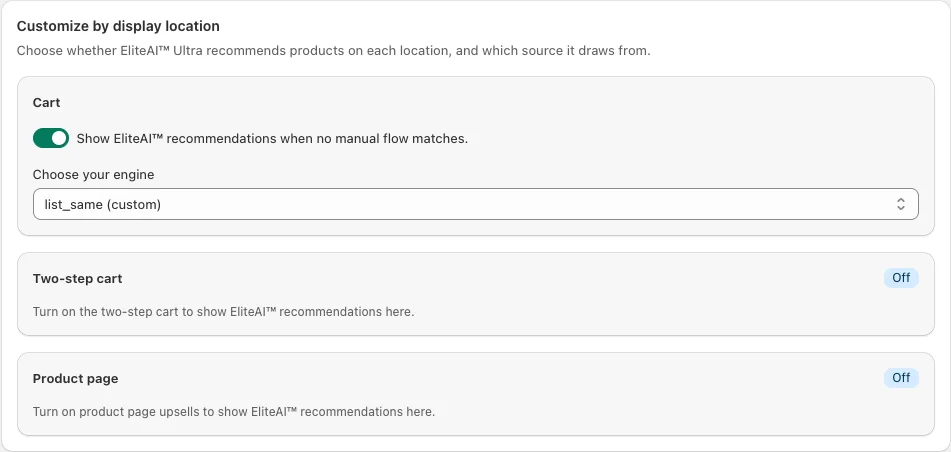
- Customize by display location on the AI upsells tab decides what EliteAI shows on each location when no flow matches.
Checkout upsells are separate. You set them up as checkout modules under Checkout (Shopify Plus only).
Limit a flow to certain locations
Open the flow
Go to UpsellsManual upsells and open the flow.
Find Display location
Scroll past Upsell products to the Display location card.
Tick the locations
Under Show only on, tick Cart, Two-step cart and/or Product page.
Save
Click Save.
Leave all boxes unticked to show the flow everywhere. Unticked means "every location", not "nowhere".
The Product page box only appears when product page upsells are switched on for your store. See Product page upsells.
In the flow list, a flow limited to some locations shows a badge with those locations. You can also filter the list by Display location.
Choose the AI source per location
This section appears on the AI upsells tab while Enable AI upsells is on and EliteAI™ Ultra is the selected engine.
Open AI upsells
Go to UpsellsAI upsells and scroll to Customize by display location.
Switch a location on or off
On each location card, switch the Show EliteAI™ recommendations when no manual flow matches. toggle on or off. If the two-step cart or product page upsells are turned off, that card only shows Off and a note to turn the feature on first.
Pick the source
Under Choose your engine, pick EliteAI™ Ultra Original, EliteAI™ Ultra CrossCategoryBoost, Bestsellers or one of your fine-tuned versions (shown as "name (custom)").
Save
Click Save in the save bar.
What the sources do:
- EliteAI™ Ultra Original: products customers most often buy together with the item in the cart. Best for accessories, refills and natural add-ons.
- EliteAI™ Ultra CrossCategoryBoost: complementary products from other product types. Best for broadening the basket.
- Bestsellers: your store's most popular products.
- Fine-tuned versions: your own rules on top of Ultra. See Fine-tuning EliteAI™ Ultra.
Upgrade banner on older stores
If your store used EliteAI™ Ultra before per-location settings existed, you see the banner Customize EliteAI™ per display location with an Upgrade button instead. Click Upgrade once. Your current settings carry over: each location keeps your existing AI setting and starts on EliteAI™ Ultra Original.
Locations marked Off
A location card shows an Off badge when that location itself is switched off in your store, for example "Cart upsells are turned off, so this location isn't shown in your store and EliteAI™ recommendations are paused here." Switch the location on (for the cart: Cart designerUpsellsStatus) to show recommendations there.
What stays the same everywhere
- The AI Enhancements on the Manual upsells tab (Smart match, Smart boost, Smart extend, Smart insert) apply to your flows on every location. They have no per-location setting and never add to the Bestsellers source.
- The per-location checkbox only controls the AI fallback. It never hides your manual flows; use each flow's Display location for that.
Still stuck?
Chat with us and we'll help you get your cart live. Or email contact@elitecart.app.