
Custom HTML and AI sections
Let AI build a cart section from a prompt, or add your own HTML, scripts and third-party widgets to 8 positions in the cart.
Last updated
With Custom HTML you add your own sections to the cart: describe what you want and let the AI generator write the HTML, or paste HTML, CSS and JavaScript yourself. Use it for content EliteCart has no setting for, and to place widgets from other apps (reviews, pay-later, verification) in the cart.
Where to find it
Open Cart designerCustom HTML; it's in the Other group of the sidebar. The page is titled AI-sections, custom HTML & javascript and lists one card per position in the cart.
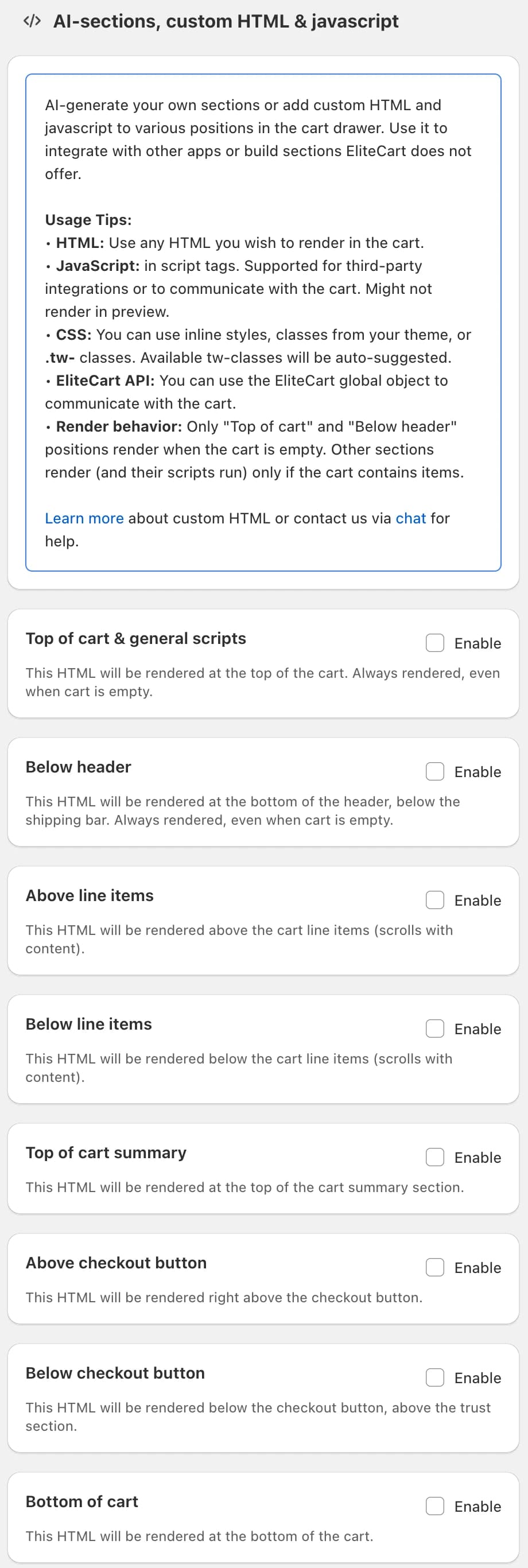
The 8 positions
| Position | Where it shows | On an empty cart? |
|---|---|---|
| Top of cart & general scripts | At the very top of the cart, above the header | Yes |
| Below header | Below the header and the reward bar | Yes |
| Above line items | Above the products (scrolls with them) | No |
| Below line items | Below the products (scrolls with them) | No |
| Top of cart summary | At the top of the cart summary | No |
| Above checkout button | Right above the checkout button | No |
| Below checkout button | Below the checkout button, above the trust section | No |
| Bottom of cart | At the very bottom of the cart | No |
Positions marked "No" only appear, and their scripts only run, while the cart has items. Put scripts that don't show anything in Top of cart & general scripts.
Create a section with the AI generator
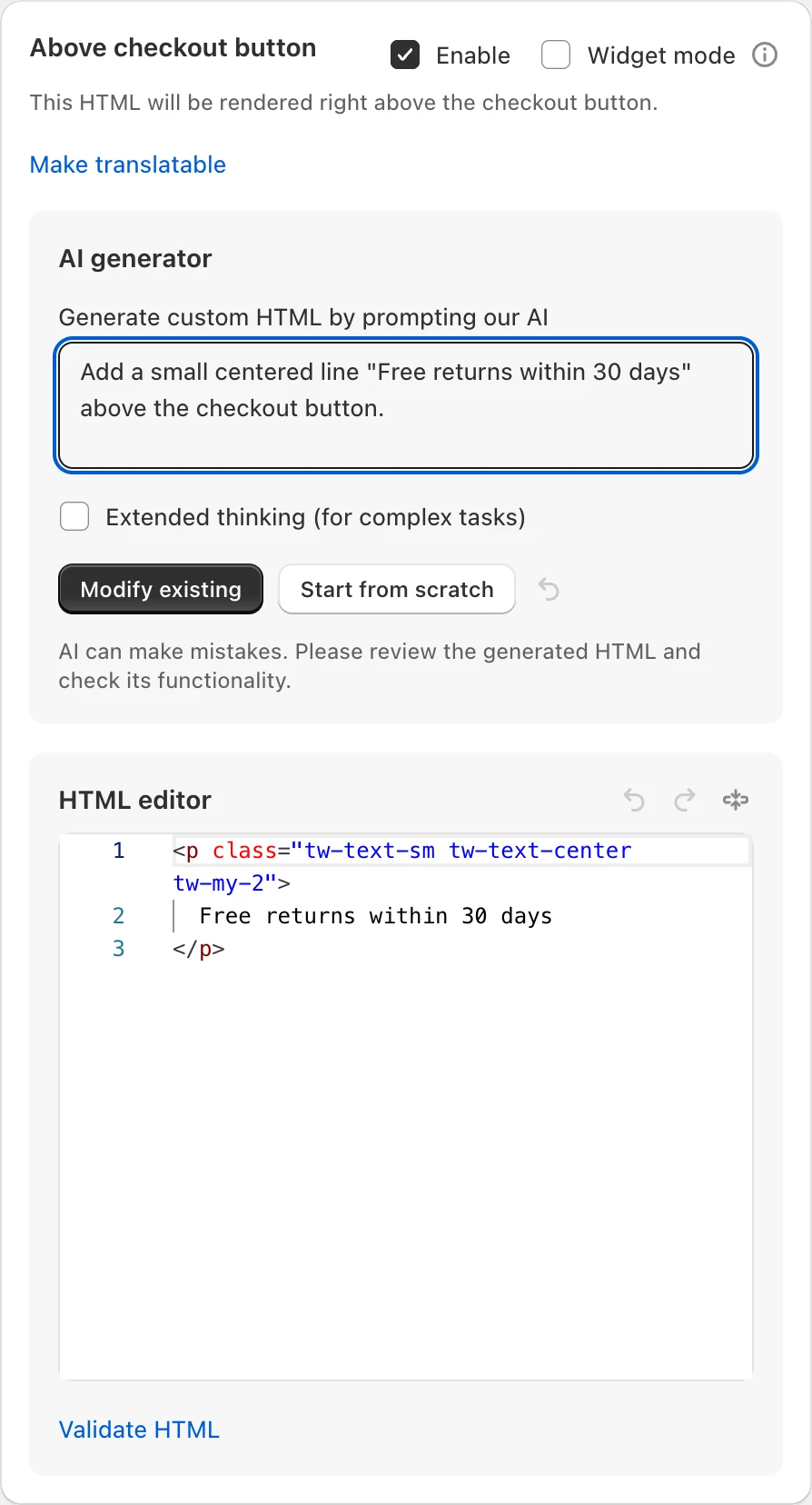
Enable a position
On the card of the position you want, tick Enable.
Describe the section
In the AI generator box, type what you want in Generate custom HTML by prompting our AI. Be specific about text, colors and when it should show, for example "Show a grey box with 'Free returns within 30 days' and a small truck icon".
Choose how to generate
If the editor is empty, click Generate HTML. If there is already HTML, choose Modify existing to change it or Start from scratch to replace it. For logic that depends on the cart, tick Extended thinking (for complex tasks). If a generation fails without it, the app marks this option Recommended for the next try.
Review and validate
The result appears in the HTML editor. Use undo and redo to step between versions, Expand editor for more room, and Validate HTML to list errors and warnings with their line and column.
Save and test
Click Save, then test on your storefront with products in the cart. Scripts may not run in the preview.
Paste code from another app
To add a widget from another app, paste its embed code into the HTML editor of the position you want and tick Enable. Most widget scripts scan the page for their markup when it loads. For those, also tick Widget mode ("Enable this if you use 3rd-party widget scripts like Trustpilot or Judge.me. Otherwise keep off for better performance."). Leave it off for your own sections.
Step-by-step guides for common apps are in Integrations, for example Trustpilot, Judge.me and Scalapay.
Translate a section
If your store has several languages, click Make translatable on a position. Choose a language under Language and edit the HTML for it (the editor shows a badge such as "Editing German"). Positions with translations show a Translated badge. Remove all translations goes back to one HTML for every language. Without translations, the same HTML shows in every language.
Scripts and Shadow DOM
New stores have Use Shadow DOM for CSS isolation on, which keeps your theme's styles out of the cart. Scripts then need window.eliteCartDocumentOrShadowRoot instead of document to find elements in the cart. The AI generator handles this for you. If you write or paste scripts yourself, read Custom HTML for developers: it covers Shadow DOM, scripts that run more than once, the EliteCart API and changing the cart from a script.
Ideas and recipes
- Show a banner based on cart contents
- Pay-later or installment text
- Continue shopping link and your logo in the cart header
- Add a product when a discount code is used
- Show content by market or physical location
Still stuck?
Chat with us and we'll help you get your cart live. Or email contact@elitecart.app.