
Colors and styles
Match the cart to your brand. Set the cart style, width, colors, dividers, rounded corners and bold prices in the Cart designer.
Last updated
Colors & styles controls the overall look of your cart: its shape and width, and the colors of the background, header, footer, checkout button and prices. Changes show in the preview right away.
Open it under Cart designerColors & styles. The settings are in five cards, from top to bottom.
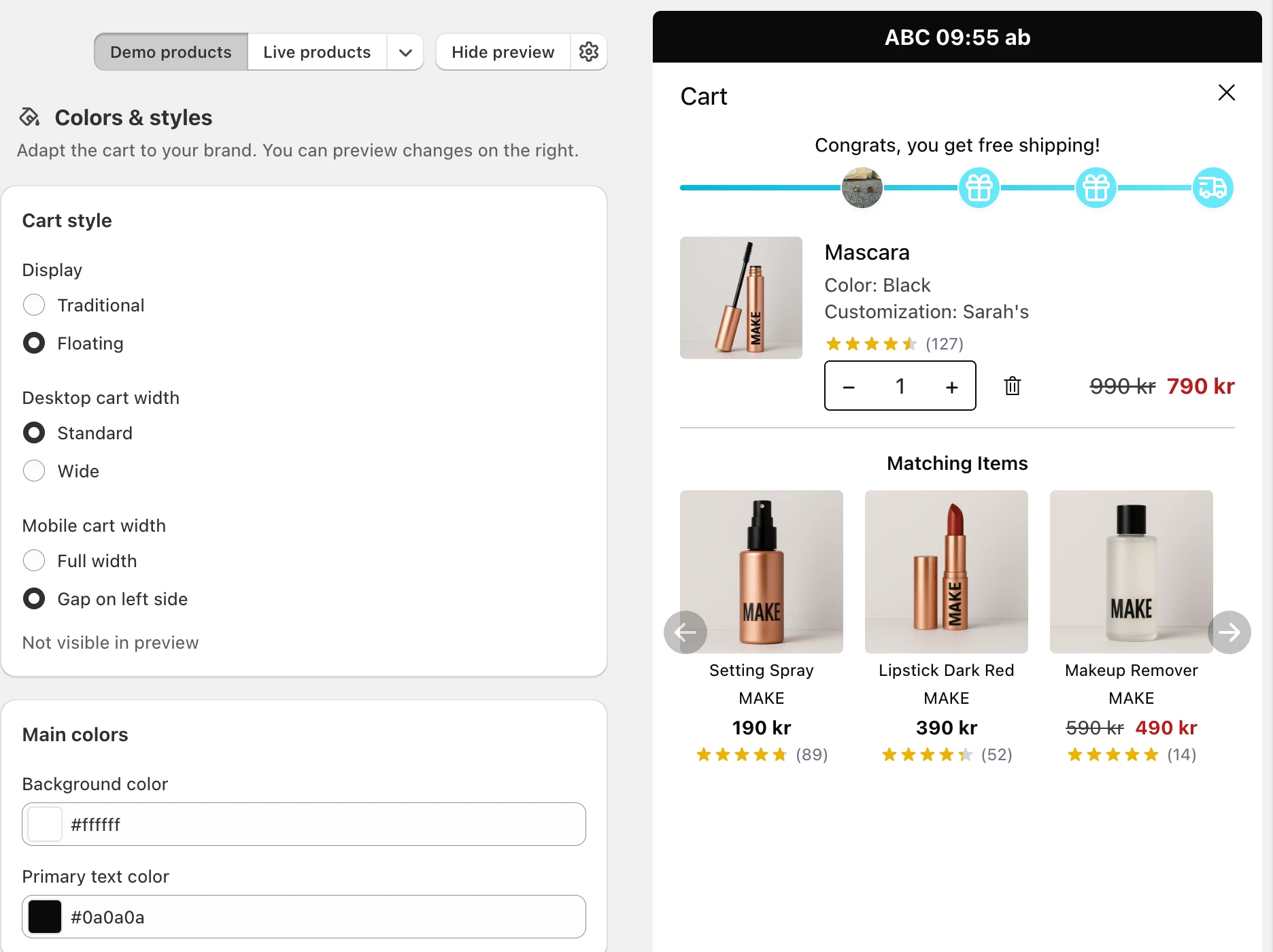
Cart style
- Display: Traditional attaches the cart to the edge of the screen. Floating shows it with a small gap around it, so it floats above your store.
- Desktop cart width: Standard or Wide.
- Mobile cart width: Full width or Gap on left side, which leaves a strip of your store visible next to the cart.
Wide and Gap on left side are marked Not visible in preview. Check them in your store.
Choose colors
Click the color square in any color field to open the color picker. Under Theme colors you find the colors EliteCart imported from your theme, so you can stay on brand with one click. You can also type a hex code like #1a1a1a.
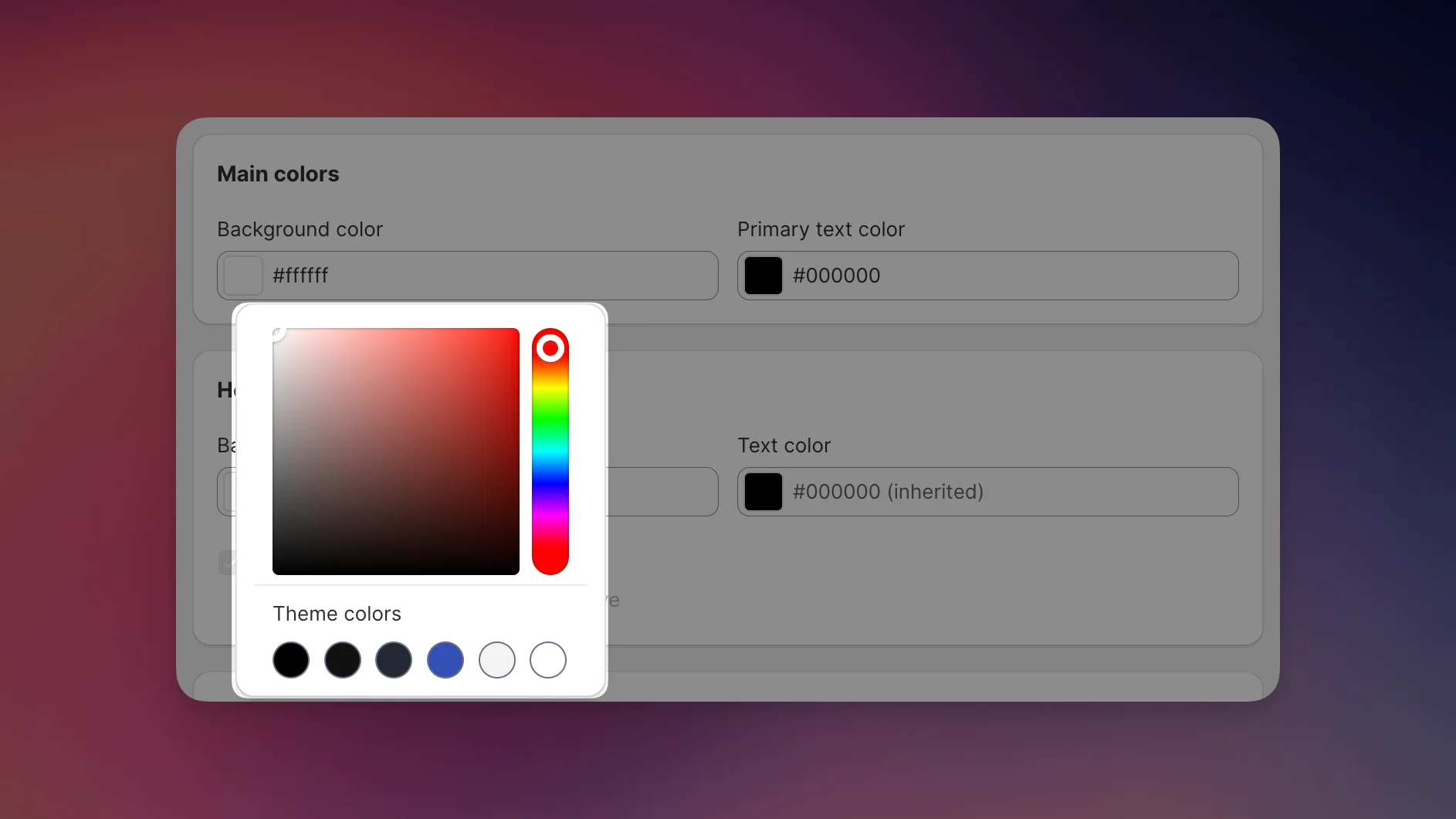
A field that shows (inherited) has no color of its own and uses the color of a parent setting, for example the header text uses the Primary text color. Clear a field to go back to inheriting.
If you changed your theme's colors after installing EliteCart, get them again under Cart designerAdvancedRefresh theme colours. Save your changes first: the page reloads.
Main colors
- Background color: the background of the whole cart.
- Primary text color: most text in the cart.
Header
- Background color and Text color for the cart header.
- Hide horizontal divider line removes the line under the header. The line is always off when the header has its own background color or when the reward bar is active.
Footer
- Background color and Text color for the area with the cart total and checkout button.
- Hide horizontal divider line removes the line above the footer. It is always off when the footer has its own background color.
- Checkout button color and Checkout button text color.
- Savings text color: the color of the savings in the cart summary. It only has an effect once you turn on Total savings under Cart designerCart summary.
Other settings
- Strikethrough price text color: the crossed-out original price.
- Sale price text color: the reduced price next to it. Empty means it uses your normal text color.
- Rounded corners (images, buttons, etc.): on by default. Turn it off for a square look.
- Bold prices: makes product prices and the cart total bold.
Fonts
For performance and a consistent look, the cart uses your theme's font. The preview can therefore show a slightly different font than your live store.
Need more control?
The card Looking for more advanced styling? links to Custom CSS, where you can write CSS yourself or describe the change and let the AI generator write it. See Custom CSS and the AI generator.
Still stuck?
Chat with us and we'll help you get your cart live. Or email contact@elitecart.app.