
My addon does not show. Why?
A checklist for a 1-click addon that is missing from the cart or shows as unavailable, from the Status toggle to schedules and markets.
Last updated
If your addon doesn't show in the cart, one of the checks below is almost always the reason. Go through them in order. Most come down to the product itself or a visibility setting on the addon's tab in Cart designerAddons & insurance.
Before you start, add a regular product to the cart. Addons only show when the cart has other products in it.
1. Is the addon switched on?
Open the Addon 1 or Addon 2 tab and check that the toggle in the Status card is on and that you clicked Save. The tab's badge reads On when it's live and Off when it isn't.
2. Does the tab say "Action required"?
The Action required badge means the addon can't show yet. The banner on the tab tells you why:
- "Please select a product below." Pick a product under Custom product.
- "Please create an insurance product below." For Insurance (% of sales), click Create product. See Percentage-based addons (e.g. insurances).
- "The selected product variant is not available and won't show." See the next check.
3. Is the product available?
An addon only shows when its product can be bought in your store. EliteCart hides it automatically when the product or the selected variant is:
- in draft or archived,
- not available on the Online Store sales channel,
- sold out, or
- not available in the market the shopper is shopping in.
In the admin this shows as the warning "The selected product variant is not available and won't show." and an Unavailable badge on the product. Why is my product unavailable? explains how to fix each case.
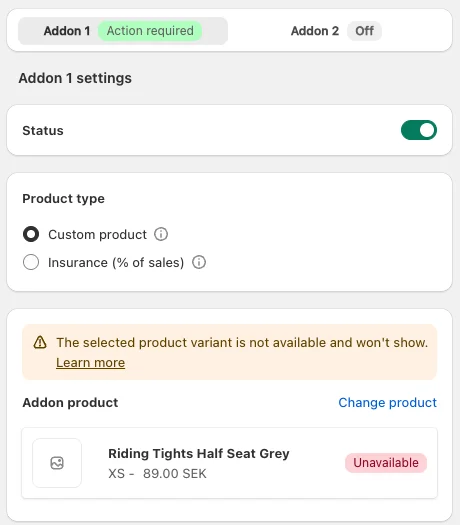
4. Does the schedule hide it right now?
Expand the Schedule card on the tab. If it shows Currently hidden, your schedule rules don't include the current day or time, so the addon is hidden until the next scheduled window. See Schedule addons and banners.
5. Is it limited to certain countries?
Expand the Shopify Markets card. If it lists countries, the addon only shows to shoppers who have one of those countries selected in your store. Switch your store's country to one on the list to test it. See Country / markets based visibility for addons.
6. Is it hidden by code or customer tags?
A theme script or custom HTML can hide addons for some shoppers, for example for wholesale customers. Check with whoever added custom code to your store, and see Adapt functionality based on customer tags or other conditions.
7. Did your plan change?
Schedule and Shopify Markets need the Professional plan or higher. After a move to Essentials, schedule rules are removed. If you had picked countries on the Shopify Markets card, that list still applies, but the card is locked. Contact us through Help & support and we'll clear it for you.
Still missing?
Open your store in a private browser window, add a product and open the cart. If the addon still doesn't show, contact us through Help & support in the app and tell us which addon tab you're using.
Still stuck?
Chat with us and we'll help you get your cart live. Or email contact@elitecart.app.