
The cart icon count does not update
When the number on your theme's cart icon stays the same after adding or removing products, let EliteCart re-render it.
Last updated
Your theme shows the number of items on its cart icon. When a customer changes the cart in EliteCart, EliteCart asks Shopify for a fresh copy of that icon and swaps it in. This works on its own for most themes. If the count in your header stays the same after adding or removing a product, tell EliteCart which part of the page holds the icon.
Let AI find the cart icon section
Open the Advanced settings
Go to Cart designerOtherAdvanced and scroll to Theme integration - rerender sections.
Run the detection
Click AI determine cart icon re-rendering. When it succeeds, it adds a section with the fields filled in.
Save and test
Click Save, reload your store, add a product and check the number on the cart icon.
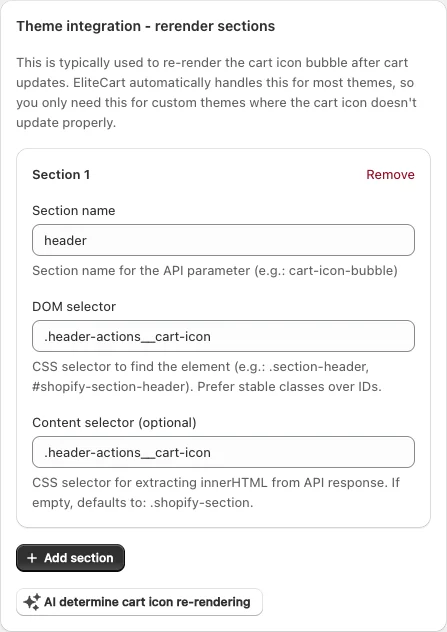
Set it up by hand
If the detection doesn't find it, click Add section and fill in:
| Field | What to enter |
|---|---|
| Section name | The name of the theme section that renders the icon, for example cart-icon-bubble |
| DOM selector | The CSS selector of the element on the page to replace, for example #cart-icon-bubble. Prefer stable classes over IDs |
| Content selector (optional) | Which part of Shopify's answer to use. If empty, EliteCart uses .shopify-section |
You can add up to four sections, for example when your theme shows a separate cart icon on mobile. Remove one with Remove.
Not sure what to enter? Ask us in the chat (Help & support → Chat with us) and we'll set it up for you.
Other things that look like a count problem
- The count is right after a page reload, but EliteCart didn't open: EliteCart may not be catching the add-to-cart button. See EliteCart does not open, or the theme cart opens instead.
- Another app adds products and EliteCart shows the old cart: turn on Detect external cart changes in the same Advanced settings, so EliteCart refreshes when something else changes the cart.
- Your theme updates its icon with its own script: on Professional, a small script in Custom HTML can update the icon whenever the cart changes. Integration with SwitchThemes shows an example.
Still stuck?
Chat with us and we'll help you get your cart live. Or email contact@elitecart.app.