
Create a free gift product
Turn one of your products into a $0 gift product in one click, or set it up by hand, so customers get gift rewards for free.
Last updated
A free gift product is a copy of one of your products, priced at $0, that you use only as a gift reward. It's one of three ways to give gifts for free; the other two re-price your regular product at checkout instead. Compare them in Make gifts free automatically.
Create a gift product in EliteCart
EliteCart can duplicate a product and set it up as a gift for you.
Open the gift reward
Go to Cart designerFeaturesRewards and click a Single gift or Multi gift reward.
Start
Click Create gift product (or Create from existing once a product is selected).
Choose the product
In the Create gift product window, click Choose product and pick the product to copy.
Select the copy
When you see "Product was duplicated successfully", select the new product as the gift and click Save.
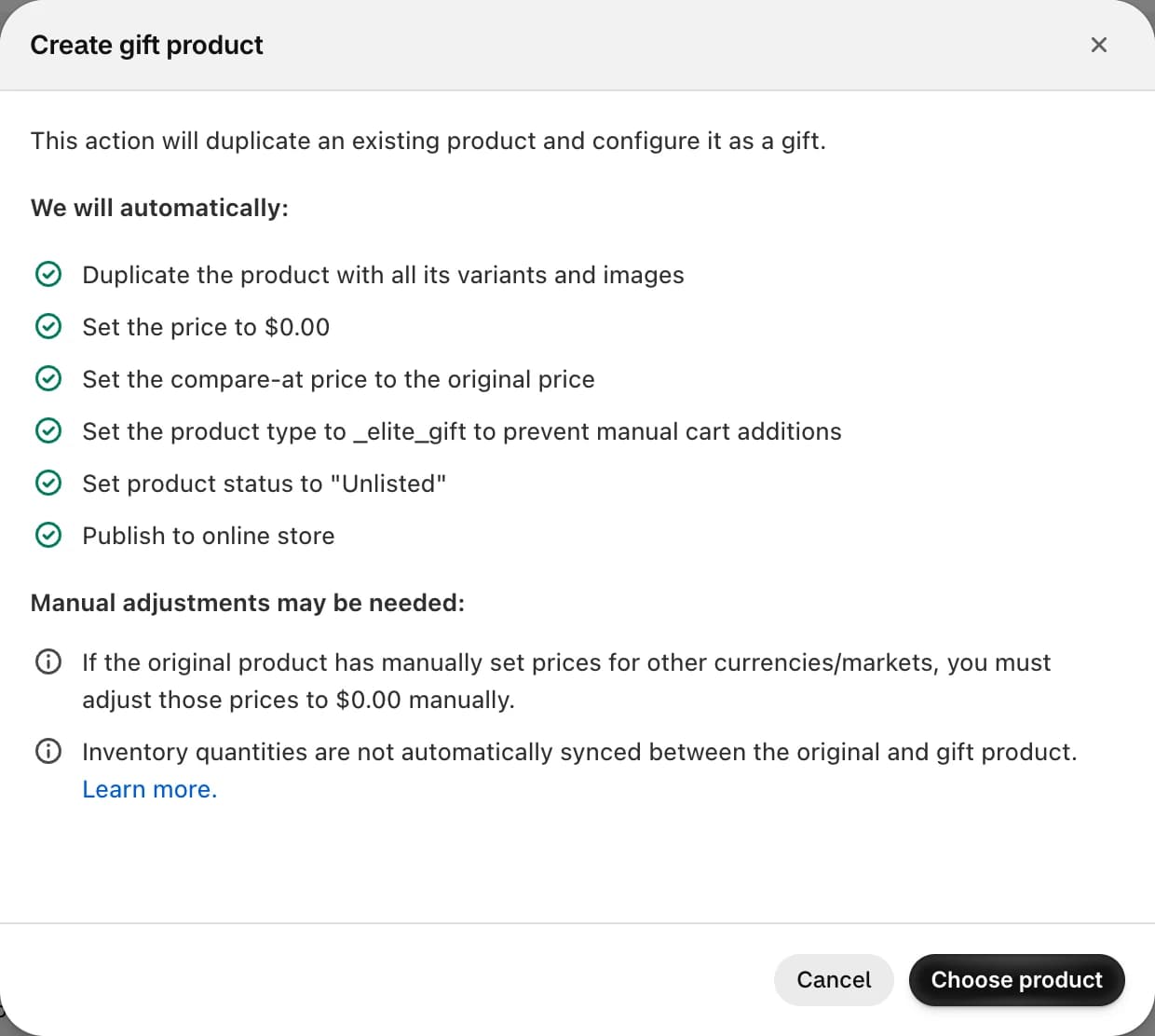
EliteCart automatically:
- duplicates the product with all its variants and images,
- sets the price to $0.00 and the compare-at price to the original price,
- sets the product type to
_elite_gift, so customers can't add it to the cart themselves, - sets the product status to Unlisted, which hides it from collections, store search and search engines,
- publishes it to the Online Store, so EliteCart can add it to the cart.
After creating the gift, also check:
- Market prices. If the original product has prices set by hand for other markets or currencies, set those to $0.00 yourself in Shopify.
- Inventory. The copy has its own stock, which isn't synced with the original. See Handling inventory for free gift products.
Set up a gift product by hand
Duplicate the product
In Shopify, open the product and click Duplicate.
Set the price
Set the price to 0. Add a compare-at price to show customers the gift's value.
Block direct purchases
Set Type (under Product organization) to
_elite_gift.Hide it
Set the product status to Unlisted.
Keep it published
Make sure the product is published to the Online Store sales channel and has stock.
Use it as a gift
Select it in your gift reward in EliteCart and click Save.
If you skip a step, Gift product health in the reward shows it, and the product type and Unlisted status can be fixed with one click. See Gift product health.
What customers see
If a customer tries to add an _elite_gift product from a product page, they see an error instead. Change its wording under Language & translations in Gift product error message.
Unlisted products can still be opened with a direct link. To send visitors away from the product page, add the product tag _elite_block_page. They are redirected to the page they came from in your store, or to your homepage. More options are in Hide addons and gifts from search and SEO.
Tips for gifts
- Choose gifts with a high perceived value but low cost, and that are light and small to ship.
- Set the threshold a little above your average order value.
- Show the value with a compare-at price, and turn on Show gift product prices and compare-at prices in the gift chooser settings.
Still stuck?
Chat with us and we'll help you get your cart live. Or email contact@elitecart.app.