
Fine-tuning EliteAI™ Ultra
Build your own versions of EliteAI™ Ultra with filters and boosts, train them, and assign them to your cart, product page or checkout.
Last updated
EliteAI™ Ultra picks great products out of the box, with no setup. To shape its recommendations around your own business rules, which products it may suggest and how they rank, create your own fine-tuned versions of it.
Fine-tuning is optional, and the two built-in versions work perfectly on their own. In the app, the card carries a Beta badge.
The two pre-trained versions
Every fine-tuned version starts from one of these, its Base algorithm:
- EliteAI™ Ultra Original: learns from your orders what customers love to buy together with each item. Best for accessories, refills and natural add-ons.
- EliteAI™ Ultra CrossCategoryBoost: finds complementary products in other categories of your catalog. Best for broadening the basket and product discovery.
For rules based on the same product type as the cart item, build on Original.
When to fine-tune
- Only recommend products under a certain price.
- Prefer cheaper add-ons, or pricier upgrades.
- Keep recommendations inside a specific collection.
- Recommend premium products only when the cart item is premium too.
- Pair products by a compatibility code, fitting or model number you already store in a product metafield.
If none of these apply, the built-in versions are a good choice and you can stop here.
Create a fine-tuned version
Open the AI upsells tab
Go to UpsellsAI upsells and find the Fine-tune EliteAI™ Ultra card.
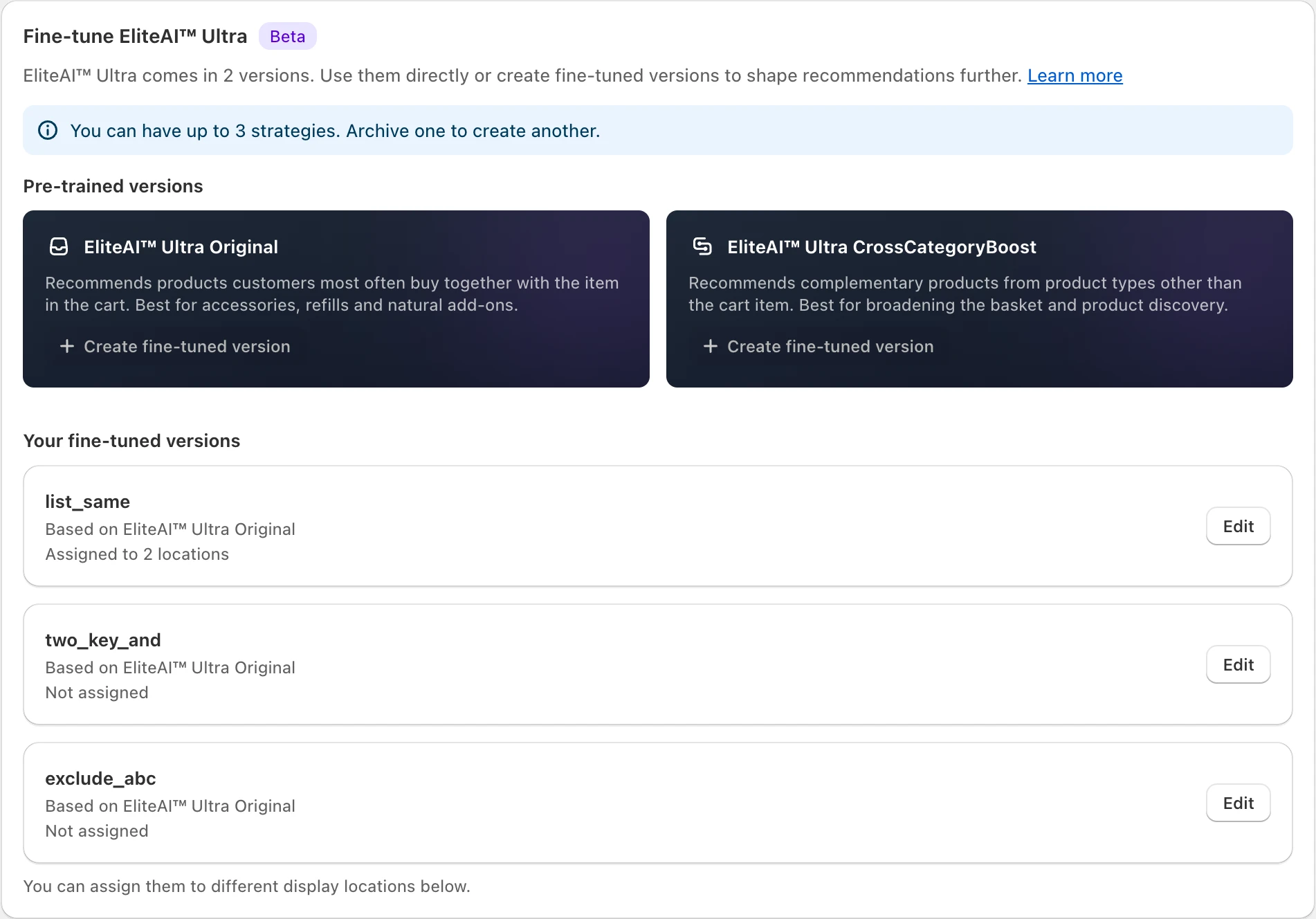
Pick a base
Under Pre-trained versions, click Create fine-tuned version on the version you want to build on. The editor shows your choice under Base algorithm.
Name it
Enter a Strategy name (internal), for example "Premium add-ons under $50". Customers never see it.
Add rules
Add Filters to decide which products are eligible and Boosts to move products up or down the ranking. The What this does panel sums up your rules in plain words.
Save
Click Save. Training starts automatically.
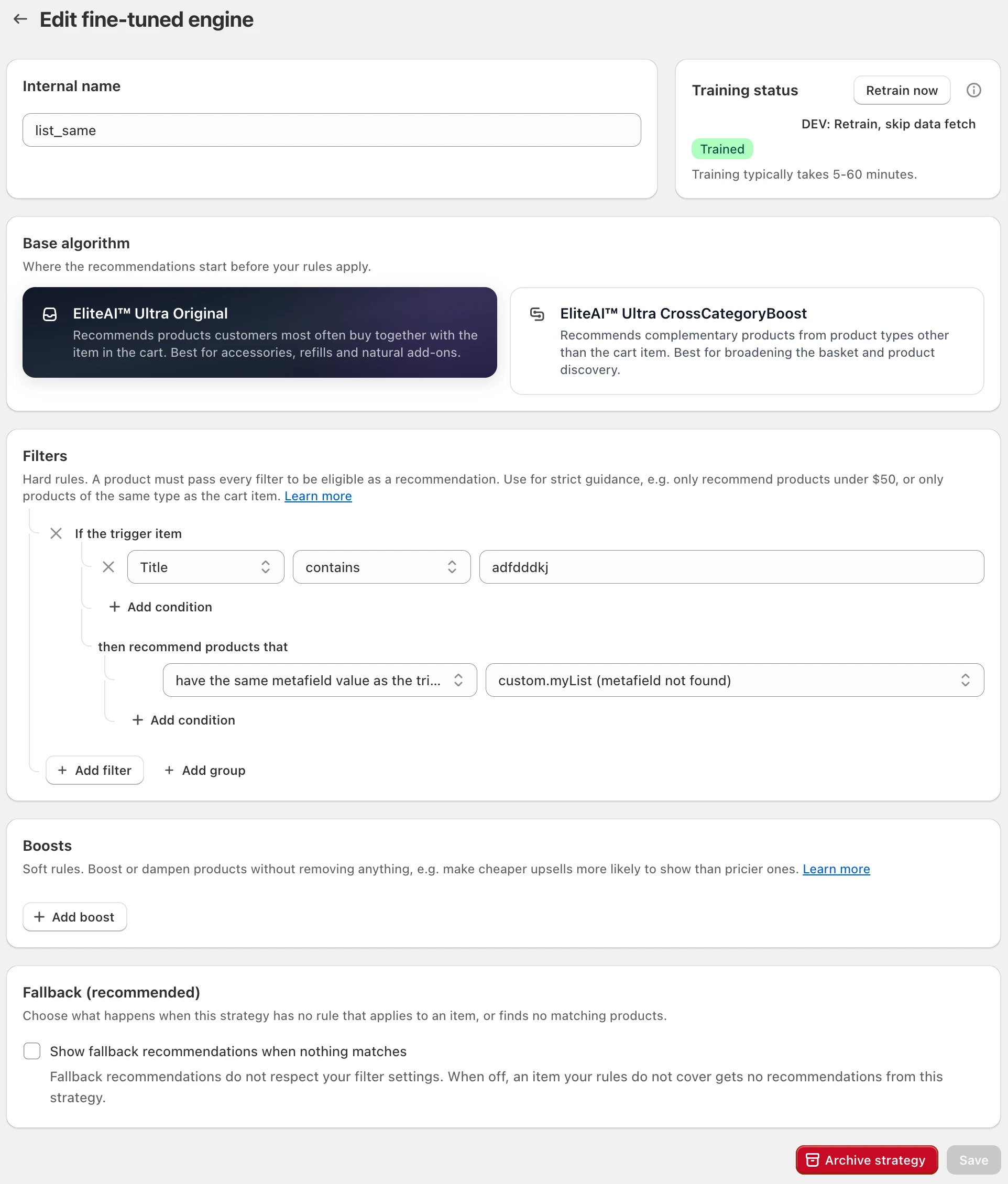
Every rule type is explained in Filters and boosts for fine-tuned engines.
If you don't see the fine-tuning card or per-location settings and your store used Ultra before they existed, click Upgrade on the Customize EliteAI™ per display location banner first. Your current settings carry over.
Training
When you save rule changes, EliteCart trains your version on your orders and products. The Training status card shows the progress:
Preparing → Analysing orders → Analysing products → Finishing up → Trained
Training usually finishes within an hour. Until it reads Trained, your version keeps its previous recommendations. EliteCart also retrains your versions automatically on a regular schedule, so they keep learning from new orders; hover the info icon next to Retrain now to see the last and next run.
Click Retrain now to start a run yourself, for example after you changed product tags or metafields. It becomes available once your changes are saved and the current run has finished. If the status card shows anything other than progress or Trained, contact us and we'll sort it out.
Make it go live
A new version changes nothing in your store until you assign it somewhere.
On your storefront
Open Customize by display location
On the AI upsells tab, scroll to Customize by display location.
Pick the location
On Cart, Two-step cart or Product page (when product page upsells are switched on for your store), tick Show EliteAI™ recommendations when no manual flow matches.
Choose your version
In Choose your engine, pick your version. Fine-tuned versions appear at the bottom as "name (custom)", below EliteAI™ Ultra Original, EliteAI™ Ultra CrossCategoryBoost and Bestsellers.
Save
Click Save.
At checkout (Shopify Plus)
Open the checkout module
Open a checkout module and go to its Upsell setup tab.
Pick an AI strategy
In Strategy, choose EliteAI™ Ultra or Hybrid: Flows + AI.
Choose your version
In Recommendation source, pick your version and click Save.
Each location and each checkout module is independent, so you can run one version in the cart and a built-in version everywhere else.
Archive a version
To retire a version, or to make room for a new one, open it, click Archive strategy and confirm. Archiving stops its training and removes it from your list.
Before archiving, point any location or checkout module that uses the version at another engine.
Still stuck?
Chat with us and we'll help you get your cart live. Or email contact@elitecart.app.