
Find a product ID and variant IDs
Where to find a product's ID and its variant IDs in your Shopify admin, for Custom HTML snippets and other settings.
Last updated
Some setups, such as Custom HTML snippets, need a product ID or a variant ID. Both are numbers you can find in the address bar of your Shopify admin.
Find a product ID
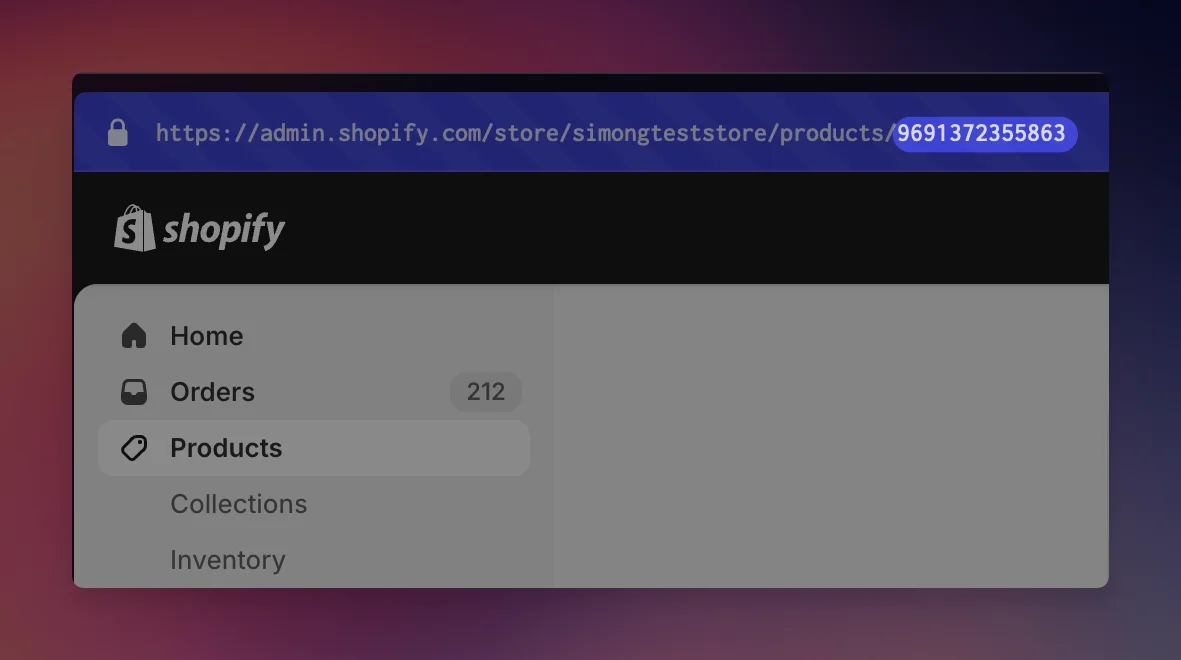
Open the product in your Shopify admin. The last number in the address bar is the product ID, for example 10028233720087 in:
admin.shopify.com/store/your-store/products/10028233720087
Find the variant ID of a product with variants
Open the product
Open the product in your Shopify admin.
Open the variant
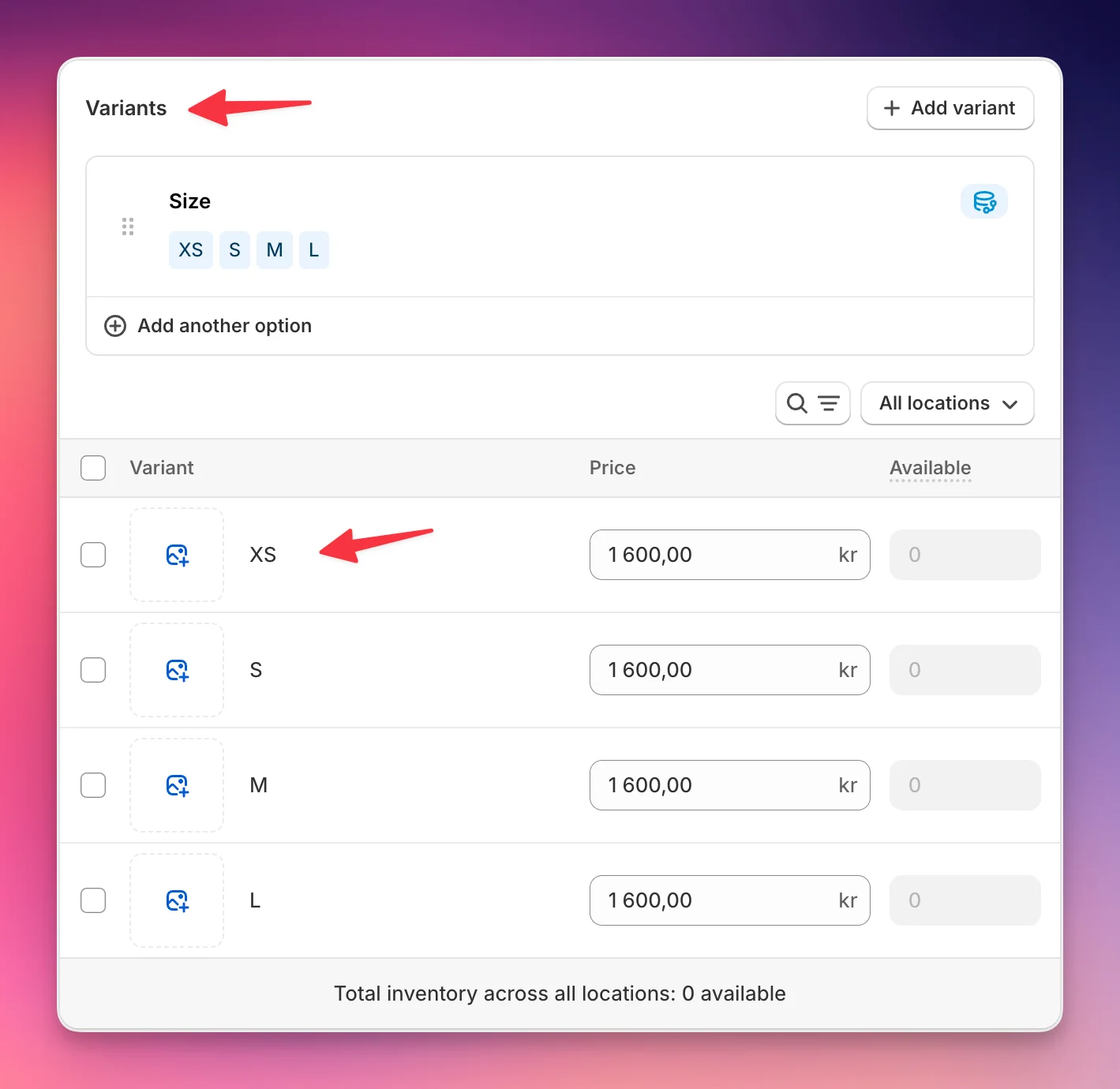
In the Variants section, click the variant you need, for example XS.
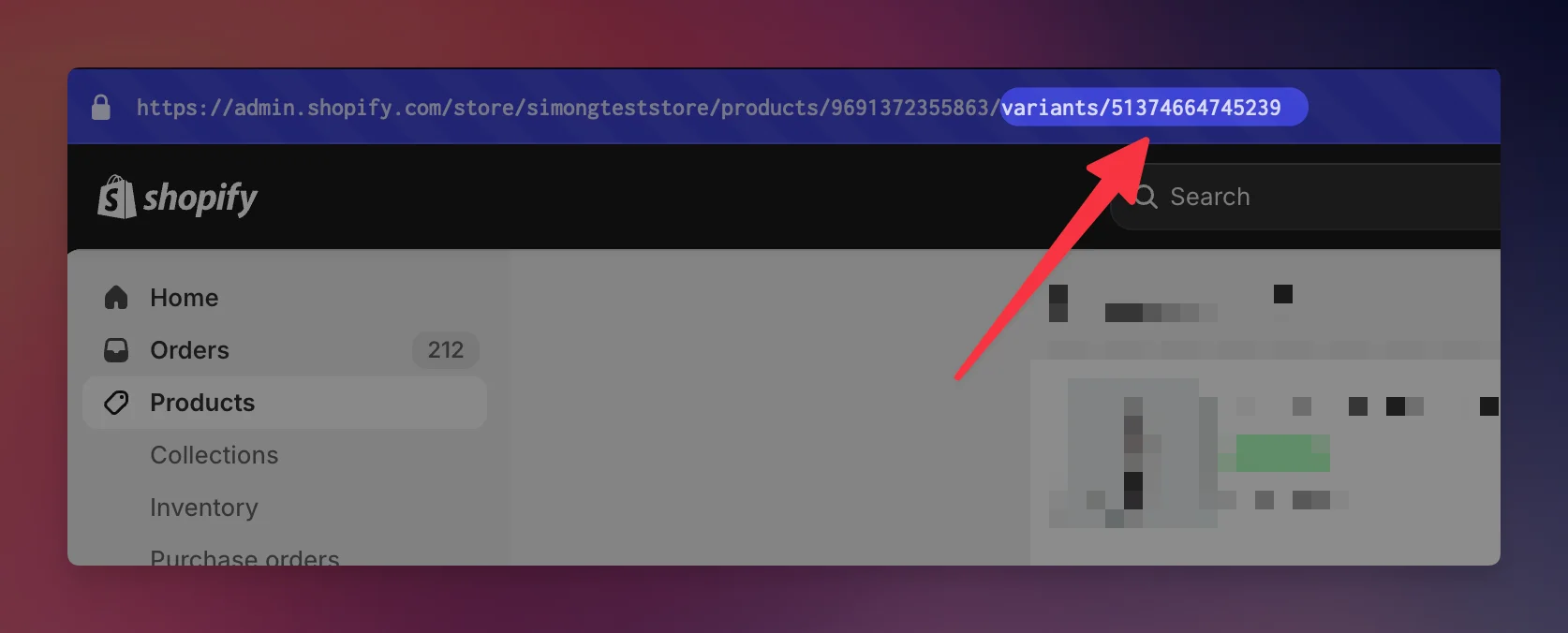
Copy the number after variants/
Copy the last number in the address bar, the one after
variants/. Don't use the number afterproducts/: that's the product ID.
Find the variant ID of a product without variants
A product without options still has exactly one variant, but Shopify doesn't show it as a separate page.
Open the product
Open the product in your Shopify admin.
Add .json to the address
Add
.jsonto the end of the address and press Enter, for exampleadmin.shopify.com/store/your-store/products/10028233720087.json.Copy the variant id
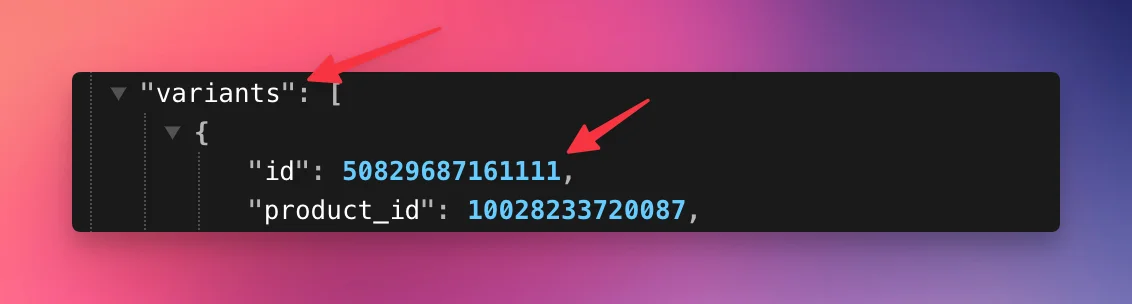
The page shows the product data as text. Find
"variants": [and copy the"id"just below it. Don't copyproduct_id.
Still stuck?
Chat with us and we'll help you get your cart live. Or email contact@elitecart.app.