
Set up your first 1-click addon
Create the addon product in Shopify, switch on Addon 1 in EliteCart and style its texts, so shoppers can add it to the cart with one tap.
Last updated
This guide walks you through setting up a 1-click addon with a fixed price, such as gift wrapping or priority handling. You create the product in Shopify, pick it in EliteCart, then choose how it looks in the cart.
For shipping protection priced as a percentage of the cart, follow Percentage-based addons (e.g. insurances) instead.
Create the addon product in Shopify
An addon is a normal Shopify product. If you don't have one yet, create it in Shopify first:
- Title: short and clear, such as "Gift wrapping" or "Priority handling". Shoppers see it in the cart, at checkout and in order emails.
- Price: the price of the product is what shoppers pay for the addon.
- Image: shown in the cart if you use the Image main style, and at checkout and in order emails either way. Pick one that still reads at thumbnail size.
- Physical product: untick This is a physical product for services such as warranties or priority handling, so the addon doesn't need shipping. Keep it ticked for physical extras like a gift box. If you work with a fulfillment partner, ask them how they handle the addon.
- Visibility: keep the addon out of your collections and navigation, so shoppers only find it in the cart. See Hiding addons and gifts from search and SEO.
- Translations and prices: if you sell in more than one language or market, translate the product title and set your market prices in Shopify (see the last section).
Switch on the addon
Open Addons & insurance
In EliteCart, go to Cart designerAddons & insurance and stay on the Addon 1 tab.
Turn on the Status toggle
Switch on the toggle in the Status card. The tab shows Action required and the banner "Please select a product below." until you pick a product.
Choose Custom product
Under Product type, select Custom product.
Pick the product
Click Select product, then choose the product and the variant the addon should add. You can swap it later with Change product.
Style the addon and write the texts
Choose a Main style, a Button style and fill in the Texts (see below). The cart preview on the right updates as you go.
Save
Click Save. The tab now shows On.
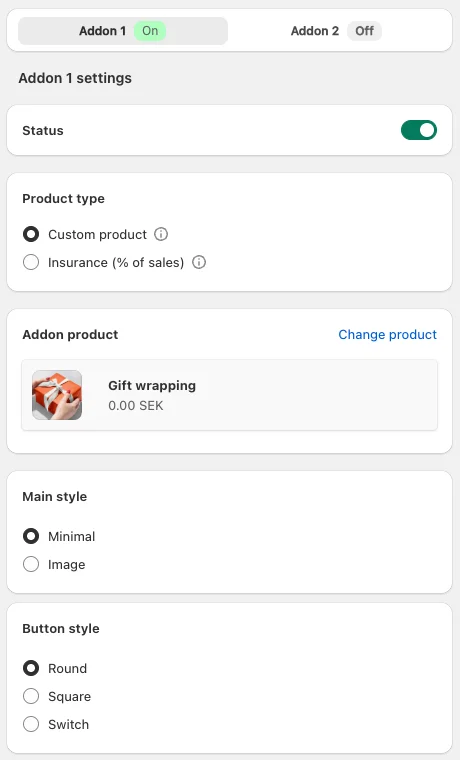
Want a second addon? Repeat the steps on the Addon 2 tab.
If you see "We are still syncing your store." at the top, EliteCart is still reading your products. Products you created recently may not show in the picker until the banner disappears.
Addon styles
Main style
- Minimal: the button and the title only. A description, if you add one, opens from a small info icon next to the title.
- Image: the product image, the title and the description below it, with the button on the right. Tick Show description in a tooltip to swap the description for a small info icon next to the title; shoppers hover or tap it to read the description.
Button style
- Round or Square: a checkbox in that shape.
- Switch: an on/off toggle, which suits shipping protection well.
All three work the same way. A tap adds the addon, a second tap removes it.
Addon texts
- Title: the text next to the button. Use
{title}for the product's name and{price}for its price, for exampleAdd {title} for only {price}. Emoji work too. - Description (optional): a short line of extra context. Leave it empty to hide it.
- Relative URL for description link (optional): a page in your store, such as
/pages/shipping-protection. Wrap the words that should link in{link_start}and{link_end}in the description, for exampleRead our {link_start}gift wrap guide{link_end}.
Prices and translations for other markets
{title}shows the product's title in the shopper's language, using the translations you add in Shopify or with a translation app such as Weglot.{price}shows the price in the shopper's currency, using your Shopify Markets prices. Set fixed prices per market or rounding rules so the addon shows a clean price like 2.95 EUR rather than a converted 3.06.- The rest of the title and description you translate in EliteCart: click the language icon next to the field. More than one language needs the Professional plan or higher.
Translate the product in Shopify even if you don't use {title}, because checkout and order emails use the product's own title.
The addon shows a warning
"The selected product variant is not available and won't show." means the addon is hidden from shoppers. The product is in draft, sold out or not on the Online Store sales channel. See Why is my product unavailable? and My addon does not show. Why?
Still stuck?
Chat with us and we'll help you get your cart live. Or email contact@elitecart.app.