
How to exclude products from EliteAI
Keep B2B, bundle or low-stock products out of your upsells with a product tag or the force-hide metafield.
Last updated
EliteAI can show products you did not pick yourself: in AI upsells, and through Smart extend and Smart insert in your flows. Most stores never need to exclude anything. When you do, there are two ways: a product tag that keeps a product out of AI recommendations, and a metafield that hides it from all upsells, flows included.
Typical products to exclude:
- B2B-only or wholesale products
- Bundles that customers must configure in a bundle app first
- Products with customizations
- Products you are low on and don't want to sell out
Excluded automatically
You don't need to do anything for these:
- Products you use as 1-Click Addons.
- Unavailable products: sold out, draft, archived or not published to the Online Store channel.
- Products already in the customer's cart (unless a flow is set to show them).
- With EliteAI™ Ultra: products that include a free variant.
Method 1: exclusion tags (AI only)
Tag the product in Shopify
In your Shopify admin, open the product and add the tag
_elite_ai_exclude. Save the product.Or use your own tags
If your products already carry a tag like "b2b", add it in EliteCart instead: UpsellsAI upsellsGeneral AI settingsExclusion tags. Separate several tags with commas, then click Save. This field is visible while Enable AI upsells is on.

EliteAI never recommends a tagged product, in AI upsells or through Smart extend and Smart insert. Tags are matched regardless of capitalization.
Method 2: the force-hide metafield (all upsells)
A product with this metafield set to true never shows as an upsell: not in your flows and not in EliteAI™ Ultra recommendations. You can set it by hand or automate it, for example with Shopify Flow, based on your own rules.
Step 1: create the metafield definition
In your Shopify admin, go to SettingsCustom dataProducts and click Add definition.
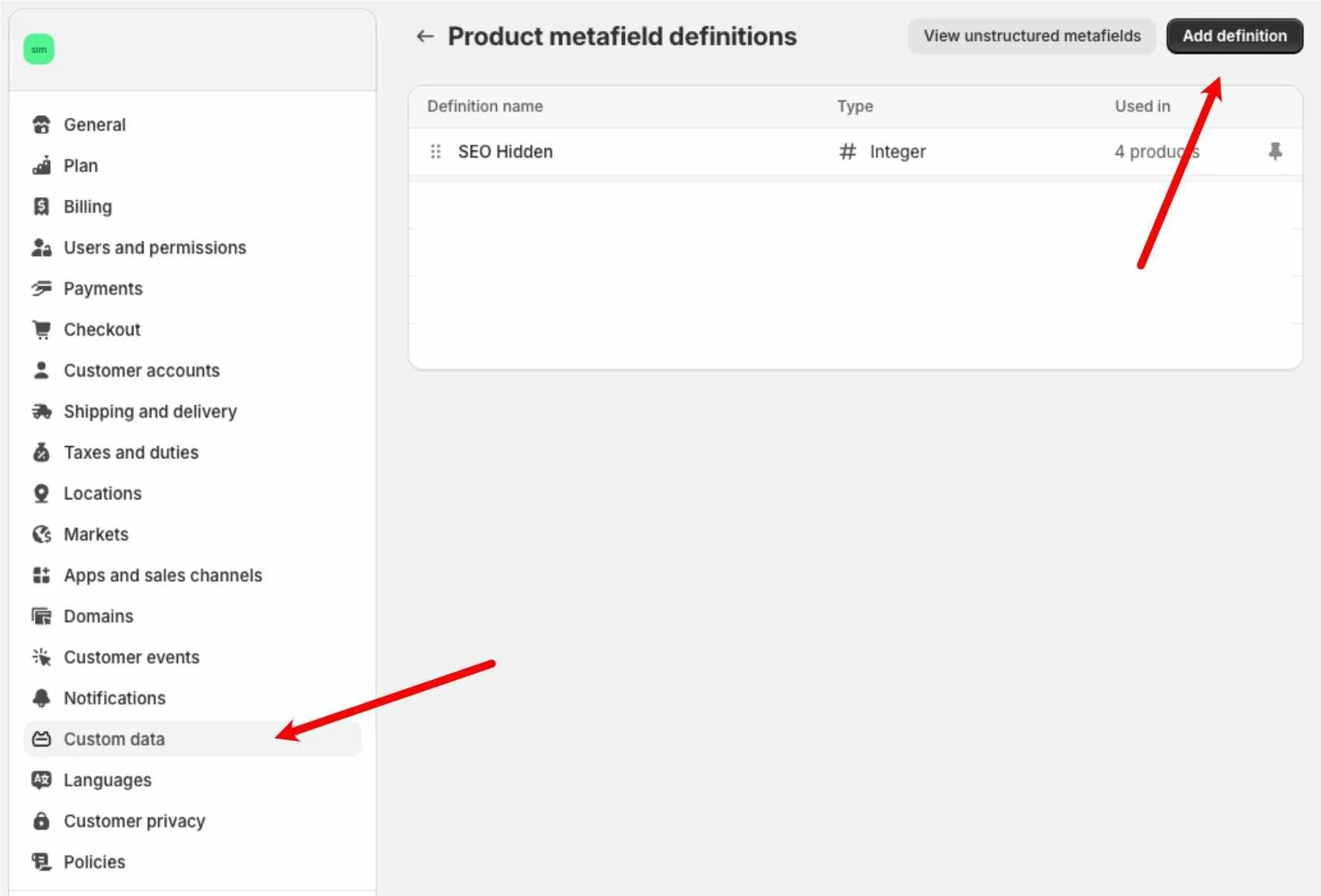
Create it with:
- Name: Force Hide Upsell (or any name you like)
- Namespace and key:
elitecart.force_hide_upsell - Type: True or false
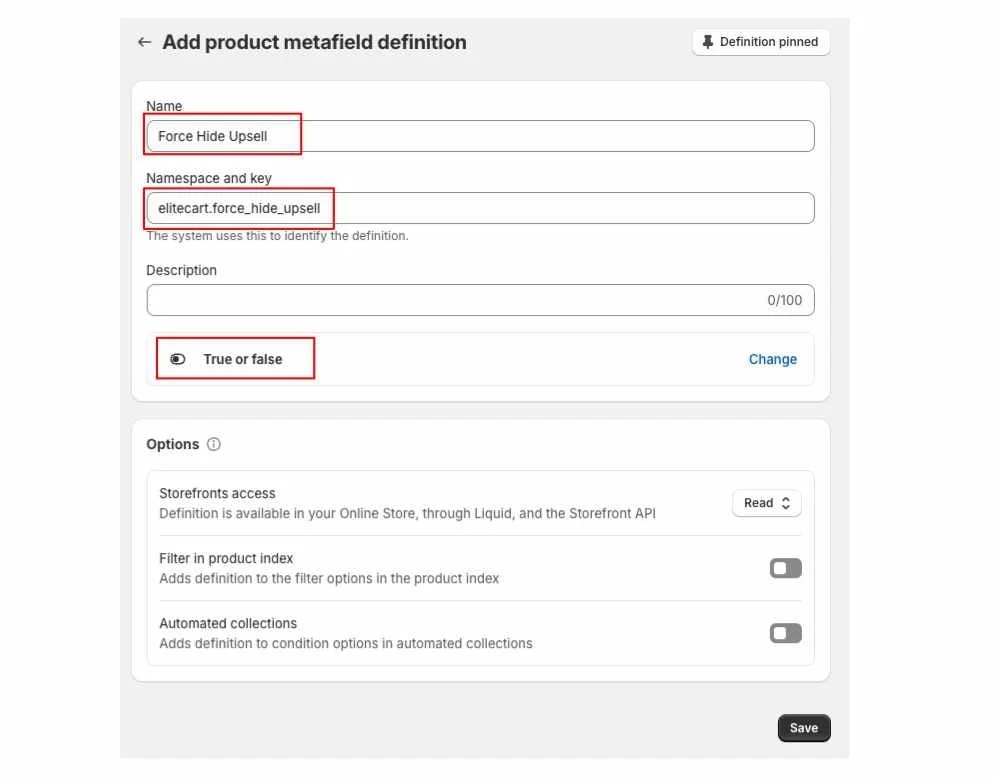
Step 2: set it on products
Open a product in your Shopify admin and scroll down to Metafields (click View all if you don't see the field). Set Force Hide Upsell to true and save. Apps like Shopify Flow or Locksmith can set it automatically.
In the flow editor, a product with the metafield set shows a Hidden badge.
EliteCart picks up the change automatically within a day, or right away the next time you save an upsell flow.
Examples
- Low stock: sold-out products are already hidden, but you can also hide products with only a few units left so you don't sell out.
- Wrong warehouse: if US customers can buy from your EU stock, hide cheap add-ons that are only in stock in the EU, so a pair of socks doesn't ship across the ocean on its own. As a starting point in Shopify Flow, download this Flow file (.flow) and change the location name in both condition blocks.
Only on one location: a fine-tuned filter
Tags and the metafield work everywhere. To limit what EliteAI™ Ultra recommends on one location only, build a fine-tuned version with a filter such as "do not have one of these tags: b2b" and assign it to that location. See Filters and boosts for fine-tuned engines.
Still stuck?
Chat with us and we'll help you get your cart live. Or email contact@elitecart.app.