
Automatically fulfilling the shipping protection add-on
Use a free Shopify Flow workflow to mark shipping protection as fulfilled on every order, without touching the products you still need to ship.
Last updated
When a shopper adds shipping protection, it shows up on the order as a line item like any other product. You don't ship it, so you don't want it to sit as "Unfulfilled" forever or to fulfill it by hand on every order.
With a one-time setup, Shopify marks the shipping protection as fulfilled automatically and leaves your physical products untouched. It takes two parts:
- Mark the add-on as a non-physical product, so Shopify keeps it apart from your shippable goods.
- Import a Shopify Flow workflow that fulfills it automatically.
Why this works
Shopify splits an order into separate fulfillment orders depending on whether items need shipping. Once the shipping protection is non-physical, Shopify puts it in its own fulfillment order, apart from your real products.
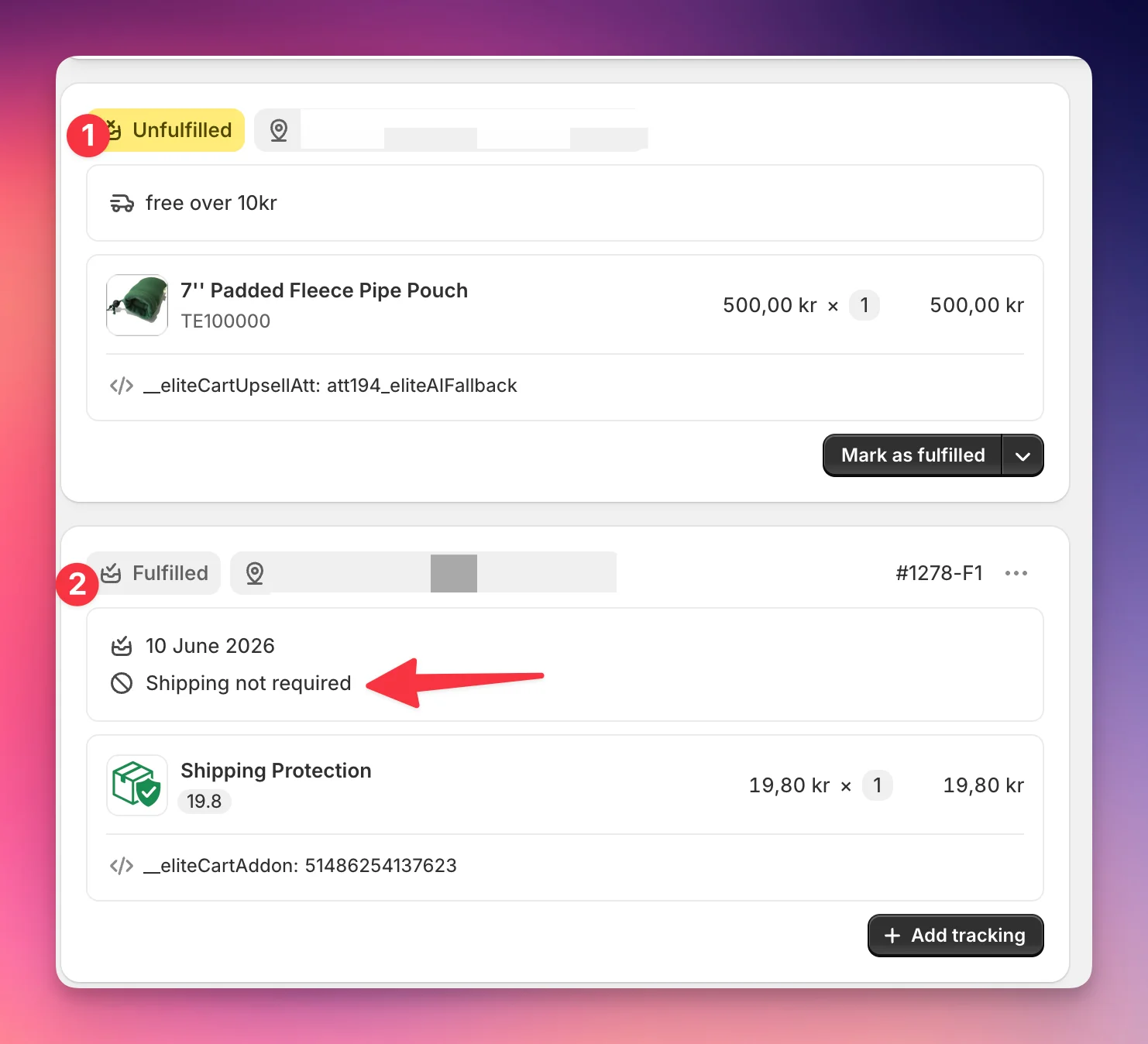
That separation lets the workflow fulfill only the shipping protection, never your actual products. It's also why Part 1 matters: without it, the workflow would fulfill the entire order.
Part 1: Mark the add-on as non-physical
You only need to do this once.
Open the product
In your Shopify admin, open the shipping protection product (it may be named "Shipping Protection" or "Insurance").
Select all variants
In the variants table, select all variants with the checkbox at the top. There can be up to 100.
Open the bulk editor
Click Bulk edit.
Add the Physical product column
Click Add column (top right of the bulk editor) and add the Physical product column.
Untick Physical product
Untick Physical product for every variant, then click Save.
Shopify now treats the add-on as a non-physical item and puts it in its own fulfillment order on every new order.
Part 2: Import the automatic fulfillment workflow
We've prepared a ready-made workflow for the free Shopify Flow app. Install it first if you haven't yet. It's free on every Shopify plan.
Download the workflow
Download the Flow file: Auto-fulfill EliteCart Insurance.
Open Shopify Flow
Open the Shopify Flow app in your Shopify admin.
Import the file
Click Import (top right) and select the file you just downloaded.
Turn it on
Review the workflow, then click Turn on workflow.
The workflow runs when a fulfillment order is ready to fulfill. If that fulfillment order contains a product with the product type EliteCart - Shipping Insurance, it marks the fulfillment order as fulfilled without notifying the customer.
From now on, Shopify Flow fulfills just the shipping protection on every order that has it, and the rest of the order stays ready for you to ship as usual.
Still stuck?
Chat with us and we'll help you get your cart live. Or email contact@elitecart.app.