
Set up rewards
Add up to 20 rewards for free shipping, discounts and gifts, each with its own threshold, texts and images, and manage them in one list.
Last updated
Rewards give customers free shipping, a discount or a free gift once their cart reaches a threshold. This article shows how to add, configure and manage rewards. You can have up to 20.
For the bar's look and the settings shared by all rewards, see Set up the reward bar.
Open the reward list
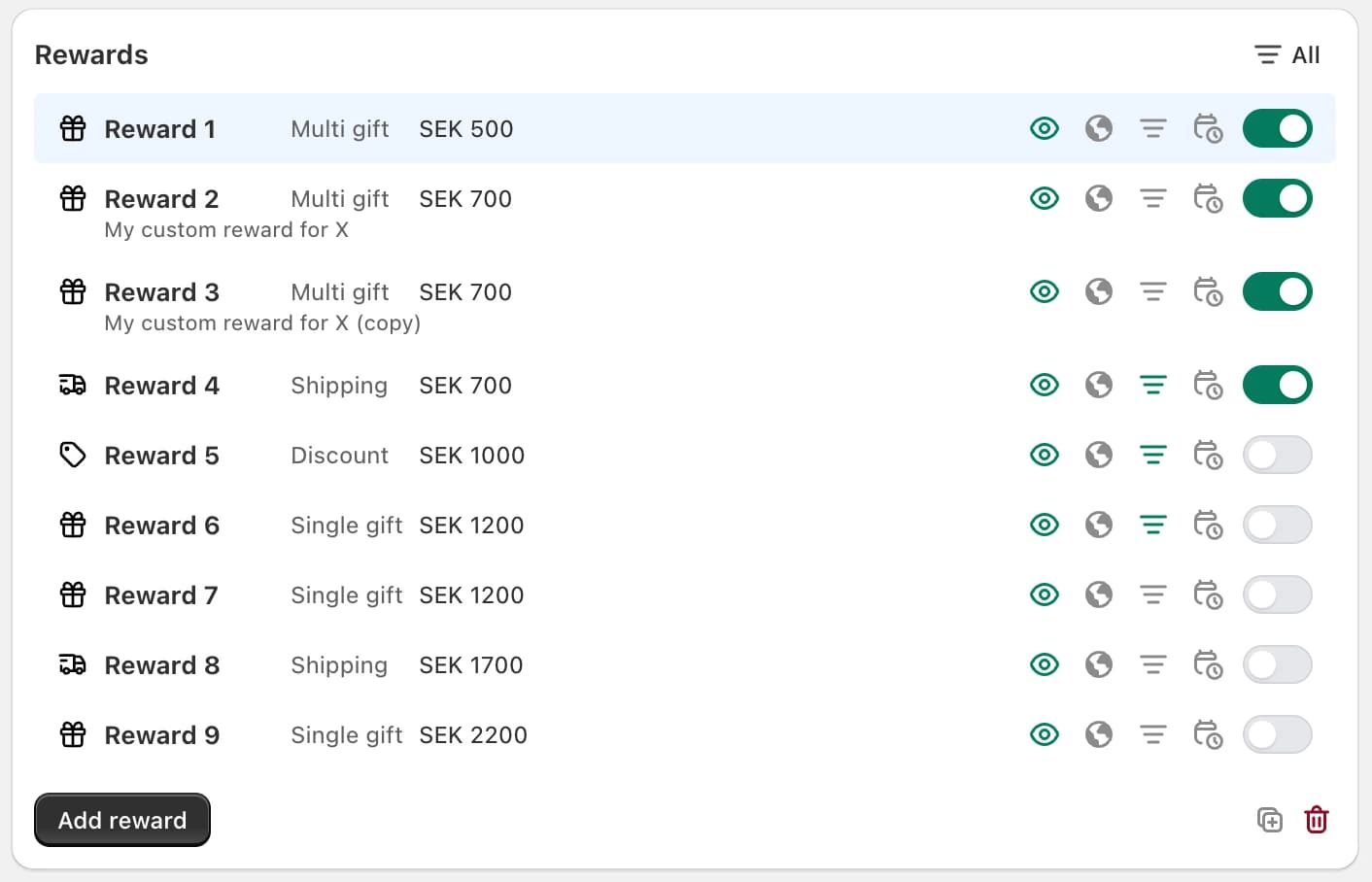
Go to Cart designerFeaturesRewards and stay on the Rewards tab. The list shows all rewards sorted by threshold, lowest first. Each row shows the reward number, its type, its threshold and a few icons:
- Orange warning triangle: a gift reward has no gift product yet.
- Eye: whether the reward shows in the reward bar. Click it to hide or show the reward (gift and Discount (advanced) rewards only).
- Globe, filter and calendar: green when market thresholds, conditions or a schedule are active. Click one to jump to its card.
- Toggle: turns the reward on or off without deleting it.
The filter at the top right shows All, Enabled only, Visible in reward bar or Not visible in reward bar. It only filters the list; it doesn't change your store.
If you see tabs called Reward 1, Reward 2, Reward 3 and Final text instead, your store is on the old rewards system. Click Migrate to V2 in the Upgrade to Rewards V2 banner; see Rewards V1 (legacy) and how to migrate.
Add a reward
Click Add reward
Click Add reward at the bottom of the list.
Choose a type
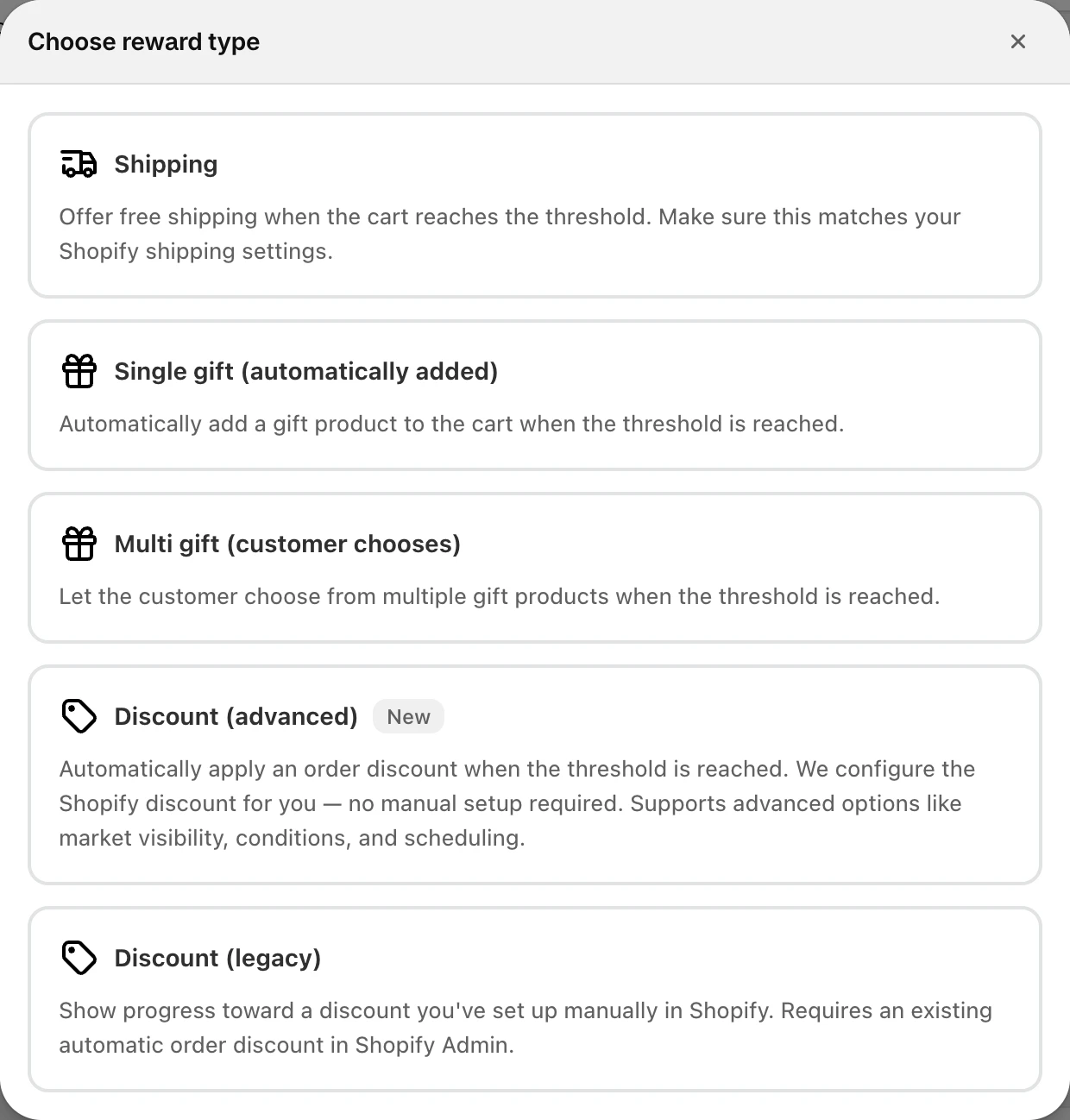
Pick one of the five types in Choose reward type (below). The type can't be changed later.
Configure it
The new reward is selected and its settings open below the list. Its threshold starts above your current highest one.
Save
Click Save.
| Type | What the customer gets |
|---|---|
| Shipping | Free shipping. You set up the free shipping rate in Shopify; the reward shows progress toward it. |
| Single gift (automatically added) | One gift product, added to the cart automatically. |
| Multi gift (customer chooses) | A choice of up to 8 gift products in the gift chooser. |
| Discount (advanced) | An order discount that EliteCart sets up and applies for you. |
| Discount (legacy) | Progress toward an automatic discount you created yourself in Shopify. |
Discount rewards are explained in Discount rewards.
Configure a reward
Click a reward in the list. Its settings open below, in this order.
Internal name
An optional label, up to 60 characters, that only you see. It appears under the reward in the list, so you can tell rewards apart when their numbers shift after a threshold change. Customers never see it.
Threshold
The cart total or item count the customer must reach. Whether it's an amount or a number of items depends on Threshold type on the Settings & design tab. Changing the threshold re-sorts the list.
Open Scope threshold to count only some products toward this reward:
- All products: everything counts (except gifts, addons, gift cards and excluded products).
- Specific collections: only products in the selected collections count. With no collection selected, the threshold can never be reached.
- Exclude collections: products in the selected collections don't count.
A scoped reward can look like it stalls when customers add products outside the scope, so preview the bar before you publish.
Gift product (gift rewards)
Click Choose existing product (one variant for a single gift, up to 8 products for a multi gift) or Create gift product to duplicate a product as a $0 gift. Below the products, Gift product health checks them for problems; see Gift product health. When the Automatic discount is on, a Discount label field appears here too: the name of the discount line on the free gift in the cart and at checkout. Left empty, it reads "Free gift". Multi gift rewards also link to Change gift chooser design.
How to keep gifts free is explained in Make gifts free automatically.
Discount configuration (Discount (advanced))
Set the discount type, value and title. See Discount rewards.
Texts
- Away from free shipping or Away from reward: shown until the customer reaches this reward. Use
{amount}for the remaining amount. - Reward achieved: shown when this reward is reached and no higher reward exists.
- Description (optional): a short text under the icon or image.
With several languages, each reward has its own translations. See Change wording and edit translations.
Visibility
For gift and Discount (advanced) rewards, Hide this reward in the reward bar removes the reward from the bar but keeps it working: gifts are still added, the gift chooser still opens and the discount still applies. Use it for promotions you announce elsewhere, such as in an email.
Images
Only shown when Display type is Images. Upload a Reward image (before the threshold) and a Reward achieved image (after). Accepts .jpg, .png and .webp; images are optimized automatically.
Shopify Markets, Conditions and Schedule
These cards limit a reward to certain countries, customers or times, and need the Professional plan. See Reward conditions, markets and schedules.
Explain
The Explain button at the top of the reward's settings gives a plain-language summary of what the reward does, with warnings such as a missing gift product or a threshold of 0.
Duplicate, pause or delete a reward
- Duplicate: select the reward and click the copy icon in the list footer (Duplicate selected). The copy keeps every setting, including whether it's enabled, and its internal name gets "(copy)". Change it before you save if you don't want two identical rewards running.
- Pause: switch off the toggle on the reward's row. All settings are kept.
- Delete: select the reward and click the red trash icon in the list footer (Delete selected). There is no confirmation. Click Save to make it permanent; until then, reloading the page brings the reward back.
At 20 rewards, Add reward and the duplicate icon disappear.
Still stuck?
Chat with us and we'll help you get your cart live. Or email contact@elitecart.app.