
Manage your upsell flows
Prioritize, pause, duplicate and filter your upsell flows, and use flow analytics to see which flows earn the most.
Last updated
Once you have a few upsell flows, the flow list on the Manual upsells tab is where you run them. This article covers priorities, pausing and duplicating flows, filters, the compact view, flow analytics and the limits per plan.
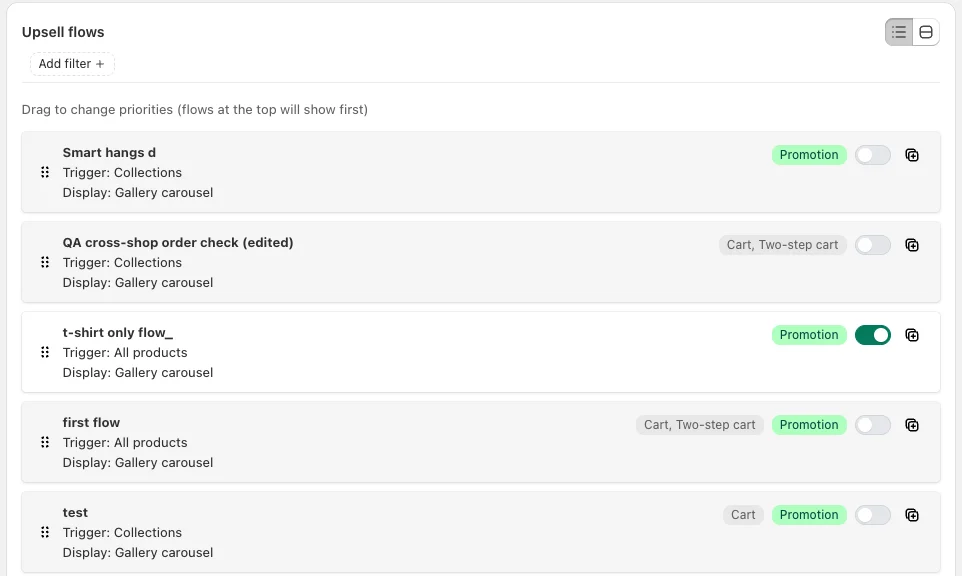
Open it under UpsellsManual upsells. Each row shows the flow's title, its trigger ("Trigger: ...") and its display type ("Display: ..."), plus badges for a promotion and for a limited display location.
Set the priority
Only one flow shows at a time. EliteCart checks your active flows from the top of the list down and shows the first one that matches the cart and still has a product to show.
Drag the flow
Use the drag handle on the left of a row to move the flow up or down. Flows at the top show first.
Save
Click Save in the save bar at the top of the page. Changes to the order are not applied until you save.
Put specific flows (a single product or variant) above broad ones (a whole collection or All Products). Otherwise the broad flow always wins. New flows start at the top of the list.
Pause or reactivate a flow
Each row has a toggle switch (tooltip "Deactivate flow" or "Activate flow"). Switch it off and click Save to pause the flow without deleting it. Inactive flows keep all their settings and appear greyed out in the list.
Duplicate a flow
Click the duplicate icon on a row (tooltip "Duplicate flow"). EliteCart creates a copy with "(Copy)" added to the title directly below the original, with the same trigger, upsell products and settings, and the same active state as the original. Open the copy to change what you need.
Delete a flow
Open the flow and click Delete at the bottom of the page. This cannot be undone. If you only want to stop the flow for a while, deactivate it instead.
Filter the list and use the compact view
Above the list you can filter by:
- Status: Active or Inactive
- Promotion: Promotion enabled or No promotion
- Display location: Cart, Two-step cart or Product page
Filters only change what the list shows, never what customers see. You can still drag to reorder while a filter is on: the order applies to the filtered flows and hidden flows keep their position.
Switch between Standard view and Compact view to fit more flows on screen. EliteCart remembers your choice in this browser. Long lists load 100 flows at a time, with Show next and Show all buttons at the bottom.
Flow analytics
Click Show analytics above the list to see, per flow, Total revenue, revenue per 100 views, Viewed, Added to cart and Purchased. Pick the time frame next to the button: Today, Last 7 days, Last 30 days or All time. The same button on a flow's own page shows the numbers for that flow.
Flow analytics are available on the Professional and Enterprise plans. They are not part of Essentials or the legacy Professional plan; there the button is locked with the tooltip "Flow analytics is available on a higher plan."
Limits
| Essentials | Professional and Enterprise | |
|---|---|---|
| Upsell flows | 1 | No plan limit (the admin list holds up to 700) |
| Upsell products per flow | 12 | 12 |
| Trigger products or variants per flow | 250 | 250 |
When you reach your limit, Add flow is disabled with the tooltip "You have reached the maximum number of flows for your plan."
Still stuck?
Chat with us and we'll help you get your cart live. Or email contact@elitecart.app.