
Find your way around the Cart designer
Where every cart setting lives, how the live preview works, how to save, and where the old "Layout & functions" settings went.
Last updated
The Cart designer is where you set up how your cart looks and what it does. This article shows how the Cart designer is organized, how to use the live preview, and how to save your changes.
Open the Cart designer
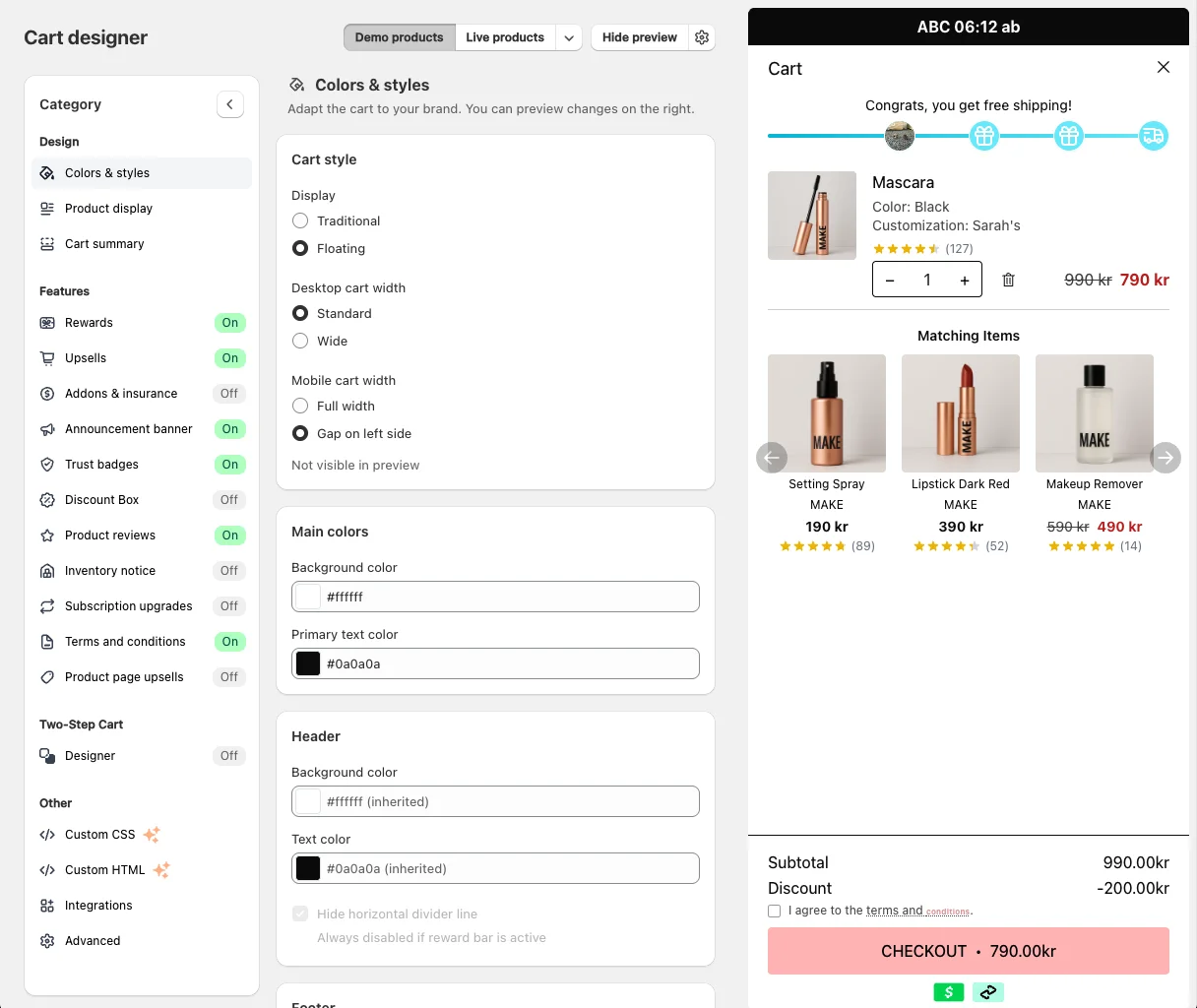
In the EliteCart app, click Cart designer in the navigation. The settings sit in a list of sections on the left, the selected section's settings in the middle, and a live preview of your cart on the right.
The four groups
The sections are grouped like this:
| Group | Sections |
|---|---|
| Design | Colors & styles, Product display, Cart summary |
| Features | Rewards, Upsells, Addons & insurance, Announcement banner, Trust badges, Discount Box, Product reviews, Inventory notice, Subscription upgrades, Terms and conditions, Product page upsells |
| Two-Step Cart | Designer |
| Other | Custom CSS, Custom HTML, Integrations, Advanced |
Features that you switch on or off show an On or Off badge next to their name, so you can see at a glance what is active. Most feature sections start with a Status card that holds the on/off toggle.
Where did "Layout & functions" go?
Older guides send you to Layout & functions. That section no longer exists. Its settings moved here:
| You are looking for | Now in |
|---|---|
| Image display (aspect ratio, crop or contain) | Cart designerProduct display |
| Product savings | Cart designerProduct display |
| Price layout, quantity adjuster, trash icon, product information | Cart designerProduct display |
| Subtotal, total savings, order notes, tax notice | Cart designerCart summary |
| Inventory notice | Cart designerInventory notice |
| Product reviews | Cart designerProduct reviews |
| Two-step cart (used to be its own page) | Cart designerDesigner, in the Two-Step Cart group |
Use the live preview
The preview on the right updates as soon as you change a setting, before you save. At the top of the page you can:
- Switch between Demo products and Live products. Live products shows real products from your store. With the arrow next to it you can Choose preview product or go back with Use default product.
- Open the preview settings to Show sample discount or Hide sample discount, so you can see how savings and discounts look.
- Hide preview or Show preview to get more room for the settings.
While you are in the two-step cart's Designer section, or styling the two-step cart in Custom CSS, the preview switches to the two-step cart and says so above the preview.
Your theme's font is used in the live cart, so the font in the preview can differ slightly from your store. A few settings, such as Wide desktop cart width, are marked Not visible in preview: check them in your store.
Save your changes
As soon as you change something, Shopify's save bar appears at the top of the admin. Click Save to publish the change to your store, or Discard to undo everything since the last save. After saving you see Changes saved.
Texts and translations
Most texts can be edited right in their section. Click the translate icon next to a text field to add other languages. Essentials includes one language; for more, you need the Professional plan or higher. You can also edit all texts in one place under Language & translations.
Still stuck?
Chat with us and we'll help you get your cart live. Or email contact@elitecart.app.