
Product display settings
Choose how products look in your cart, from image size and quantity buttons to price layout, unit prices and compare-at prices.
Last updated
Product display controls how each product (line item) in your cart looks: the image, the quantity buttons, how prices are laid out and which product details show. This article walks through every card in the section.
Open it under Cart designerProduct display. Changes show in the preview right away. Switch the preview to Live products to check them with your own products.
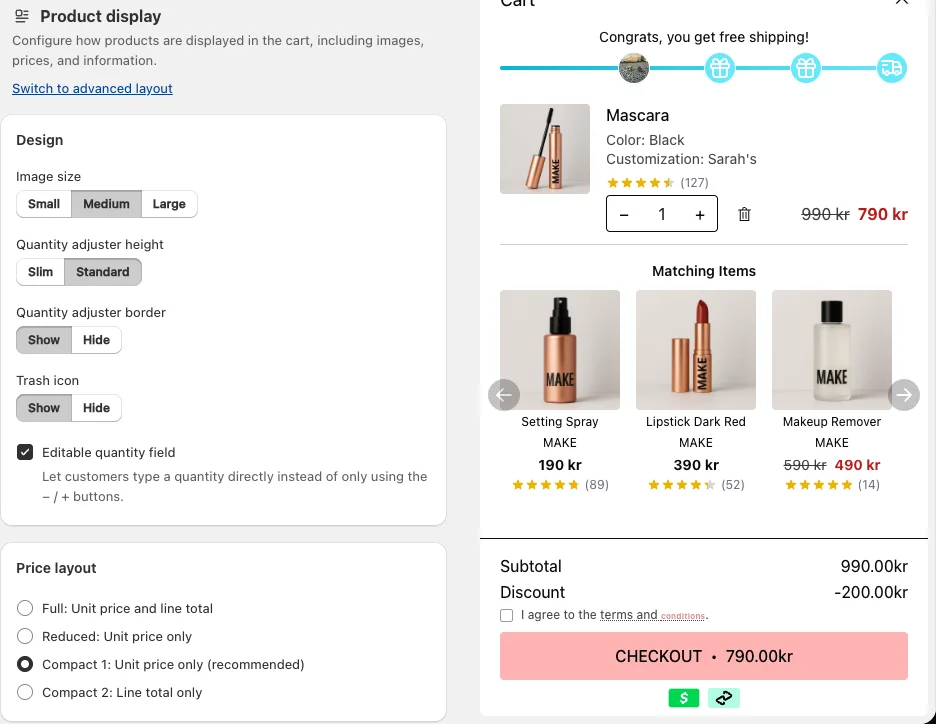
Design
- Image size: Small, Medium or Large product images.
- Quantity adjuster height: Slim or Standard.
- Quantity adjuster border: Show or Hide the frame around the − / + buttons.
- Trash icon: Show or Hide the remove button next to the quantity.
- Editable quantity field: lets customers type a quantity directly instead of only using the − / + buttons. Useful if customers often buy larger quantities.
Price layout
Choose how prices appear on each line:
| Option | What shows |
|---|---|
| Full: Unit price and line total | The price per item and the total for the line |
| Reduced: Unit price only | The price per item |
| Compact 1: Unit price only (recommended) | The price per item, in a more compact layout |
| Compact 2: Line total only | Only the total for the line (price × quantity) |
You can see an example of each layout in Prices and currencies in the cart.
Product savings
Tick Show to display how much the customer saves on a discounted product, for example "Save $20.00". You choose the text, colors, size and whether the savings go on their own row. All options are in Product savings.
Product information
Choose which product details show under the product title. Each one only shows if it is set in the Shopify product admin.
- Product vendor, e.g. "Nike": Hide, Show with prefix or Show without prefix.
- Product type, e.g. "Shoes": the same three options.
- Product options (i.e. variant names), e.g. "Size: Small": Hide, Show without option name, Show with option name or Show with vertical line separator.
- Product properties: custom properties, often added by product customization apps. Same three options as vendor.
- Unit price, e.g. "$3 / kg": Show or Hide. Set unit prices on the product in Shopify first.
The prefixes (such as "Brand" before the vendor) are texts you can change and translate under Language & translations.
Image display
Set one aspect ratio for all product images, so the cart doesn't jump while images load. Use AI determine to pick the ratio from your product photos, or choose one yourself, and decide between Contain and Cover. Details: Image display: aspect ratios and crop or contain.
Advanced price settings
- Show strikethrough prices (recommended): shows the original price crossed out next to a reduced price.
- Show "compare-at price" instead of "price" (recommended): if a product has a compare-at price in Shopify, the cart uses it as the original price. This increases the perceived value of each item and the total discount shown. Note that this is not how Shopify shows prices by default.
Still stuck?
Chat with us and we'll help you get your cart live. Or email contact@elitecart.app.