
Cart summary settings
Set up the bottom of your cart - subtotal, total savings, order notes, tax notice and checkout button - so customers check out with confidence.
Last updated
The cart summary is the bottom part of your cart: subtotal, savings, total and the checkout button. In Cart summary you decide what it shows. This article explains each setting.
Open it under Cart designerCart summary. Use Show sample discount in the preview settings to see how savings look.
Prices and currencies
- Show subtotal: shows a subtotal row above the savings and total.
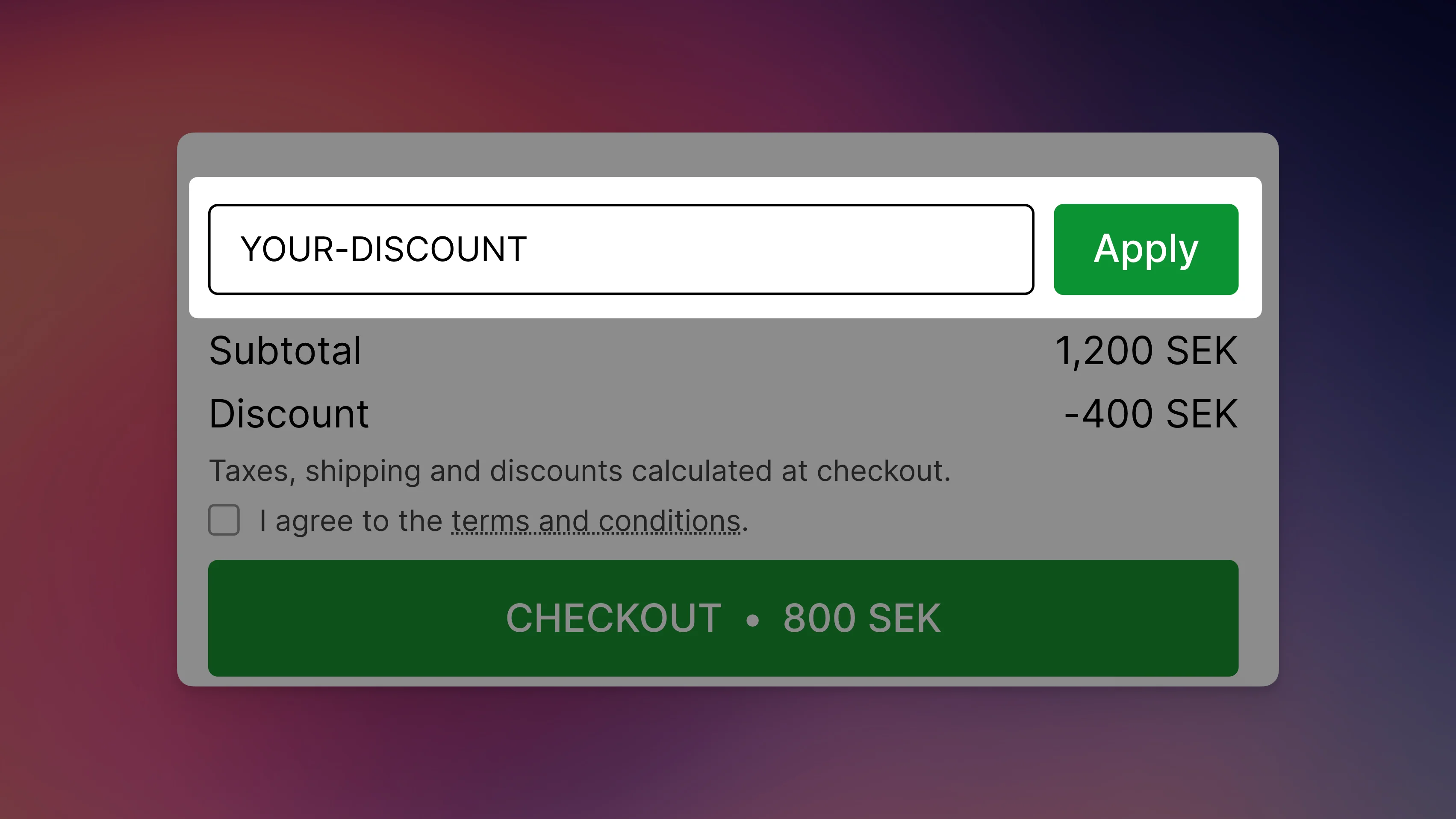
- Show cart total in checkout button: moves the total into the button, for example "CHECKOUT • $158.00", instead of a separate total row.
- Show strikethrough price for cart total: when the cart has a discount, shows the original total crossed out next to the new total.
- Use ISO currency (e.g. "USD"): adds the currency code to the amounts in the summary. Helpful if you sell in currencies that share a symbol. See Prices and currencies in the cart.
Total savings
Choose how the total discount shows in the summary:
| Option | Shows |
|---|---|
| Hide | No savings row |
| Show absolute savings | The amount, e.g. -$20.00 |
| Show percentage savings | The share of the subtotal, e.g. 25% |
| Smartly decide (based on perceived value) | Whichever number is bigger: 40% rather than $5, but $50 rather than 10% |
The savings row is always hidden when the cart has no savings. Its color is Savings text color under Colors & styles.
Order notes
Let customers leave a note for you, such as delivery instructions. The note is saved as the Shopify cart note and ends up on the order.
- Hide, Show. Closed by default (customers click the heading to open the field) or Show. Open by default.
- Heading: the text above the note field, by default "Add order note".
- Input placeholder: the grey hint text inside the empty field.
Both texts can be translated with the translate icon next to the field.
Other settings
- Show tax notice: a small line under the totals, by default "Taxes, shipping and discounts calculated at checkout."
- Show lock symbol in checkout button: a small lock icon that signals a secure checkout.
- Enable scrollable cart: on mobile, the cart header stays fixed while the products and the checkout button scroll together. This gives more room on small screens. On desktop the footer is always fixed.
You can change the wording of the summary texts, like "Subtotal", "Discount" and the tax notice, under Language & translations.
Still stuck?
Chat with us and we'll help you get your cart live. Or email contact@elitecart.app.