
Checkout Add-on
Offer an optional add-on product on the Shopify Checkout page
Last updated
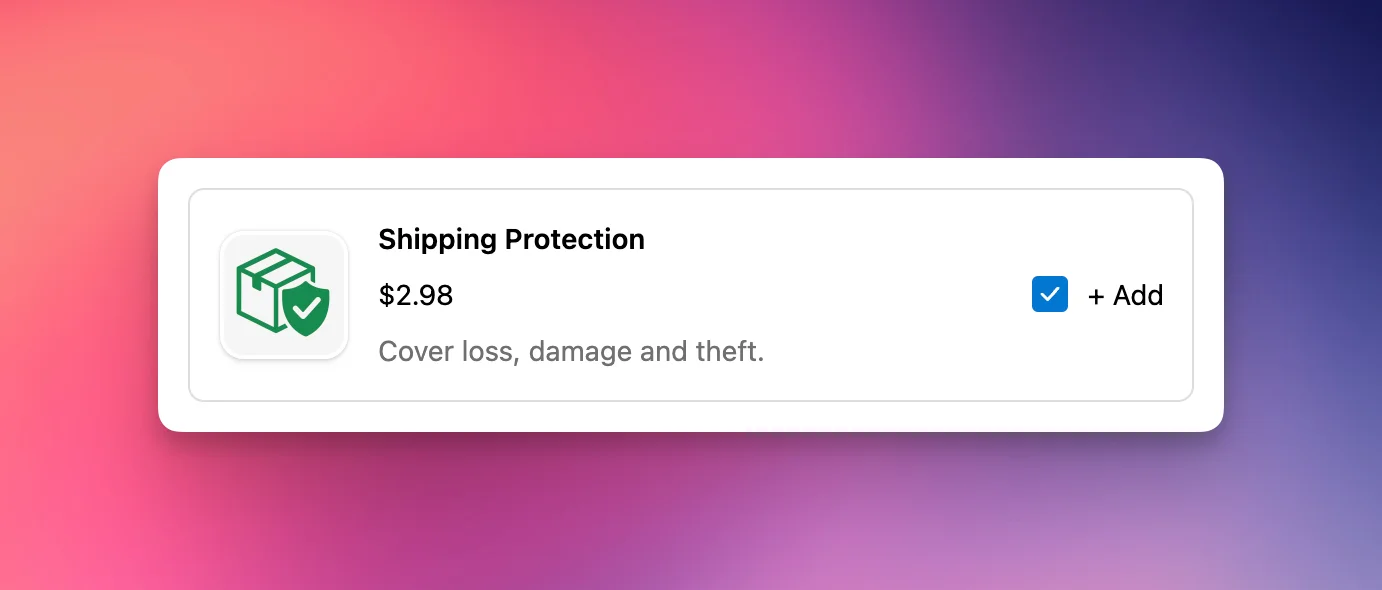
The Checkout Add-on block shows one optional product as a compact card with a checkbox on Shopify's checkout page, so shoppers can tick it to add the item before they pay - ideal for upgrades like priority handling, gift wrap, or a warranty. You can place several Add-on blocks in different checkout spots, each bound to its own module.
Requirements
- Shopify Plus
- EliteCart Professional plan or higher
Set it up
1. Create the module
- In EliteCart, go to Checkout → Create module.
- In Add a checkout module, choose Add-on and click Create module.
2. Configure it
- Set an Internal name (shown only in the admin) and set Status to Active.
- Under Add-on product, click Select product and pick the product and the exact variant to offer.
- Set the Display options and write the Text (see Key settings).
- Click Save.
3. Add the block in checkout
- On the module page, copy the Module ID with the Copy ID button.
- Click Open checkout editor (or in Shopify admin go to Settings → Checkout → Customize).
- Add the Elite Add-on block where you want it, and paste the Module ID into the block's settings.
- Save the checkout editor. The status banner on the module page confirms when the block is found.
Tip: To offer different add-ons in more than one spot, create a separate module for each and bind each block to its own Module ID.
Key settings
- Add-on product - the product and the exact variant the block offers. The block shows nothing until a variant is selected, or if that variant later sells out or is removed.
- Show product image - shows a large thumbnail next to the add-on.
- Show compare-at price - shows the struck-through original price when the variant is on sale.
- Show card border - draws a frame around the block.
- Hide once added - hides the whole block after the shopper adds the add-on (good for a one-time offer).
- Text - Headline (bold line above the add-on), Description (optional supporting line), and Checkbox label (the text next to the checkbox). Use
{product_title}in any of these to insert the product's name. Translate them in Language & translations.
Test
- Save the module and the checkout editor.
- Open your store and proceed to checkout.
- Confirm the add-on appears where you placed the block.
- Tick the checkbox and verify the product is added to the order at the right price; untick it and confirm it is removed.
Still stuck?
Chat with us and we'll help you get your cart live. Or email contact@elitecart.app.