
How EliteCart works with other apps
The settings and routes that make review, bundle, option, payment and page builder apps work with the EliteCart drawer.
Last updated
EliteCart works with most Shopify apps without any setup. This article explains how EliteCart integrations work with other apps, which settings fix the common conflicts, and where to find the step-by-step article for each app.
Where integrations live in the app
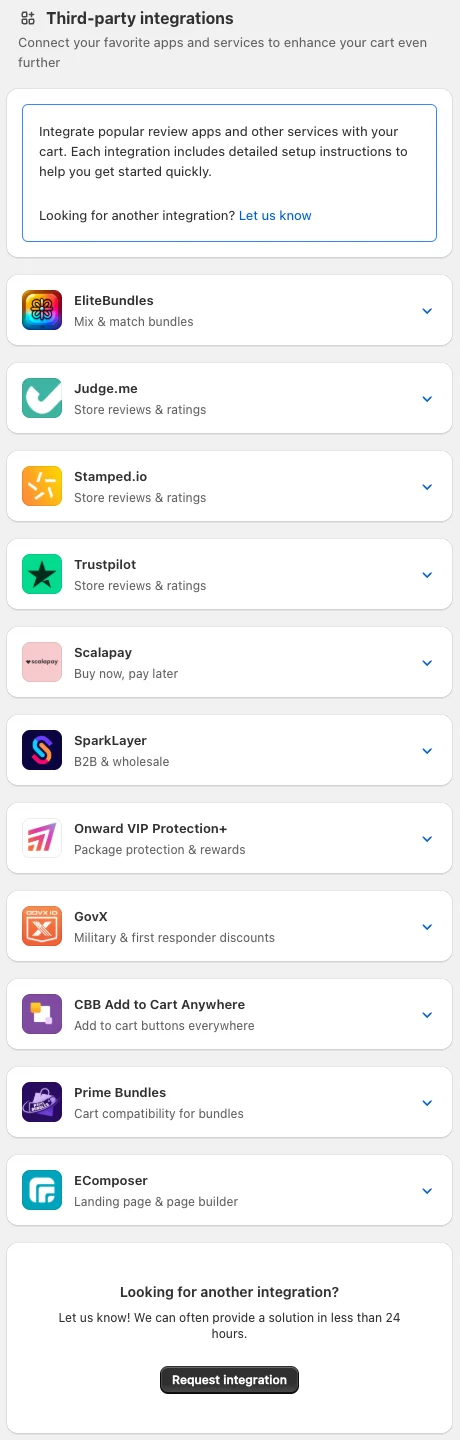
Open Cart designerOtherIntegrations. Each card (EliteBundles, Judge.me, Stamped.io, Trustpilot, Scalapay, SparkLayer, Onward VIP Protection+, GovX, CBB Add to Cart Anywhere, Prime Bundles, EComposer) has an Integrate now button that opens its help article.
Missing an app? Click Request integration under "Looking for another integration?". It opens a chat with our team, and we can often provide a solution in less than 24 hours.
Three ways apps work together with EliteCart
Most integrations fall into one of these groups:
- Apps that add products to the cart (bundles, product options, page builders, quick-add buttons). These need EliteCart to notice the add and open the drawer. Usually a setting in Cart designerOtherAdvanced is enough.
- Apps that show a widget in the cart (reviews, pay-later messages, verification buttons). These go into a Custom HTML position, usually with Widget mode on. Custom HTML is part of the Professional plan.
- Apps that replace the cart for some customers (B2B and wholesale carts). These use Deactivate drawer for logged in customer with tag.
The Advanced settings that matter for integrations
All of these are in Cart designerOtherAdvanced, on every plan. The card heading is in brackets.
| Setting | What it does | Use it when |
|---|---|---|
| Detect external cart changes ("Integration - detect theme changes") | EliteCart notices when another app or the theme changes the cart and refreshes itself | Another app adds products, but the cart shows old contents |
| Open cart drawer on external add-to-cart (same card) | Opens the drawer after another app adds a product. Only works with the setting above on | An app adds to cart, but the drawer doesn't open |
| Pass through the full html product form (for bundle / product-option apps) ("General settings") | Sends the whole product form to Shopify instead of rebuilding it | A bundle or option app adds extra products that don't end up in the cart |
| Exclude add-to-cart selector ("Theme integration - add to cart") | EliteCart leaves matching buttons alone, so the theme or app handles them | A "Notify me" button or an app's own button opens the cart by mistake |
| Custom add-to-cart selector (same card) | Tells EliteCart which buttons are add-to-cart buttons. It replaces the default selector | A page builder's buttons don't open EliteCart |
| Validate product form before add-to-cart (same card) | Checks required fields before adding | Products are added even though a required option is empty |
| Force reload on cart open ("General settings") | Reloads the cart every time it opens | An app changes the cart in a way EliteCart doesn't detect |
| Deactivate drawer for logged in customer with tag ("Other settings") | Turns off the drawer and EliteCart analytics for logged-in customers with one tag | A B2B or wholesale app should handle the cart for tagged customers |
| Use Shadow DOM for CSS isolation ("General settings") | Keeps theme CSS out of the cart | See the next section |
Detect external cart changes and Open cart drawer on external add-to-cart are on by default for new installs. The advanced settings reference explains every setting on the page.
Shadow DOM and other apps
Use Shadow DOM for CSS isolation is on for new installs. It puts the cart in its own isolated area of the page, so theme styles can't change how it looks. The side effect: scripts from other apps that search the page for cart elements can't find them.
- For widgets you paste into Custom HTML, turn on Widget mode. The widget's script then finds its markup when the page loads, and EliteCart moves it into the cart.
- For scripts you write yourself, use the shadow-safe approach in Custom HTML for developers.
- If an app's own script must find elements inside the cart (for example Onward, or Weglot's text detection), it may only work with Shadow DOM off. Turning it off can let theme CSS change the cart's look, so check the cart afterwards.
Integration articles
Bundles and product options
Reviews
Payments, protection and discounts
B2B
Add-to-cart buttons, page builders and themes
Translation
Still stuck?
Chat with us and we'll help you get your cart live. Or email contact@elitecart.app.