
Set up the reward bar
Turn on the EliteCart reward bar and set its threshold type, display, colors, gift stacking and gift chooser in one place.
Last updated
The reward bar shows customers how much more they need to spend to get free shipping, a discount or a free gift. This article covers turning it on and every setting on the Settings & design tab, which applies to all your rewards.
Turn on the reward bar
The reward bar appears as soon as at least one reward is enabled.
Open Rewards
Go to Cart designerFeaturesRewards.
Add a reward
On the Rewards tab, click Add reward and choose a reward type, for example Shipping.
Set the threshold
Click the reward in the list and enter its Threshold.
Enable it
Make sure the toggle on the reward's row is on.
Save
Click Save. Check the cart preview on the right.
Adding and configuring rewards is explained in Set up rewards. If you see tabs called Reward 1, Reward 2, Reward 3 and Final text instead of a reward list, your store is still on the old rewards system: see Rewards V1 (legacy) and how to migrate.
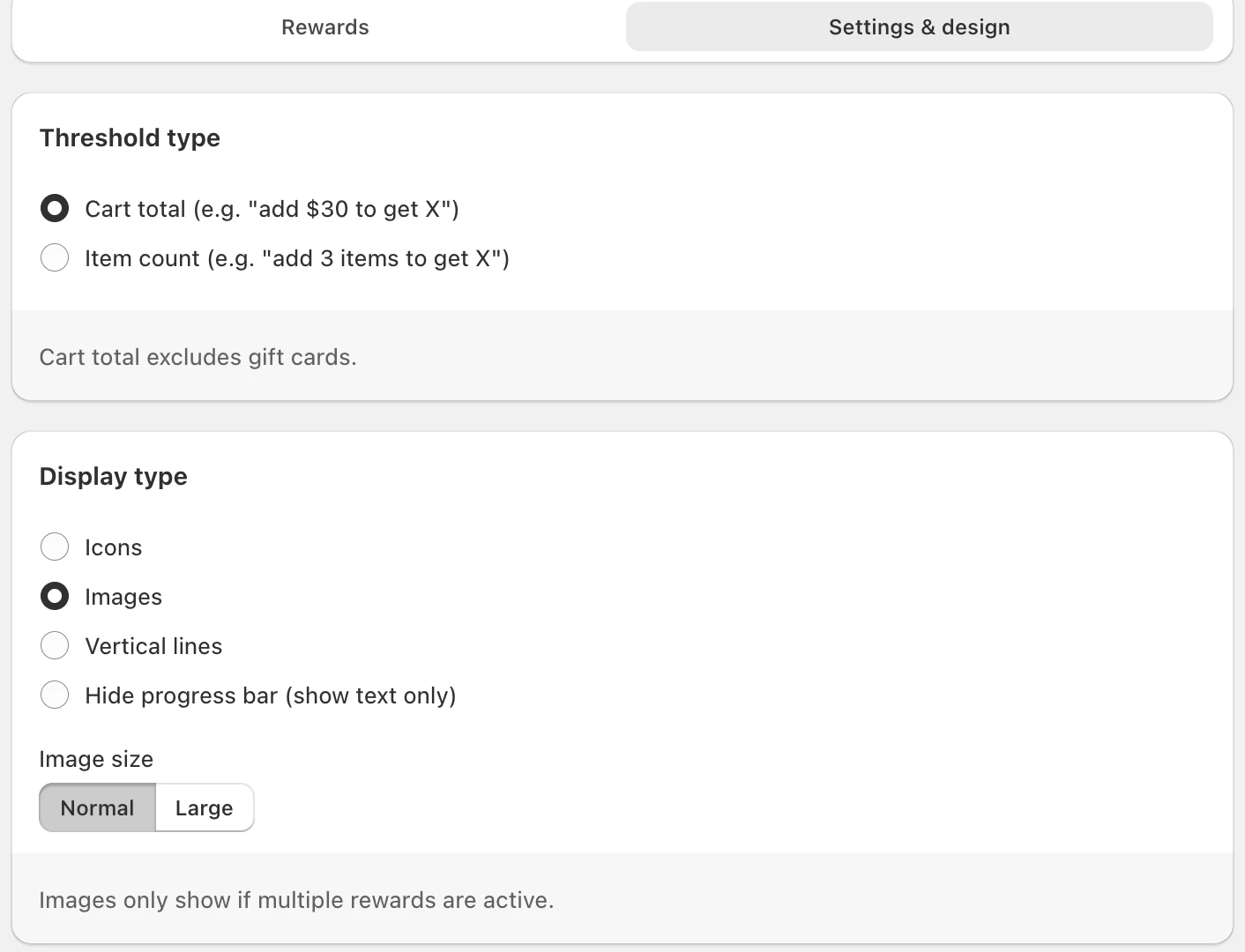
Threshold type
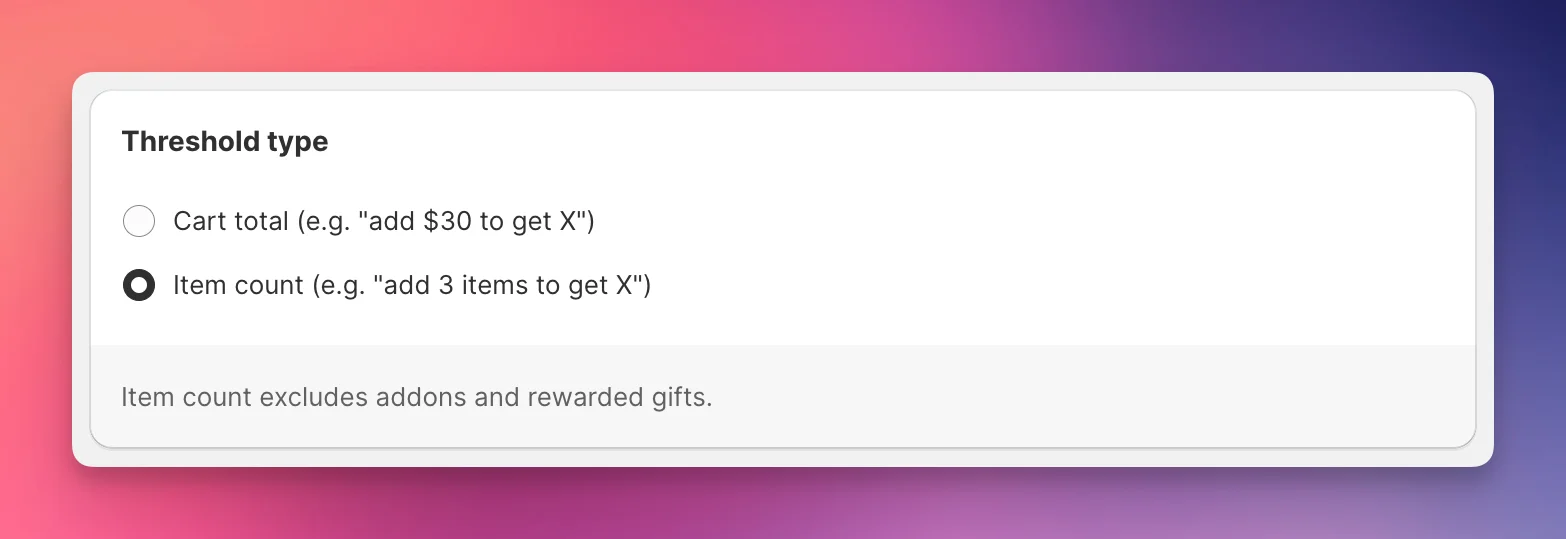
Choose what your thresholds measure. The setting applies to every reward; you can't mix the two.
- Cart total (e.g. "add $30 to get X"): the cart value. Gift cards are excluded.
- Item count (e.g. "add 3 items to get X"): the number of items. Addons and rewarded gifts are excluded.
To leave out other products too, see Exclude products from reward calculation.
Display type
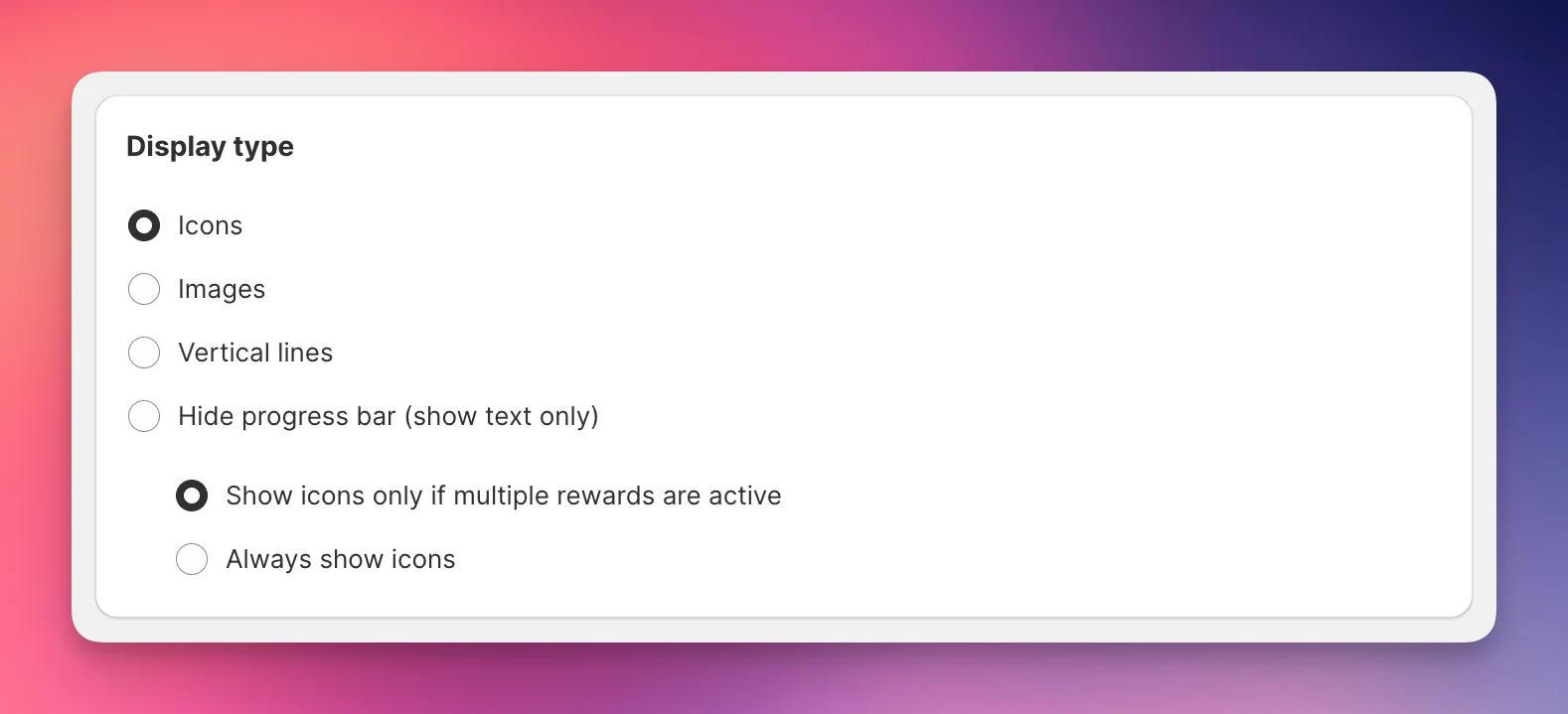
- Icons: an icon for each reward under the bar. Choose Show icons only if multiple rewards are active or Always show icons.
- Images: your own image for each reward, in Image size Normal or Large. You upload the images in each reward's Images card. Images only show if multiple rewards are active.
- Vertical lines: a marker on the bar at each reward. Vertical lines only show if multiple rewards are active.
- Hide progress bar (show text only): only the reward text, no bar.
Colors and styles
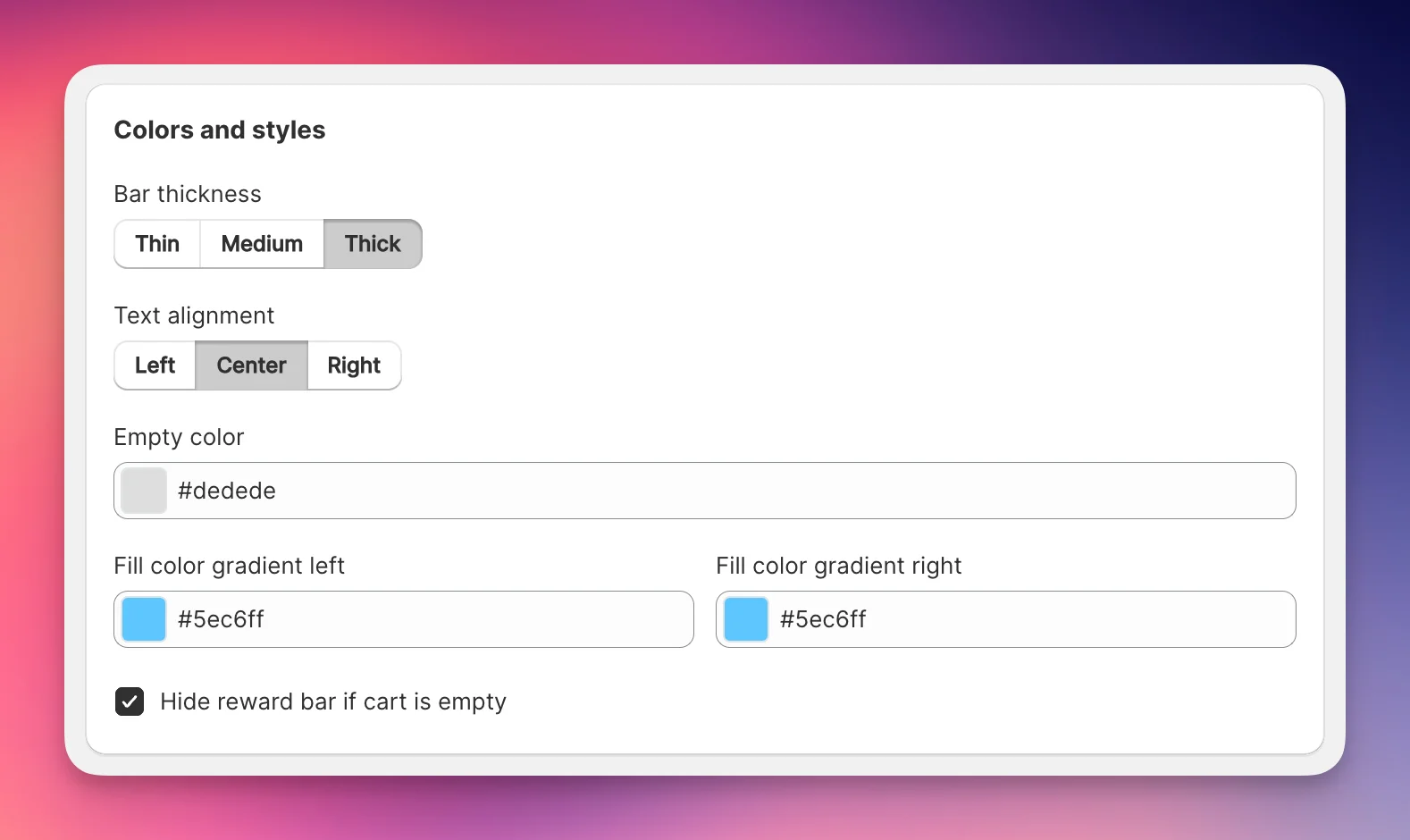
- Bar thickness: Thin, Medium or Thick.
- Text alignment: Left, Center or Right.
- Empty color: the unfilled part of the bar.
- Fill color gradient left and Fill color gradient right: the filled part. Use the same color twice for a solid fill.
- Hide reward bar if cart is empty: shows the bar only once something is in the cart.
Gift stacking
Turn on Prevent gift stacking to allow only one gift per order. When a customer reaches several gift rewards, only the gift of the highest reward reached stays in the cart. Shipping and discount rewards are not affected.
Gift chooser settings
The gift chooser appears when a customer reaches a Multi gift reward and can pick a gift. It can't be previewed in the cart preview.
- Display: Modal popup, Carousel above line items (recommended) or Carousel above cart summary. Carousels also get a Carousel background color.
- Show gift product prices and compare-at prices: shows each gift's value.
- Show a custom text next to the price, e.g. "FREE" or "OFFER": adds your Reward offer text and its color.
Apart from these settings, the gift carousel uses the styles of your upsell settings.
Make gifts free at checkout
Two more cards on this tab decide how gifts are priced:
- Automatic gift application holds Cart Transform (Shopify Plus only) and Automatic discount. Both make a regular-priced gift free when the customer qualifies. See Make gifts free automatically.
- Gift eligibility enforcement blocks checkout when a dedicated gift product (product type
_elite_gift) is in the cart without the threshold being met. See Enforce gift eligibility at checkout.
Still stuck?
Chat with us and we'll help you get your cart live. Or email contact@elitecart.app.