
Checkout reward bar
Show your free shipping and reward progress bar inside Shopify Checkout, including gift picking, using the rewards you already set up in Cart designer.
Last updated
The checkout reward bar brings your free shipping and reward progress bar into Shopify's checkout page. Shoppers see how close they are to free shipping, a discount or a gift, and can claim a gift, without going back to the cart. This guide shows how to add it and what behaves differently at checkout.
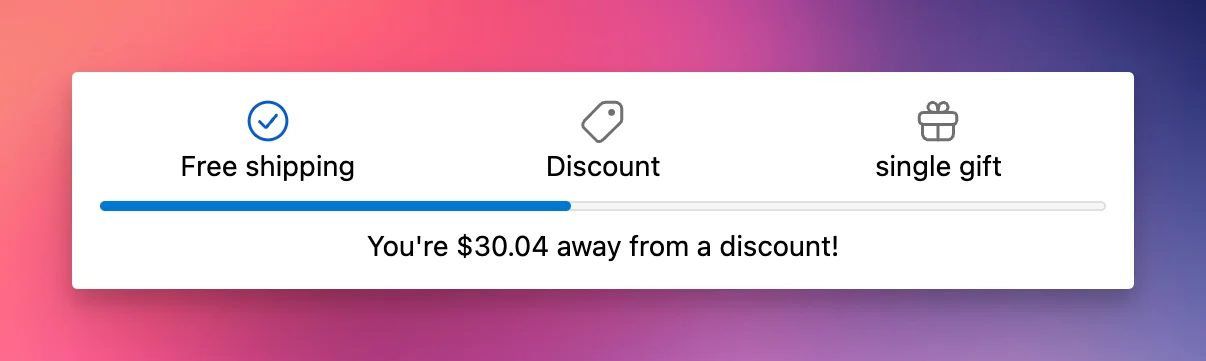
You can have one reward bar module per store.
Your rewards stay in Cart designer
The checkout reward bar mirrors the rewards from your cart's reward bar. You don't recreate them here: thresholds, gifts, discounts, conditions, markets and schedules all come from Cart designerRewards. Changes you save there show at checkout on the next checkout load. Use Open cart designer on the module page to get there.
Set up the checkout reward bar
Create the module
In EliteCart, go to Checkout and click Create module. Choose Reward bar and click Create module. If it's greyed out with "The checkout reward bar requires Rewards V2.", click Open Cart designer and migrate your rewards first.
Activate and style it
Switch on the Status toggle and choose the display options and gift texts (see the settings below). Click Save.
Place the block in checkout
Click Open checkout editor, add the EliteCart Reward Bar block where you want it and save. There is no Module ID to copy. The module page then shows "Reward bar block placed in checkout".
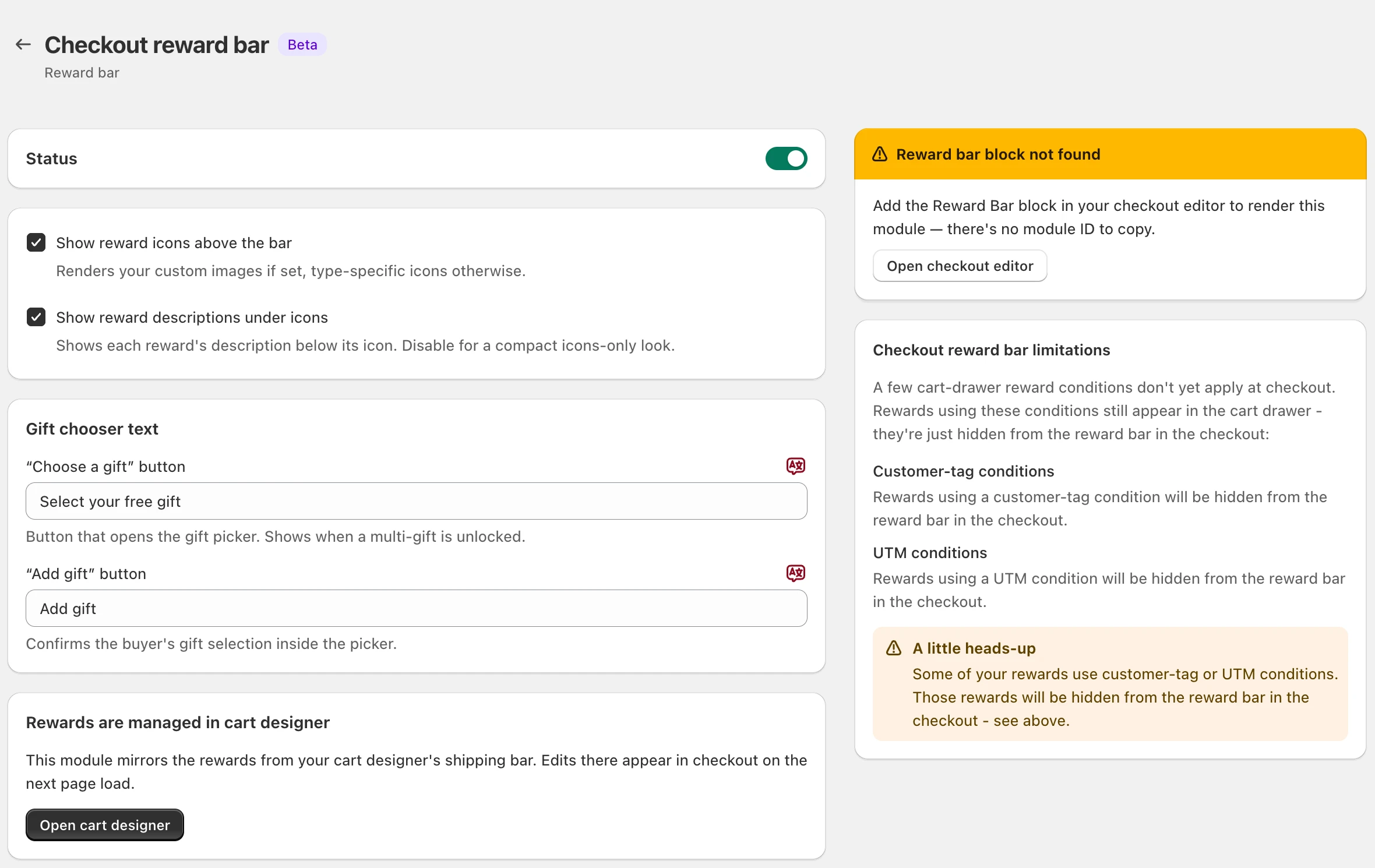
Settings
| Setting | What it does |
|---|---|
| Show reward icons above the bar | Shows your custom reward images if you set them, otherwise an icon for each reward type. |
| Show reward descriptions under icons | Shows each reward's description under its icon. Turn it off for a compact, icons-only look. |
| "Choose a gift" button | The button that opens the gift picker when a reward with several gifts to choose from is reached. |
| "Add gift" button | Confirms the shopper's choice inside the gift picker. |
Translate the two button texts with the language icon next to each field.
Rewards with customer-tag or UTM conditions
Rewards that use a customer-tag or UTM condition do their work in the cart and stay out of the checkout reward bar. The Checkout reward bar limitations card on the module page shows All good when all your rewards appear at checkout, and A little heads-up when some of them are cart-only.
Rewards limited to certain collections show at checkout too.
Test it
Get close to a reward
Add products to the cart until you're just below a reward threshold, then go to checkout.
Check the progress
Confirm the bar and the remaining amount match what the cart showed.
Reach the reward
Go back to the cart, add enough to cross the threshold and return to checkout. Check that the reward shows as reached. For a reward with several gifts, click the "Choose a gift" button, pick a gift and confirm it's added.
Still stuck?
Chat with us and we'll help you get your cart live. Or email contact@elitecart.app.