
SwitchThemes
Keep the cart icon count in SwitchThemes themes (Baseline, Exhibit, Shapes, Cascade) in sync with EliteCart.
Last updated
EliteCart works with all SwitchThemes themes: add to cart and opening the cart work out of the box. The one thing to add is a short script that keeps the cart icon count in your header in sync when customers change the cart in EliteCart.
Which themes this covers
- Baseline (Editorial, Austere, Brutalist)
- Exhibit (Exposure, Curate, Display)
- Shapes (Fizz, Candy, Aura, Scratch)
- Cascade (Swell, Phase, Sequence)
What you need
- A SwitchThemes theme with EliteCart active on it
- EliteCart Professional or Enterprise for the Custom HTML script (see the note for Essentials below)
Add the sync script
Open Custom HTML
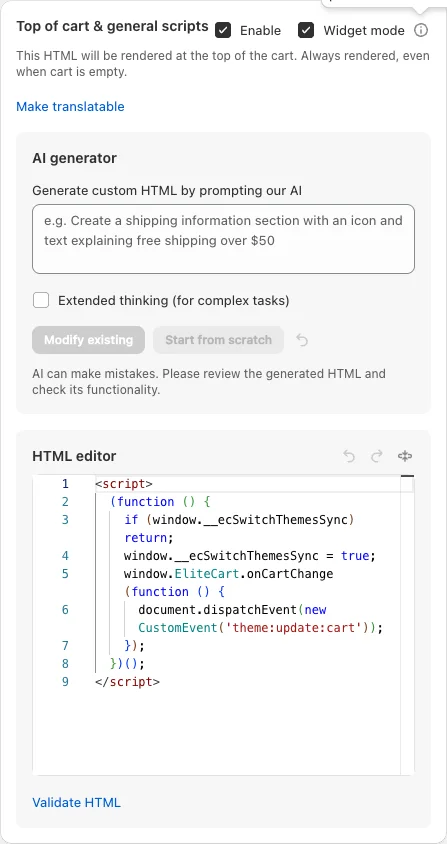
In EliteCart, go to Cart designerOtherCustom HTML.
Choose the position
In Top of cart & general scripts, tick Enable. This position is always rendered, even when the cart is empty, so the script is ready before the first add to cart.
Paste the script
Paste the code below into the HTML editor and click Save.
<script>
  (function () {
    if (window.__ecSwitchThemesSync) return;
    window.__ecSwitchThemesSync = true;
    window.EliteCart.onCartChange(function () {
      document.dispatchEvent(new CustomEvent('theme:update:cart'));
    });
  })();
</script>
The script listens for cart changes in EliteCart and sends the theme:update:cart event that SwitchThemes themes use to update the header cart count. The first lines make sure it only registers once per page.
Test it
Add a product
Open your store, add a product through EliteCart and check that the header cart count goes up straight away.
Remove it
Remove the product in the cart and check that the count goes down.
Still stuck?
Chat with us and we'll help you get your cart live. Or email contact@elitecart.app.