
Weglot
Translate the EliteCart drawer with Weglot's dynamic content feature, and what to check when Shadow DOM is on.
Last updated
Weglot translates your store without using Shopify's built-in translations. EliteCart's own translations (in Language & translations) rely on Shopify's languages, so if you use Weglot, you translate the cart with Weglot instead. This article shows how.
Translate the cart with Weglot's dynamic content
Read Weglot's guide
Weglot translates text that appears after the page loads, like the cart, with its dynamic content feature.
Add the cart's texts as dynamic elements
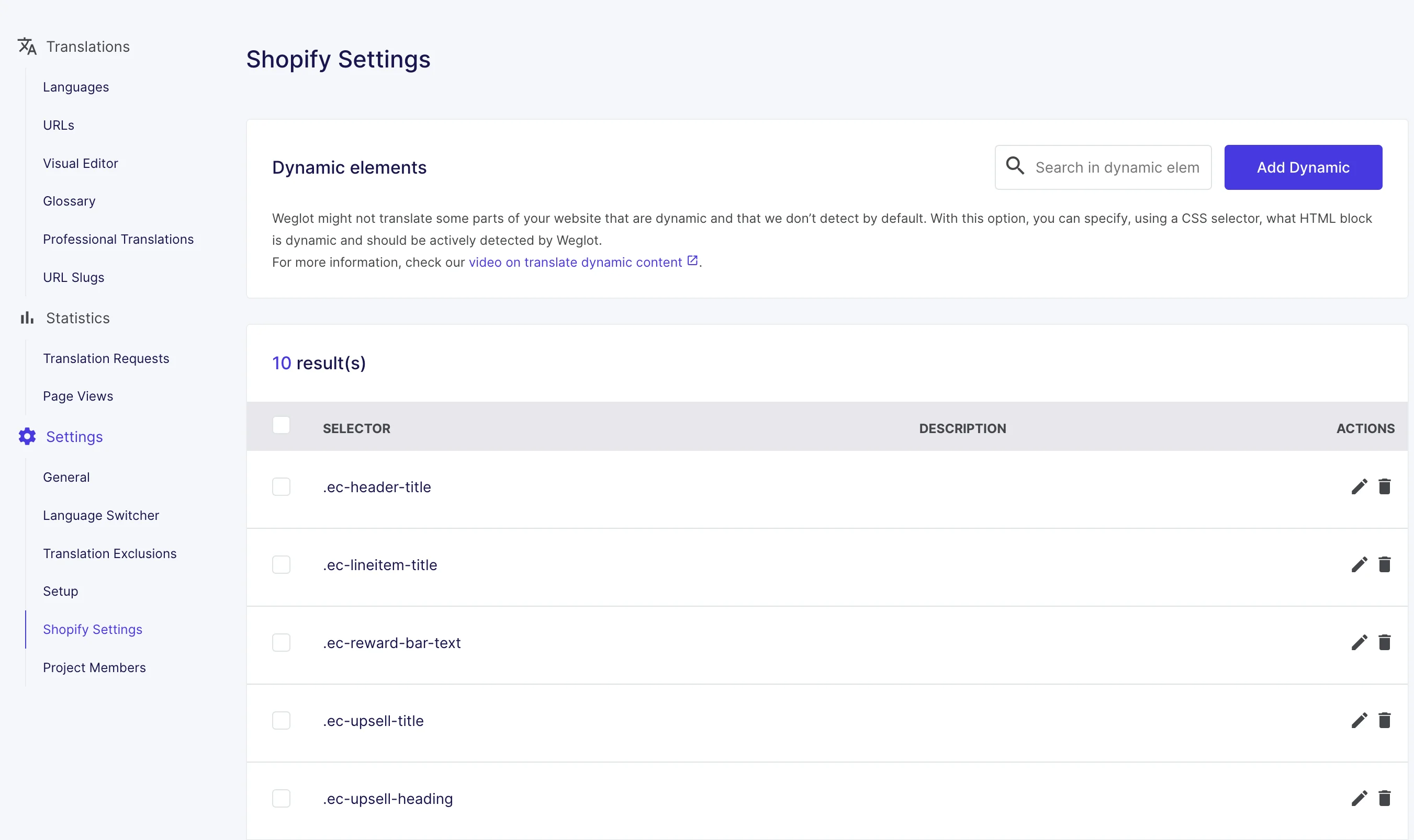
Inspect the cart in your browser and add each text element you want translated as a dynamic element in Weglot. Most EliteCart elements have class names starting with
.ec-.Or import our list
Most of EliteCart's texts are covered by this CSV file, which you can import into Weglot as described in Weglot's guide.
Test
Switch your store to another language, open the cart and check the texts.
If the cart isn't translated: check Shadow DOM
With Use Shadow DOM for CSS isolation on, which is the default for new installs, the cart sits in an isolated part of the page. Weglot looks for texts on the page, so it may not find the cart's texts there.
If the cart stays in the original language:
- In EliteCart, go to Cart designerOtherAdvanced.
- In "General settings", untick Use Shadow DOM for CSS isolation and click Save.
- Test again.
Without Shadow DOM, your theme's CSS can affect the cart, for example fonts or button styles. Check the cart's look afterwards and fix anything with Custom CSS, or chat with us.
Still stuck?
Chat with us and we'll help you get your cart live. Or email contact@elitecart.app.