
AI Translate and adding a new language
Translate all cart texts into a language in one click with AI Translate, and make a language you just added in Shopify show up in EliteCart.
Last updated
AI Translate fills every cart text of one language from another language in one go. It's the fastest way to set up a language EliteCart has no built-in texts for, or to adjust the tone of an existing one. This article also covers what to do when a language you added in Shopify doesn't show up in EliteCart.
AI Translate and editing languages other than your default language need the Professional plan.
Translate a whole language with AI Translate
Save your changes first
Open Language & translations. If you have unsaved changes, click Save or Discard: the AI Translate button is disabled until the page is saved.
Select the language to translate into
Pick it under Choose language to edit below, then click AI Translate.
Check the languages
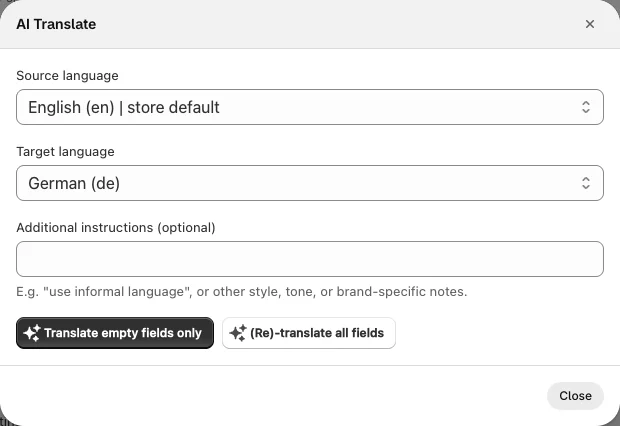
Source language starts as your store default and Target language as the language you selected. Change them if needed. They must be different.
Add instructions (optional)
Under Additional instructions (optional), add notes on style, tone or brand terms, for example "use informal language".
Choose what to translate
Click Translate empty fields only to fill only the fields that are empty in the target language, or (Re)-translate all fields to overwrite every text in the target language. A "Translated successfully" message shows when it's done.
Review and save
Close the window, check the texts and click Save. Nothing goes live before you save.
AI Translate keeps placeholders such as {amount} or {title} and the formatting of rich text fields unchanged, and only translates the words around them. Still read the result once, especially short labels like Checkout button or Savings.
Add a new language
Add the language in Shopify
Add and publish the language in Shopify. EliteCart only offers languages your Shopify store has.
Find it in EliteCart
Open Language & translations and look for the language under Choose language to edit below. EliteCart picks up language changes from Shopify automatically.
If it's missing, refresh the language setup
Scroll to the bottom and click Get latest language setup from Shopify. This reloads your store's languages, for example after you added a language or changed your primary language. Save or discard your changes first, the button is disabled while you have unsaved changes.
Translate and save
Select the language, translate the texts with AI Translate or by hand, and click Save.

Translate a single field
To translate one text across all languages at once, use the translate button next to a field in the Cart designer and choose Translate empty fields only or (Re)-translate all there. See Change wording and edit translations.
Still stuck?
Chat with us and we'll help you get your cart live. Or email contact@elitecart.app.