
How to Schedule a Flash Sale in Your Shopify Cart (Without Turning It On and Off Manually)

You've planned the perfect weekend flash sale. The discount is ready, the email is queued, the social posts are drafted. There's just one problem: someone needs to log in Friday at 3 PM to turn on the discount, then remember to turn it off again Sunday at midnight. And if that someone is you, your weekend just got a lot less relaxing.
Being able to schedule a flash sale in your Shopify cart would solve this - but most merchants are stuck doing it manually, and that's how things go wrong. The discount goes live late because you were in a meeting. It runs past its end time because you fell asleep. Or it never gets turned off at all, and customers are still getting 20% off on Wednesday.
The flash sale market hit $1.68 billion in 2025 and is growing at 16.5% annually - but that performance depends on precision. The right offer, at the right time, for the right duration. Automation is how you get that precision without losing your weekends.
What "Scheduling a Flash Sale" Actually Means
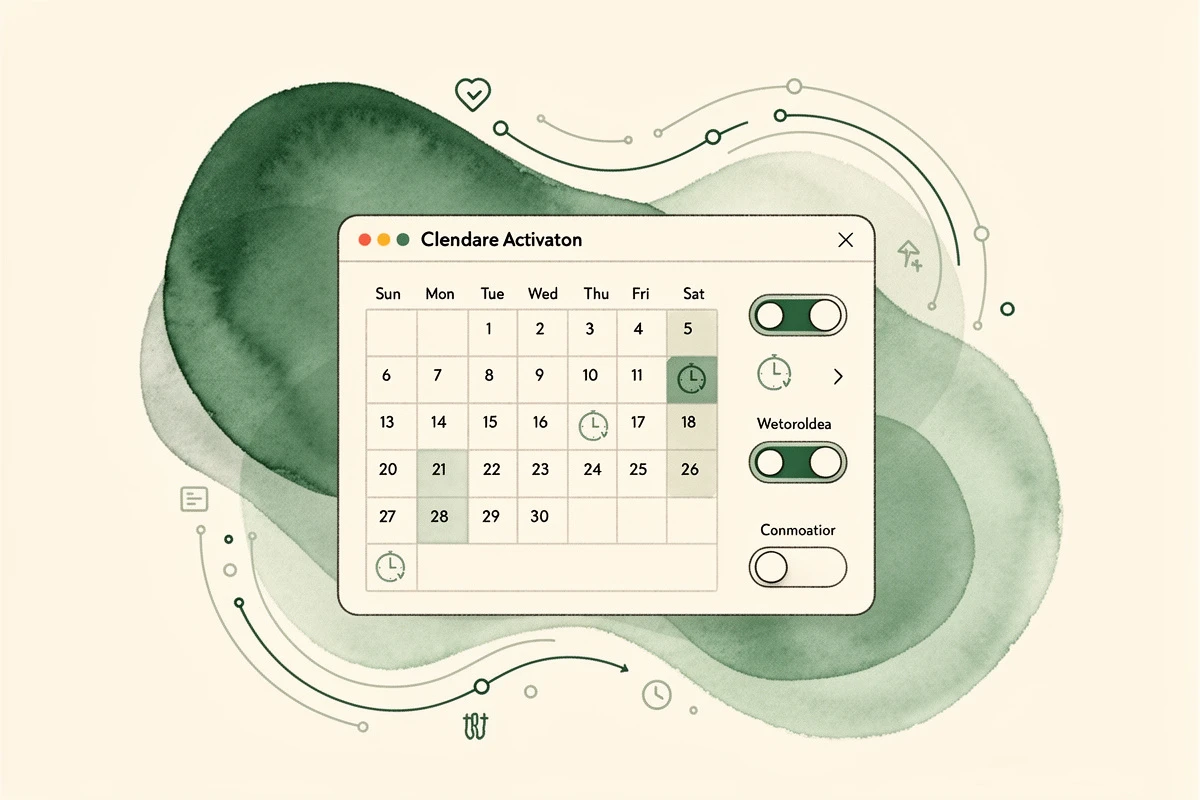
When most merchants think about scheduling a Shopify flash sale, they think about scheduling the discount code itself. But the cart-side experience matters just as much - the progress bar showing "$12 away from 20% off," the free gift that appears when the timer starts, the free shipping threshold that only applies during the sale window.
Scheduling a flash sale in your cart means pre-configuring the full promotional experience - auto-applied discounts, free gifts, and shipping rewards - with specific start and end times. Set it up Monday, and it runs itself Friday through Sunday.
This goes beyond scheduling banners and addons. Scheduled rewards control the actual incentives customers receive: the discount applied at checkout, the gift added to their cart, the free shipping threshold they're working toward.
Three Reward Types You Can Schedule
EliteCart's Rewards V2 system lets you schedule any reward type independently, each with its own activation window - days of the week, time ranges, and date ranges.
Auto-Applied Discounts
The Discount (advanced) reward type is purpose-built for scheduled flash sales. You set the threshold (e.g., $75), choose a percentage or fixed amount off the order, and the discount applies automatically at checkout - no Shopify Admin discount setup required.
When you add a schedule, the discount only activates during the specified window. Friday 3 PM to Sunday midnight? It appears in the reward bar and applies at checkout only during those hours. Outside that window, it's invisible.
Free Gifts
Schedule a gift-with-purchase that only appears during your flash sale. Set the threshold, select the gift product, and add a schedule rule. The gift auto-adds to qualifying carts and disappears when the window ends.
This works especially well for product launches. Offer a free sample of a new product for 48 hours, then let the promotion expire without touching anything. For more on gift setup, see our guide on adding a free gift with purchase.
Free Shipping Rewards
Flash sale on shipping? Schedule a lower free shipping threshold for the weekend - drop it from $100 to $50 for 48 hours, then let it revert automatically. Customers see the lower bar during the sale and the standard bar afterward.
You can even run a scheduled shipping reward alongside your regular one - keep your everyday $100 threshold active and add a second reward at $50 for the flash sale window only.
How to Set Up a Scheduled Reward: Step by Step
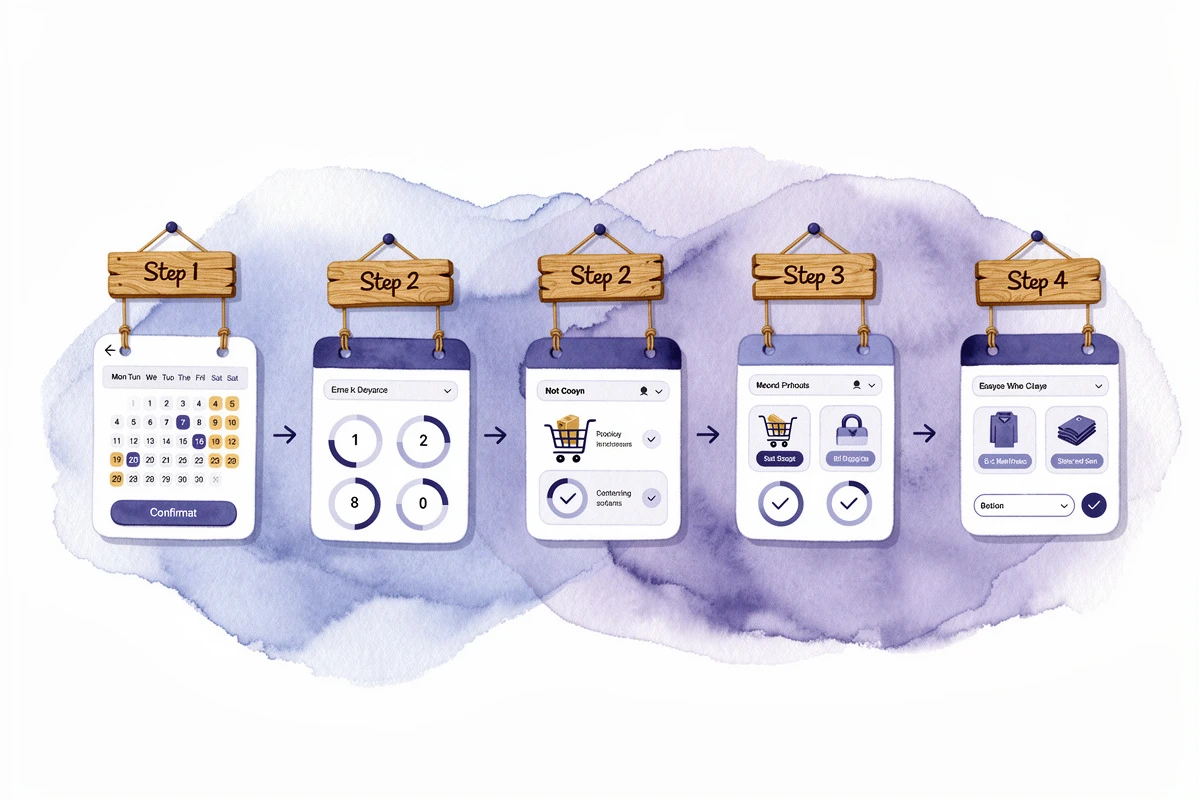
Here's how to schedule a flash sale discount that activates Friday at 3 PM and deactivates Sunday at midnight.
1. Create the reward
Go to Cart Designer → Rewards → Rewards tab and click Add reward. Choose Discount (advanced) for an auto-applied discount, Single gift or Multi gift for a gift-with-purchase, or Shipping for a free shipping promotion.
2. Configure the reward
Set the threshold (e.g., $75), the discount value (e.g., 20% off), and the checkout label (e.g., "Weekend Flash: 20% off"). For gift rewards, select the gift product. For shipping rewards, set the qualifying threshold.
3. Add a schedule rule
Expand the Schedule card in the reward settings. You'll need two schedule rules for this scenario (rules use OR logic - the reward is visible if any rule matches):
Rule 1 - Friday evening:
- Days of week: Friday
- Time range: 3:00 PM to 11:59 PM
Rule 2 - Saturday and Sunday all day:
- Days of week: Saturday and Sunday
- Time range: Leave blank (no time restriction means all day)
For both rules, optionally set a date range if this is a one-time sale (e.g., April 24-26). Leave blank for a recurring weekly flash sale.
4. Save and verify
Click Save. The scheduling card shows a real-time status badge - "Currently visible" or "Currently hidden" - so you can confirm the reward isn't active yet.
5. Customize the reward text
Write the "away from" text customers see in the reward bar: "You're {amount} away from 20% off - weekend flash sale!" The {amount} placeholder dynamically shows the remaining cart value needed.
Practical Scheduling Examples
Weekend Flash Discount
Goal: 15% off orders over $80, Friday evening through Sunday night.
- Reward type: Discount (advanced), 15%
- Threshold: $80
- Schedule: Rule 1: Friday, 5:00 PM-11:59 PM. Rule 2: Saturday-Sunday, all day
- Discount title: "Weekend Flash: 15% off"
Holiday Gift-With-Purchase
Goal: Free branded tote bag with any $60+ order, December 15-24.
- Reward type: Single gift
- Threshold: $60
- Schedule: All days, all times, date range December 15-24
- Result: Gift auto-adds during the window, disappears December 25
Combining Schedules with Targeting

Scheduling gets more powerful when layered with other visibility controls on the same reward.
Market targeting lets you run the flash sale in specific countries. A Black Friday discount for US customers can start Thursday evening while your EU sale starts Friday morning - each with its own threshold adjusted for local currency.
Conditions restrict the flash sale to specific customer segments. Run a VIP-only sale using customer tags, or a campaign-exclusive deal triggered by UTM parameters. Schedule a 25% discount that only appears for traffic from your Klaviyo email campaign.
Tiered scheduling creates escalating urgency. Set up three discount rewards: 10% off Friday, 15% off Saturday, 20% off Sunday - each with its own schedule rule. Customers see a better deal each day, creating authentic urgency without fake countdown timers.
Tips for Running Scheduled Flash Sales
Check your timezone. Schedule rules use your shop's IANA timezone from Shopify admin. A 3 PM start means 3 PM in your shop's timezone - if you're in New York, LA customers see the sale at noon.
Test before the sale. Temporarily set the schedule to a few minutes in the future, verify the reward appears, then update to the real dates. A five-minute test prevents a weekend of missed revenue.
Set explicit end times. Without an end date, the promotion runs indefinitely whenever day/time rules match. For one-time flash sales, always include a date range.
Plan your reward text. Write "away from" text that matches the promotion - "You're {amount} away from your weekend deal!" works better than generic "You're {amount} away from a discount."
Use up to 3 rules per reward. Schedule rules work with OR logic - if any rule matches, the reward is visible. Need Friday evening plus all day Saturday and Sunday? That's two rules: Friday 3 PM-11:59 PM, and Saturday-Sunday all day.
Combine with announcement banners. Schedule a matching banner on the same time window. The banner announces the sale; the reward bar motivates customers to qualify.
What Happens When the Sale Ends
When a schedule window closes, the reward becomes invisible on the storefront. The reward bar adjusts to show only your remaining active rewards.
If a customer had a gift in their cart from an expired scheduled reward, the gift remains until the cart is updated. The gift eligibility enforcement catches edge cases at checkout.
For discount rewards, the Shopify Function stops applying the discount once the schedule closes - even if the customer added qualifying items during the active window.
Schedule your next flash sale now - not the night before. Set up a weekend discount, a holiday gift, or a limited-time shipping deal in Cart Designer → Rewards, add a schedule rule, and let it run itself. Your promotion launches on time, ends on time, and you never set a 3 AM alarm again. For detailed setup steps, see the Rewards V2 guide.