
How to Automatically Apply a Discount at Checkout Without a Code in Shopify
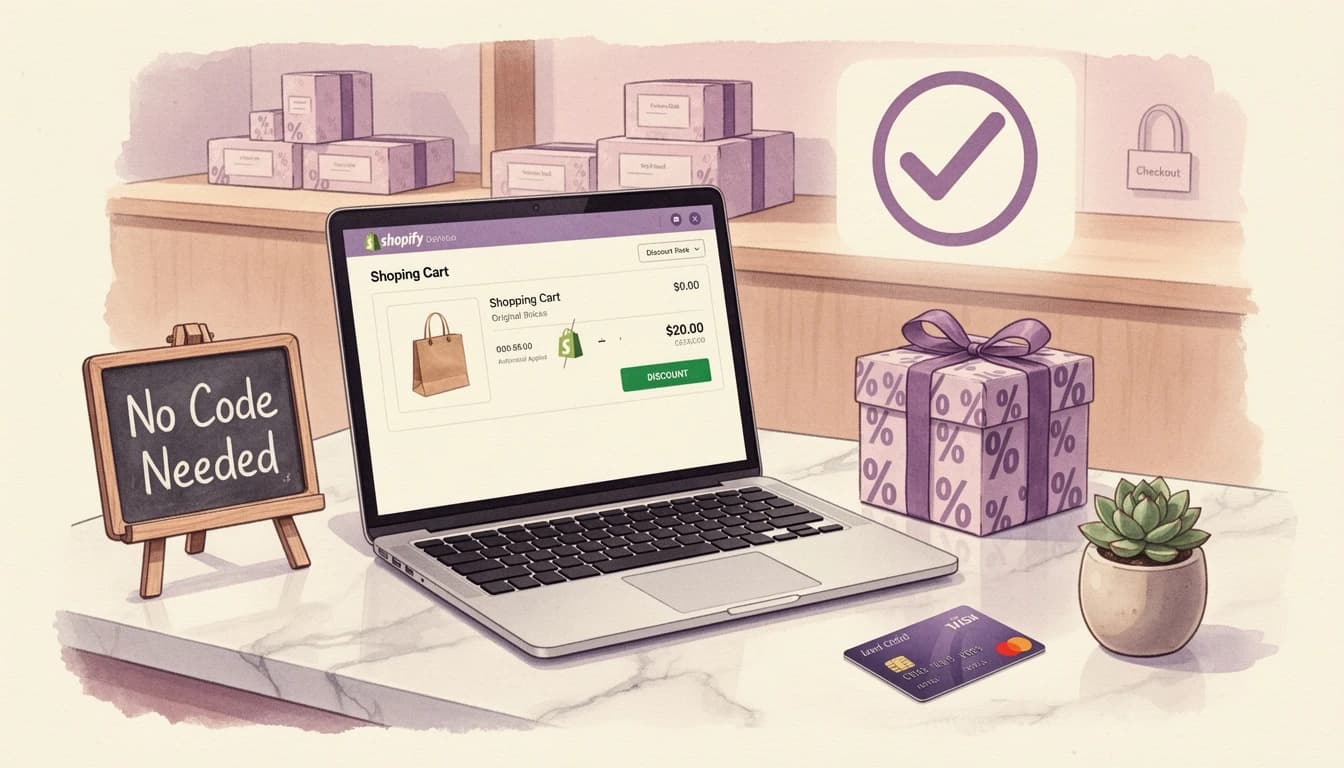
Every empty "discount code" field is an invitation to leave your store. A customer sees it, wonders if there's a code floating around, opens a new tab, starts searching - and many never come back. Shopify lets you automatically apply a discount at checkout without a code - the savings appear in the cart the moment a customer qualifies, with no code to hunt for and no field to fill in.
If you've been running discount code campaigns and noticing abandonment or low redemption rates, switching to automatic discounts is one of the highest-impact changes you can make. Here's how to set them up in Shopify, when to use fixed amounts versus percentages, and how they interact with other promotions.
Why Coupon Codes Create Friction
The problem with discount codes isn't the discount - it's the extra step. Baymard Institute's checkout research consistently finds that promo code fields trigger "coupon hunting" - customers leave the site to search for a deal, and many never return to complete the purchase.
The discount code field is supposed to close sales, but for customers who don't have a code, it introduces doubt. "Am I overpaying? Should I look for a deal first?" That hesitation is where you lose people.
Automatic discounts bypass the entire problem. There's no field to trigger doubt, no code to mistype, and no reason to leave. The discount simply appears when the cart meets your conditions.
How Automatic Discounts Work in Shopify
Shopify's automatic discount system applies savings at checkout without any customer action. You set the conditions - minimum cart value, minimum item count, or specific product requirements - and Shopify handles the rest.
- No entry required. Customers see the discount applied in their cart automatically.
- No distribution needed. No emailing codes, printing flyers, or sharing on social media.
- No failed applications. Nothing to type means no "invalid code" errors.
- Visible at checkout. The discount shows as a line item with the exact savings.
Shopify supports automatic discounts for amount off orders, amount off products, Buy X Get Y offers, and free shipping. The most common setup for threshold-based promotions is amount off order - a percentage or fixed dollar amount that applies when the cart total crosses a line you define.
Setting Up an Automatic Discount: Step by Step
1. Create the discount in Shopify
- In your Shopify admin, go to Discounts and click Create discount
- Choose your discount type - Amount off order is the most versatile for threshold-based promotions
- Under Method, select Automatic discount (not "Discount code")
- Name the discount something customers will recognize (e.g., "10% off orders over $100") - this name appears at checkout
2. Set the discount value
Choose between a percentage or fixed amount discount. More on when to use each below.
3. Define the minimum requirement
Under Minimum purchase requirements, choose one:
- Minimum purchase amount - triggers when the cart total reaches a dollar value (e.g., $100)
- Minimum quantity of items - triggers when the cart has enough items (e.g., 3 products)
4. Configure optional limits
- Set start and end dates for seasonal campaigns
- Limit to specific customer segments if needed
- Configure combination settings to control stacking behavior
5. Save and test
Add products to your cart that meet the threshold and verify the discount appears automatically.
Fixed Amount vs. Percentage: When to Use Each
The right choice depends on your average order value and the behavior you want to encourage.
Use a percentage discount when:
- Your AOV varies widely. A percentage scales with the cart, so high-value customers get a bigger reward and low-value customers aren't over-discounted.
- You want to incentivize larger orders. "10% off orders over $100" means a $100 cart saves $10, but a $200 cart saves $20 - the reward grows with spending.
- You're running a sitewide promotion. Percentages feel intuitive and are easier to communicate across different price ranges.
Use a fixed amount discount when:
- Your AOV is consistent. If most orders land in a narrow range, a fixed discount ($15 off orders over $75) is predictable and easy to margin-plan.
- You want to cap your exposure. A flat $20 off means you know exactly what each order costs you, regardless of cart size.
- The discount feels concrete as a dollar amount. For lower-value orders, "$15 off" is immediately tangible - customers don't need to calculate what they save. Percentages require mental math, and when the resulting savings are small, the effort isn't worth it.
A quick comparison
| Cart Total | 10% Off | $15 Off | Better Option |
|---|---|---|---|
| $75 | $7.50 | $15.00 | Fixed ($15 off) |
| $100 | $10.00 | $15.00 | Fixed ($15 off) |
| $150 | $15.00 | $15.00 | Either - identical |
| $200 | $20.00 | $15.00 | Percentage (10% off) |
If your average order is $80-120, a fixed $15 discount at a $75 threshold gives more perceived value. Above $150, a percentage rewards the customers who spend the most.
How Stacking and Combinations Work
Shopify allows certain discounts to combine, but the rules matter if you're already running other promotions.
What can stack
- Automatic discount + discount code - if both have combination enabled in their settings.
- Product discount + order discount - a collection percentage can combine with an order-level automatic discount.
- Free shipping + any discount - shipping discounts combine freely. Almost always safe to enable.
What to watch for
- Two order-level discounts won't stack unless both explicitly allow it. Shopify applies whichever gives the customer the best deal.
- Percentage discounts compound, not add. A 10% automatic discount plus a 15% code isn't 25% - it's roughly 23.5%, because the second applies to the already-reduced subtotal.
- Test before launching. Unintended stacking can erode margins quickly.
Safe starting strategy: enable combination between your automatic discount and free shipping, but keep it non-combinable with other codes until you've mapped out the math.
Making the Discount Visible Before Checkout

An automatic discount that surprises customers at checkout is good - but one they can see approaching in real-time converts significantly better. This is where a reward bar changes the equation.
Instead of discovering "10% off orders over $100" only at checkout, customers see "You're $22 away from 10% off your order" directly in the cart. That visibility triggers the goal-gradient effect - the closer people get to a goal, the harder they push to reach it.
In EliteCart, the simplest option is the new Discount (advanced) reward type: set the threshold, pick a percentage or fixed amount, write the checkout label, and EliteCart both visualizes the progress and applies the discount automatically at checkout - no separate Shopify Admin discount required. You still get conditions, scheduling, market targeting, and the option to restrict the discount to specific collections or exclude subscription items.
If you'd rather keep the Shopify-native automatic discount you set up above and just visualize it in the cart, you can - add a Discount (legacy) reward tier in Cart Designer → Rewards at the same threshold. The reward bar tracks progress and shows a congratulatory message when customers qualify, while Shopify handles the actual discount.
If you're already using a free shipping bar, adding a discount tier creates a tiered reward ladder - free shipping at $50, then 10% off at $100 - keeping customers motivated past the first milestone.
Three Discount Strategies That Work

Strategy 1: The AOV booster
Set a percentage discount at a threshold 25% above your current AOV. If your average order is $80, offer 10% off orders over $100. Customers add one more item to save on everything.
Strategy 2: The quantity incentive
Use a minimum item count instead of a dollar threshold. "15% off when you buy 3 or more" works well for consumables, accessories, and mix-and-match collections. Set the minimum quantity in Shopify's Amount off order discount type.
Strategy 3: The collection-specific promotion
Use Amount off products targeting a specific collection. "Spend $100 on skincare, get $20 off" keeps the discount contained without discounting the whole store. Select the collection under Applies to and set the minimum purchase amount.
Common Mistakes to Avoid
Setting the threshold too high. If customers need to double their cart to qualify, the discount discourages rather than motivates. Keep it 15-25% above your current AOV.
Forgetting to communicate it. An automatic discount nobody knows about is just a margin hit. Use your reward bar and announcement banners to make the offer visible before checkout.
Stacking without doing the math. A 10% automatic discount plus a 20% influencer code plus free shipping can quietly eat your margin on high-value orders. Enable combinations deliberately.
Using a percentage when a fixed amount works better. For stores with AOV under $100, "$10 off" often converts better than "10% off" because the value is immediately obvious.
Automatic discounts are the simplest way to reduce checkout friction and increase order values at the same time. Set the threshold, choose your discount type, and make it visible with a reward bar. No codes to distribute, no codes to mistype, and no customers lost to a coupon-hunting detour.