
How to Add a Free Gift with Purchase in Your Shopify Cart
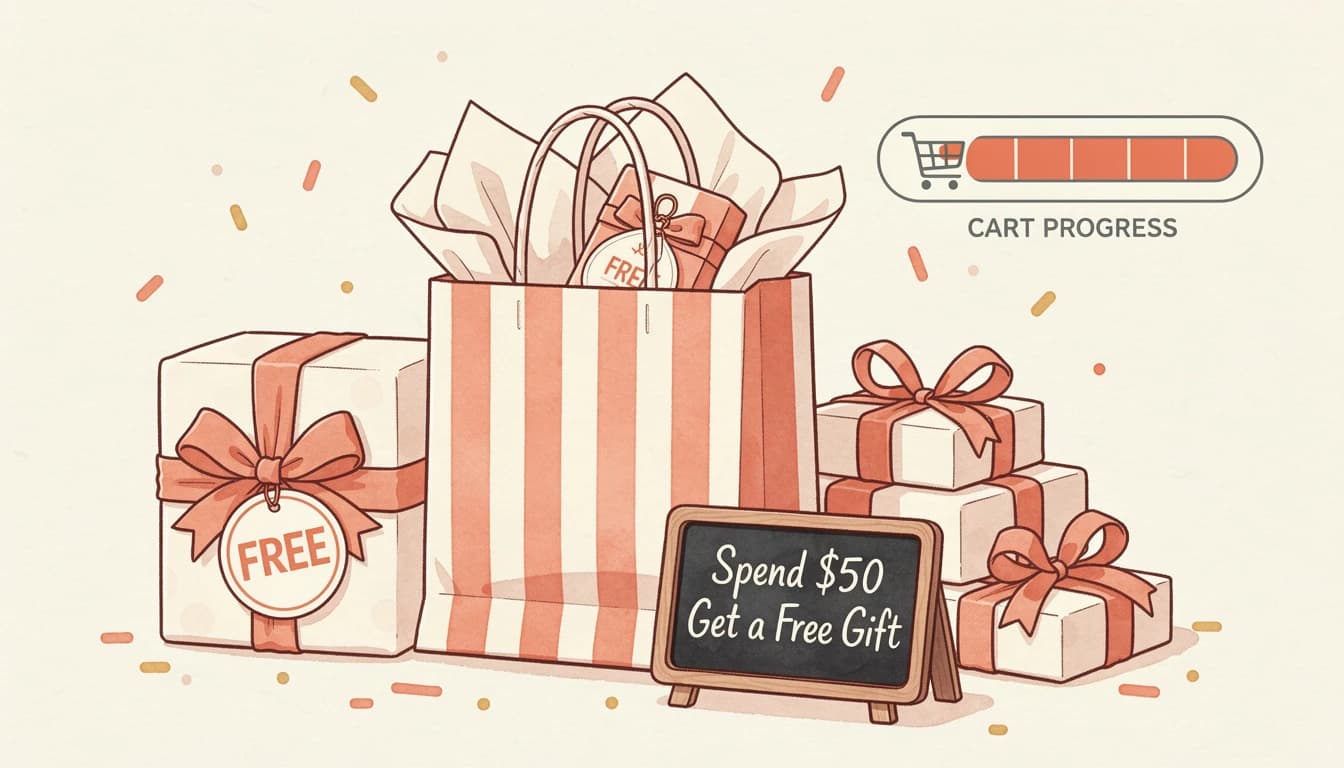
Few promotions increase average order value as reliably as a free gift with purchase. Customers who might hesitate to add another product will spend $15 or $20 more to hit a threshold - because "free" feels like winning, not spending. Behavioral economics research consistently shows that consumers prefer a free gift over an equivalent discount, perceiving it as a gain rather than a smaller loss. For a deeper look at why this works and how to choose the right strategy, see our guide on why free gifts work in e-commerce.
This guide walks through the full process: picking a gift product, setting the cart total customers need to reach, writing the progress message they see, and making sure the gift is actually free at checkout.
Step 1: Choose a Free Gift Product

The gift you offer matters more than you might think. The best options share a few traits:
- High perceived value, low actual cost. A product that retails for $20 but costs you $4 to fulfill is ideal.
- Small and lightweight. This keeps the shipping impact minimal.
- Broadly appealing. Unless you let customers choose, the gift should work for most of your audience.
- Consumable or accessory items. Products customers use up often lead to repeat purchases at full price.
You'll need to decide between two approaches:
- Single auto-added gift - one product is added to the cart automatically when the customer crosses the threshold. No decisions required from the shopper.
- Customer-chosen gift - the customer picks their preferred gift from a selection you curate. This works well when your line spans different preferences like colors, scents, or flavors.
EliteCart's flexible rewards system lets you create up to 20 rewards with conditions, scheduling, and market targeting. To start, navigate to Cart Designer → Rewards and open the Rewards tab. Add or select a reward, then choose Single gift (auto-added) or Multi gift (customer chooses). Click Select products to pick your gift from your store catalog.
If you don't already have a dedicated gift product, click Create gift product to duplicate an existing product and automatically configure it as a gift - price set to $0, status set to unlisted, and product type adjusted so customers can't add it directly.
For detailed instructions on creating gift products manually, see our help article on creating free gift products.
Step 2: Set a Spending Threshold for Your Free Gift
The threshold is the cart value your customers need to reach before the gift is added. Set it too low and most orders qualify without any behavior change. Set it too high and the goal feels out of reach.
A practical formula: set your threshold 15-20% above your current average order value. If your AOV is $65, a threshold around $75-$80 nudges customers to add one more item while keeping the goal achievable.
In Cart Designer → Rewards, select your gift reward and enter the threshold amount in the Threshold field. The threshold type (cart total or item count) is configured under the Settings & design tab and applies to all rewards.
If you sell internationally, you can set different thresholds for different markets - a $75 threshold for US customers and a €65 threshold for European shoppers, for example. Market-specific thresholds are available on the Professional plan.
Tiered Gifts for Higher Spending
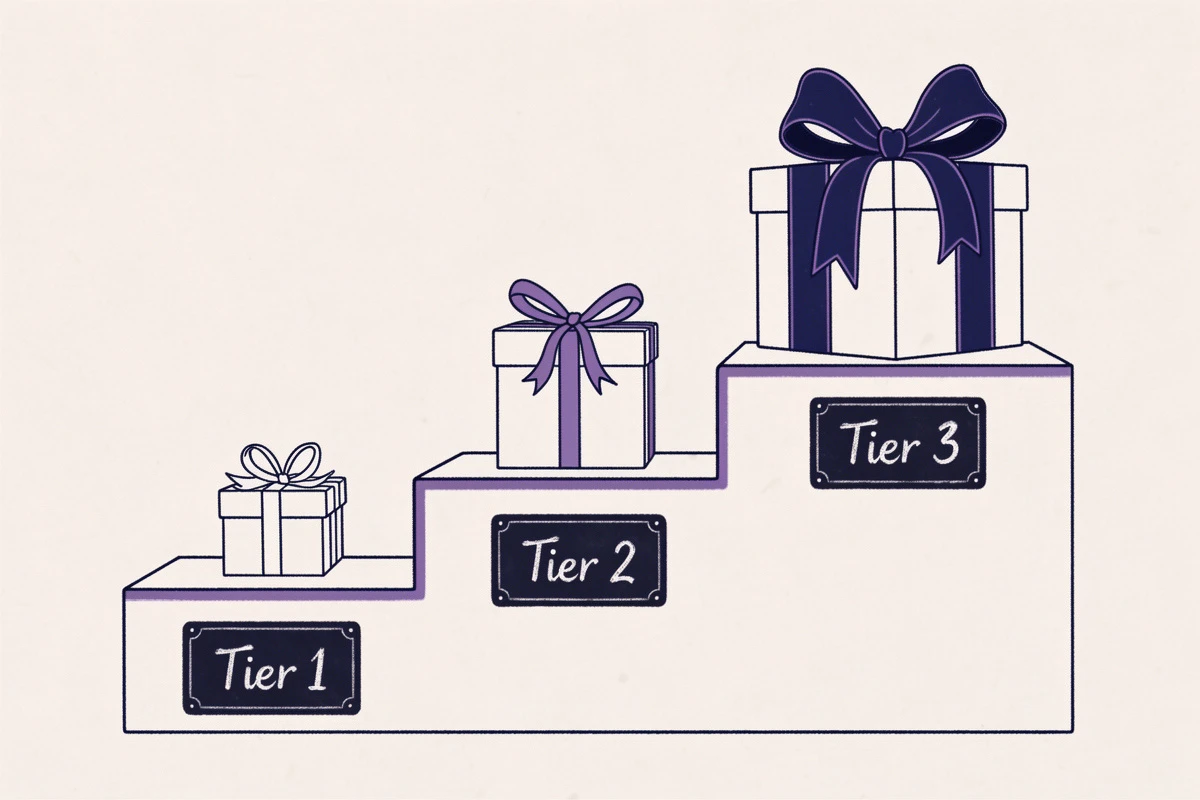
You're not limited to a single threshold. Setting up multiple gift tiers creates a ladder effect:
- $50 - Free sample set
- $100 - Free full-size product
- $150 - Choose a premium gift
The closer someone gets to the next tier, the more motivated they are to keep adding. This is the goal-gradient effect in action - and it's one of the most reliable ways to push AOV higher. For more on tiered reward strategies, see our guide on how a reward bar drives higher average order values.
Step 3: Customize the Progress Text
The progress message is what your customers see in the reward bar as they shop. It tells them exactly how close they are to earning the gift - and it's one of the biggest motivators for adding that extra item.
In the reward's Texts section, you'll find the "Away from gift" field. Use the {amount} placeholder to dynamically show the remaining amount:
- "Spend
{amount}more for a free gift!" → "Spend $15.00 more for a free gift!" - "You're
{amount}away from a surprise!" → "You're $8.50 away from a surprise!" - "Add
{amount}to your cart to claim your gift" → "Add $22.00 to your cart to claim your gift"
You can also set a "Reward achieved" message that replaces the progress bar once the threshold is met - something like "Your free gift has been added!" or "You've earned your reward."
Both fields support rich text formatting (bold, italic, colors) and multi-language translations if you sell in multiple regions.
Step 4: How the Gift Is Priced at $0
Customers expect a "free" gift to actually be free at checkout. There are two ways this works, depending on your Shopify plan.
For Most Shopify Stores
Create your gift product with a $0 price in Shopify. When EliteCart adds it to the cart, it shows up as free from the start. This is the simplest approach and works on every Shopify plan.
The Create gift product button in EliteCart handles this automatically - it duplicates your chosen product, sets the price to zero, adds a compare-at price showing the original value, and configures the product type so it can't be added to the cart manually.
For Shopify Plus Stores
If you're on Shopify Plus, you can use the Cart Transform function instead. This lets you keep the gift product at its regular price in Shopify and automatically discount it to $0 at checkout. The customer sees the original price crossed out with "$0.00" next to it - which actually reinforces the perceived value of the gift.
For more details, see our help article on auto-discount gifts for Shopify Plus.
Step 5: Prevent Checkout Abuse
There's a scenario every merchant should plan for: a customer adds items to reach the threshold, claims their gift, then removes items before checking out. Without server-side validation, they walk away with a free product they didn't qualify for.
EliteCart's gift eligibility enforcement runs as a Shopify Function at checkout. It checks whether the customer's cart still meets the threshold when they attempt to complete their purchase. If it doesn't, checkout is blocked with a clear message explaining what's needed to qualify.
To enable it, go to Cart Designer → Rewards, switch to the Settings & design tab, and scroll to the "Gift eligibility enforcement" card at the bottom. Click Enable function and save. The function works on all Shopify plans.
Note: If you're on Shopify Plus and using the Cart Transform approach from Step 4, you don't need this - Cart Transform already handles gift enforcement at checkout. The two functions are mutually exclusive, so you'll use one or the other.
The validation is smart about what counts toward your threshold - gift products, gift cards, and items you've explicitly excluded are not included in the calculation. For the full details, see our help article on enforcing gift validity at checkout.
Tips for a Successful Free Gift With Purchase Campaign

Rotate your gifts periodically. A fresh gift every few weeks gives returning customers a reason to check back. It also lets you test which products drive the most incremental spending.
Show the original value. Setting a compare-at price on your gift product displays the savings to customers. A "FREE (worth $25)" label next to the gift is more motivating than just "FREE."
Monitor your qualification rate. If most orders qualify for the gift, your threshold is probably too low - you're giving away margin without changing behavior. If very few customers reach it, the goal is too ambitious. Adjust until roughly half your orders qualify. Our guide on cart analytics covers the key metrics to track.
Run the math on profitability. A gift promotion only works if the increased AOV outweighs the cost. If customers spend $20 more to reach the threshold and the gift costs you $5, that's a net gain of $3 at a 40% margin. If the gift costs $15 to fulfill, you're losing money.
Don't conflict with existing promotions. Unlike discount codes, gift-with-purchase promotions operate independently. Customers can use discount codes and still receive their gift - no stacking conflicts.
A well-configured free gift with purchase is one of the simplest ways to lift your average order value. Pick a product your customers will value, set a threshold that stretches their cart just enough, write progress text that motivates action, and validate the gift at checkout. Start with a single threshold, track the results, and expand to tiered rewards once you see what works. If you're setting up your cart from scratch, our step-by-step cart setup guide walks through the full configuration.