
How to Let Customers Choose Their Own Free Gift in Shopify

A free gift with purchase reliably lifts average order value, but there's a common failure mode: picking a gift your customers don't actually want. A lavender candle doesn't excite someone shopping for beard oil. A vanilla protein bar falls flat with a chocolate lover.
The fix is simple - let customers choose their own free gift. Instead of auto-adding a single product, you present a selection and let the shopper pick. It's a small change that makes a measurable difference in how many customers claim the reward.
Why Letting Customers Choose a Free Gift Boosts Redemption
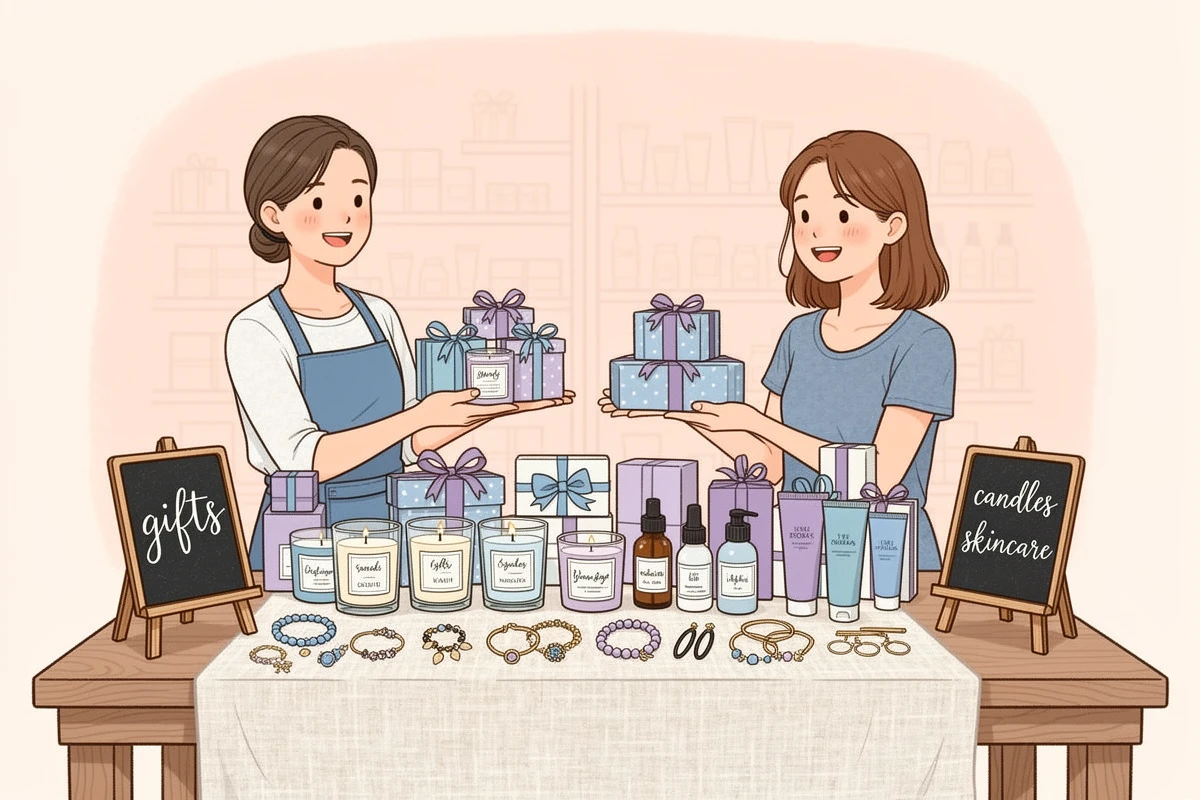
Auto-adding a single gift bets that one product appeals to your entire audience. For narrow product lines - say, a single-flavor supplement brand - that can work. For everyone else, it's a gamble.
Giving customers a choice helps in several ways:
- Higher perceived value. Research from the Journal of Consumer Psychology shows recipients value gifts more when they had input in the selection. A gift matching someone's preference feels more valuable than one assigned to them.
- Stronger goal-gradient motivation. When a customer sees a gift they genuinely want, they're more motivated to add that last item to cross the threshold. The goal-gradient effect is stronger when the reward is personally desirable.
- Lower removal rates. Auto-added gifts that miss a customer's taste get removed from the cart - a wasted impression. When customers pick their own gift, they rarely remove it.
- Better data. Tracking which gifts get selected tells you what your customers actually want - product development intelligence you can't get from a single auto-added item.
Free gift promotions can lift average order value significantly, and the effect tends to be stronger when customers feel ownership over the reward. Our deep dive on free gift promotions covers why gifts outperform discounts.
How to Set Up a Gift Picker in Your Shopify Cart
Here's how to configure a multi-option gift chooser so customers can pick their own reward.
1. Create Your Gift Products
You'll need dedicated gift products in Shopify - separate from your regular catalog. This keeps your inventory clean and prevents customers from adding gifts to their cart directly.
The fastest approach: use the Create gift product button in EliteCart. It duplicates an existing product, sets the price to $0, adds a compare-at price showing the original value, and configures the product type so it can't be added outside of the gift system.
If you prefer to set up gift products manually, our help article on creating free gift products walks through the full process.
Tip: Aim for 3-5 gift options. Fewer than three barely qualifies as a choice; more than six risks choice overload. You can add up to 8 gift products per reward.
2. Set the Reward Type to Multi Gift
EliteCart's flexible rewards system lets you create up to 20 rewards with conditions, scheduling, and market targeting. Navigate to Cart Designer → Rewards and open the Rewards tab. Add a new reward or select an existing one. Set the reward type to Multi gift - this tells EliteCart to present a gift chooser instead of auto-adding a single product.
Click Select products and pick the gift products you created. Each product you select becomes one option in the gift picker that your customers will see.
3. Set Your Spending Threshold
Enter the cart value customers need to reach before the gift picker appears. The standard recommendation: set it 15-20% above your current average order value. If your AOV is $60, a threshold around $70-$75 creates the right amount of stretch.
For international stores, set market-specific thresholds - like $75 for US shoppers and €65 for EU customers - so currency conversion doesn't make the gift unreachable. See our help article on multi-market thresholds for details.
If you want to stack the gift picker with other incentives - like free shipping at a lower threshold or a discount at a higher one - see our guide to tiered rewards in Shopify.
4. Choose a Display Mode

This is where the customer experience diverges. Navigate to Cart Designer → Rewards → Settings & design and find the Gift chooser settings section. The Display dropdown gives you three options:
- Carousel above line items - The gift picker appears as a horizontal carousel at the top of the cart. Customers swipe through options without leaving their cart flow. Works well when the cart drawer is the primary shopping interface.
- Carousel above summary - Same carousel format, but positioned just above the cart total and checkout button. This puts the gift selection closer to the conversion point - a "last step before checkout" bonus.
- Modal popup - A centered overlay that appears when the customer crosses the threshold. The modal demands attention and makes the gift selection feel like an event, which can increase claim rates - but it briefly interrupts the shopping flow.
Which to pick? Start with the carousel above line items - least disruptive, keeps customers in their cart. Switch to the modal if claim rates are low; the added prominence often helps.
5. Show the Value
Two optional settings reinforce the perceived value of the gift:
- Show gift product prices - Displays the original retail price on each gift option (e.g., "$24.99"). When customers see they're getting a $25 product for free, the reward feels more substantial than a generic "FREE" label.
- Reward offer text - Adds a label like "FREE" or "GIFT" next to the price. Combining a visible price with a "FREE" badge is the strongest approach - it anchors the value while emphasizing that there's no cost.
Both settings are in Cart Designer → Rewards → Settings & design → Gift chooser settings.
Curating Your Gift Selection: What Works Best

Not all gift combinations perform equally. Here's what to consider when picking your lineup:
Cover different preferences. If you sell skincare, offer a mini moisturizer, a lip balm, and a face mask - not three variations of the same serum. Variety across product categories captures more of your audience.
Keep fulfillment costs low. The goal is more revenue per order, not expensive extras. Small, lightweight products with high perceived value and low cost work best - a sample set that retails for $20 but costs you $4 is the sweet spot.
Show compare-at prices. Set a compare-at price on your gift products in Shopify so customers see the crossed-out original value. "FREE (was $29.99)" is significantly more compelling than just "FREE."
Rotate your selection. Swapping out one or two options each month gives returning customers a reason to claim another gift - and gives you data on which products drive the most incremental spending.
Protecting the Promotion at Checkout
When customers choose their own gift, you need the same checkout safeguards as any gift-with-purchase setup. Without validation, a customer could select a gift, then remove items and check out below the threshold.
EliteCart handles this with gift eligibility enforcement - a Shopify Function that checks the cart total at checkout. If the customer no longer qualifies, checkout is blocked with a clear explanation. Enable it under Cart Designer → Rewards → Settings & design → Gift eligibility enforcement.
If you're on Shopify Plus, the Cart Transform function keeps the gift at its regular price in Shopify and discounts it to $0 at checkout - showing the original price crossed out alongside "$0.00." See our help article on auto-discount gifts for Shopify Plus for details. The same approach works for auto-applying discounts at checkout.
Tracking What Customers Pick
Once your gift picker is live, pay attention to which options get selected most and least often. This tells you two things:
- Which products your customers value most - useful for future gift rotations, product development, and even pricing decisions on your main catalog.
- Whether your selection has dead weight - if one option is chosen less than 5% of the time, replace it. Every slot in the picker should earn its place.
Combine gift selection data with your cart analytics to see how the promotion affects overall AOV, qualification rate, and checkout conversion.
Letting customers pick their own gift turns a good promotion into a better one. You remove the risk of offering a gift nobody wants, you increase the motivation to reach the threshold, and you get cleaner data on what your audience values. Start with 3-5 options, choose a display mode, show the value - and let your customers do the rest.