
How to Trigger a Free Gift When a Specific Product Is in the Cart
Most free gift promotions treat every cart the same. Spend $75, get a free tote bag - regardless of what the customer is actually buying. That works for general AOV campaigns, but it misses a powerful tactic: triggering a free gift only when a specific product is in the cart.
Product-specific gift triggers let you pair a gift with a particular item. A customer adds your hero serum, and a free sample of the matching moisturizer appears in the reward bar. Someone buys your flagship coffee grinder, and a complimentary bag of beans is offered at checkout. The gift feels intentional - because it is.
Why Product-Specific Triggers Outperform Sitewide Gifts
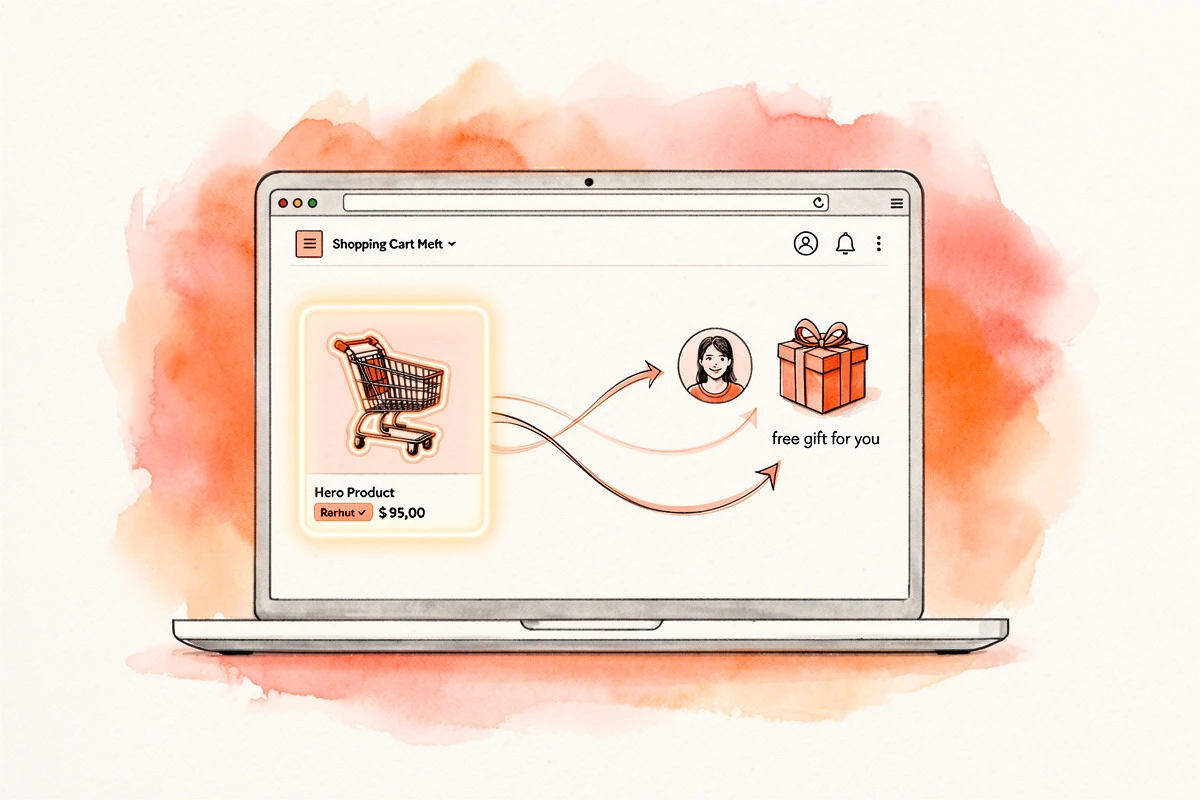
When every cart qualifies for the same generic gift, you're spending fulfillment budget on customers who don't need nudging and offering gifts that don't relate to what's being purchased.
Product-specific triggers solve both problems:
- Higher relevance. A gift that complements the product in the cart feels like a natural pairing, not a random freebie. Customers perceive more value because the gift makes sense alongside their purchase.
- Lower cost per conversion. You're only giving away gifts to customers buying the product you want to promote.
- Better attach rates. When a gift is tied to a specific hero product, it reinforces the buying decision and often leads to repeat purchases of the gifted item at full price.
- Cleaner campaign tracking. Because the gift only activates for one product (or a small group), you can measure the exact impact on that SKU's conversion rate and AOV.
When to Use Product-Specific Gift Triggers
Not every gift promotion needs product-level targeting. Here's where it fits best.
Launch promotions
You're releasing a new product and want to drive initial adoption. Attach a free accessory or sample to early purchases - the gift incentivizes trying the new item while introducing customers to a complementary product they might buy later.
Hero-SKU attach campaigns
Your best-selling product already has momentum. A product-specific gift increases AOV on orders that include it without discounting the hero product itself - you keep the bestseller as a price anchor and add value through gifting instead of markdowns.
Sample pairings
Buy a full-size serum, get a mini of the complementary moisturizer. The sample creates a natural path to a future full-price purchase, turning a small fulfillment cost into a customer acquisition tool for another product line.
Seasonal campaigns
Pair a seasonal gift with a specific product for a limited time. "Buy our Winter Blend coffee this month and get a free holiday mug" creates urgency around both the product and the gift.
How to Set Up a Free Gift Trigger for a Specific Product
Combine a gift reward with a condition that checks for a specific product in the cart. The reward stays hidden until the trigger product appears - then the customer sees the progress bar and knows what they need to do to earn the gift.
Step 1: Create the gift reward
Navigate to Cart Designer → Rewards and open the Rewards tab. Click Add reward and choose either Single gift (auto-added) or Multi gift (customer chooses from options).
Set the threshold - the cart total the customer needs to reach. For product-specific campaigns, you can set this as low as $0 if you want the gift to trigger immediately when the product is added, or use a higher threshold to encourage additional spending.
Select your gift product by clicking Select products. If you need a dedicated gift product with a $0 price, use Create gift product to duplicate an existing item. For details, see our help article on creating free gift products.
Step 2: Add a "Product is in cart" condition
This is the step that makes the reward product-specific. In the reward settings, expand the Conditions card and click Add condition. Select "Product is in cart" from the dropdown, then choose the product that should trigger the gift.
The reward stays hidden until that product is in the cart. Customers buying other items won't see it.
Step 3: Set an optional minimum quantity
If you want the gift to trigger only when customers buy two or more of the trigger product, use the minimum quantity option on the product condition. This is useful for consumable products - a customer buying 3 bags of coffee beans might trigger a free coffee filter, while a single bag doesn't.
Step 4: Combine with other conditions for precision
You can layer multiple conditions using AND/OR logic for more targeted campaigns:
- "Product is in cart" AND "Customer is logged in" - Reward only loyal customers who buy the trigger product
- "Product is in cart" AND "Customer has tag: VIP" - Exclusive gift for VIP customers
- "Product is in cart" AND "UTM parameter contains: launch" - Gift only appears for customers arriving from your launch campaign
Step 5: Configure the progress text
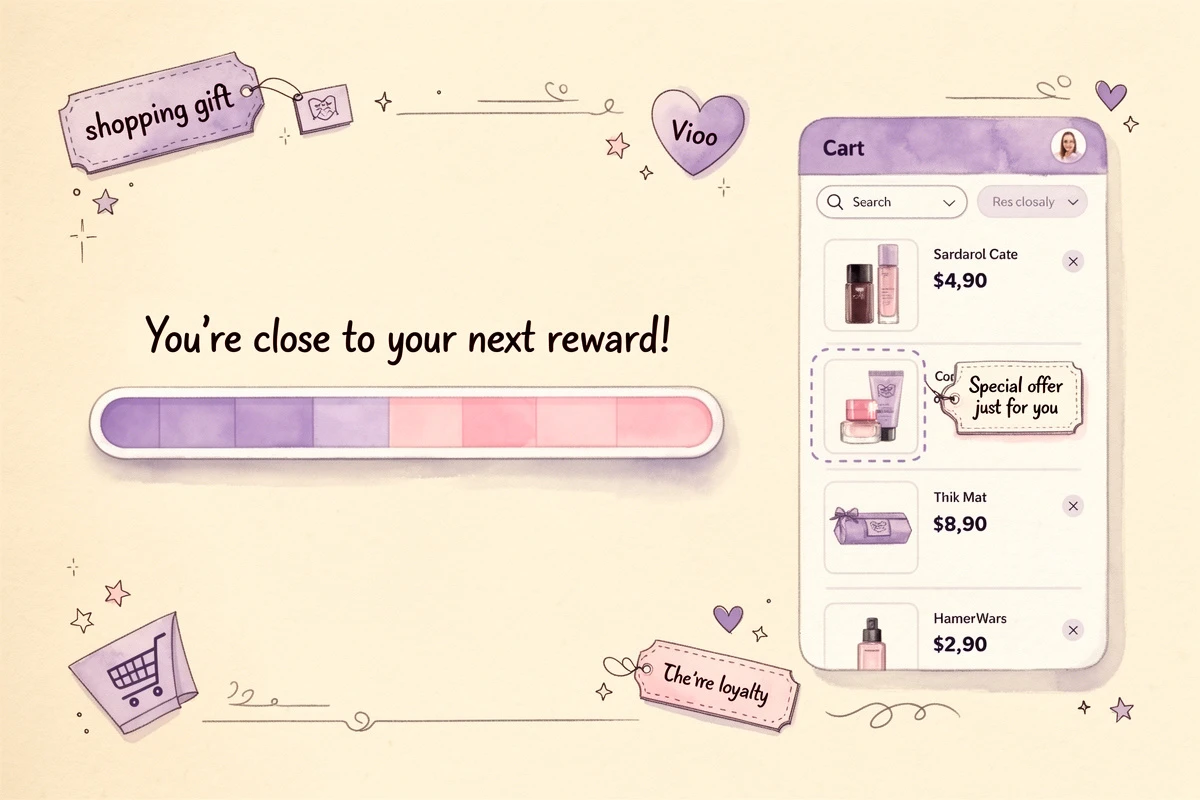
In the reward's Texts section, customize the "Away from gift" message to reference the promotion. Instead of a generic "Spend {amount} more for a free gift," try something product-aware:
- "You're
{amount}away from a free moisturizer sample with your serum!" - "Add
{amount}more to get a complimentary bag of beans with your grinder!"
Set a "Reward achieved" message that celebrates the pairing: "Your free moisturizer sample has been added!"
Step 6: Schedule the campaign (optional)
For time-limited promotions, expand the Schedule card and set date ranges or day-of-week windows. A launch promotion might run for two weeks after a product drops, then automatically deactivate. See our guide on scheduling promotions in your cart.
Product-Specific Gift Examples
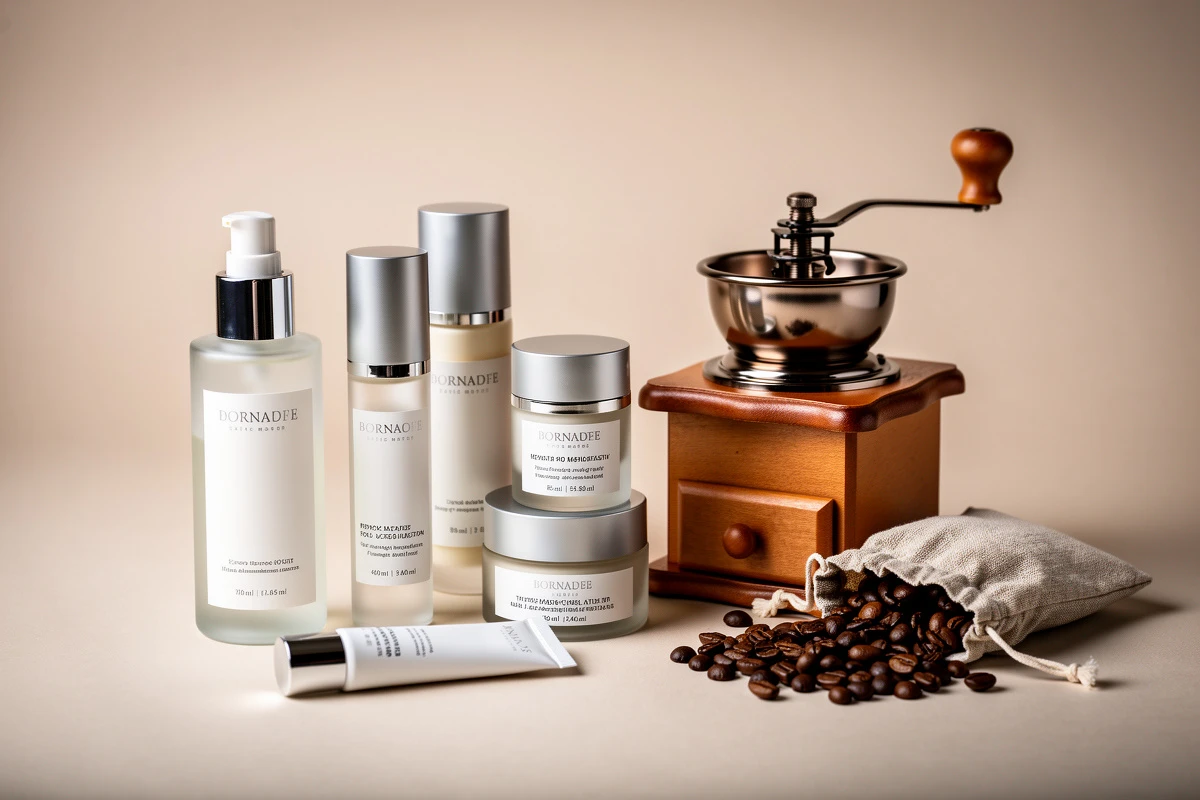
Skincare: Full-size serum triggers free mini moisturizer
- Trigger product: Vitamin C Brightening Serum
- Gift type: Single gift (auto-added)
- Gift product: Mini Hydrating Moisturizer (15ml)
- Threshold: $0 (gift triggers immediately)
- Condition: "Product is in cart" → Vitamin C Brightening Serum
The sample introduces customers to the moisturizer line - at a low cost and high perceived value, the math works even without a spend threshold.
Coffee brand: Grinder purchase triggers free beans
- Trigger product: Burr Coffee Grinder
- Gift type: Multi gift (customer chooses roast)
- Gift products: Light Roast 250g, Medium Roast 250g, Dark Roast 250g
- Threshold: $0
- Condition: "Product is in cart" → Burr Coffee Grinder
Letting customers choose their roast creates engagement with the brand's coffee line. The grinder purchase signals high intent - the free beans make the first brew immediate.
Protecting the Promotion at Checkout
A customer could add the trigger product, claim the gift, then remove the product before checkout. Enable gift eligibility enforcement under Cart Designer → Rewards → Settings & design to validate at checkout that the cart still meets the reward threshold. For product-specific campaigns, this is a good reason to set a threshold above $0 - removing the trigger product drops the cart below the threshold. See our help article on enforcing gift validity at checkout for details.
If you're on Shopify Plus, you can use Cart Transform to automatically set gift prices to $0 at checkout. See our help article on auto-discount gifts for Shopify Plus.
Tips for Product-Specific Gift Campaigns
Start with your highest-traffic product. The product with the most views and add-to-carts gives you the largest sample size. Run the gift for two weeks and compare AOV and conversion rate against the prior period.
Keep the gift contextually relevant. The gift should logically complement the trigger product - accessories, samples of related items, or consumables that enhance the main purchase.
Use a $0 threshold for pure attach campaigns. When the goal is introducing customers to a new product line via sampling, skip the spend threshold. The gift triggers the moment the target product is in the cart.
Add a spend threshold when AOV growth is the goal. If the trigger product costs $45, setting a $60 threshold nudges customers to add a small item alongside it. This combines product-specific relevance with traditional AOV-growth mechanics.
Don't stack with sitewide gifts unless intentional. If you're running both a sitewide gift at $75 and a product-specific gift at $0, a customer could receive two gifts. Use Prevent gift stacking in Settings & design to limit customers to one gift per order. For more on this, see our guide on preventing customers from stacking free gifts.
Product-specific gift triggers turn a broad promotional tool into a precision instrument. Instead of offering the same gift to every customer, you match the reward to the purchase - making the offer more relevant and the campaign easier to measure. Start with one hero product, pair it with a logical gift, and track the impact before expanding to more SKUs.