
How to Run a Black Friday Cyber Monday Reward Bar Campaign in Shopify
A Black Friday Cyber Monday reward bar campaign is one of the most effective ways to push cart values higher during the biggest shopping weekend of the year. Shopify merchants generated $14.6 billion during BFCM 2025 - a 27% jump from the year before - and shoppers arrive with intent and wallets open. The reward bar is how you turn that traffic into larger orders.
But most merchants either run the same thresholds year-round or scramble to manually swap settings the morning of Black Friday and forget to revert them in December. The better approach: scheduled rewards that activate on Black Friday, run through Cyber Monday, and auto-revert to your normal setup - without you touching a thing.
Why Your Reward Bar Needs a Black Friday Cyber Monday Mode
Your everyday reward bar is calibrated for normal shopping - a free shipping threshold above your average order value, maybe a second tier with a discount. That works for a typical Tuesday. BFCM is not a typical Tuesday:
- Shoppers expect bigger incentives. Average BFCM discounts typically land in the high-20% range, and customers are comparison-shopping across dozens of tabs. A reward bar showing a standard $50 free shipping threshold doesn't stand out.
- Cart values are naturally higher. With average cart value hitting $114.70 across BFCM 2025, your everyday thresholds may already be met before customers consider adding more.
- Auto-applied discounts outperform codes. When customers see "You're $18 away from 15% off" and the discount applies automatically at checkout, there's no code to hunt for and no abandonment to search for a deal.
A BFCM reward bar campaign means temporarily stacking more aggressive rewards on a schedule that runs itself.
The BFCM Reward Stack
Here's a practical BFCM reward configuration. The key is combining three reward types at escalating thresholds adjusted for holiday shopping:
| Tier | Threshold | Reward Type | What Customers See |
|---|---|---|---|
| 1 | $40 | Free shipping | "You're {amount} away from free shipping" |
| 2 | $100 | 15% auto-discount | "Spend {amount} more for 15% off - Black Friday deal!" |
| 3 | $150 | Holiday gift | "You're {amount} away from a free holiday gift!" |
Compare this to a typical everyday configuration ($60 free shipping, 10% discount at $120, no gift): lower entry point, bigger discount, and a tangible gift that gives customers a reason to push past the second tier.
Why this specific stack works
Lower shipping threshold ($40 vs. your usual $50-60). 51% of online shoppers add items to qualify for free shipping. Getting them past that hurdle faster means more engagement with the discount and gift tiers.
Bigger auto-applied discount (15% at $100). The centerpiece. An auto-applied discount replaces manual Shopify discount codes - no code creation, no distribution, no "invalid code" errors. The reward bar shows progress, and the discount applies automatically when the cart qualifies.
Holiday gift ($150). A physical gift - branded merch, a seasonal sample set, a premium accessory - triggers reciprocity and gives customers something concrete to aim for.
Step-by-Step: Building the Campaign
1. Create your BFCM rewards
Navigate to Cart Designer → Rewards → Rewards tab and click Add reward for each tier. Add new rewards alongside your existing ones - scheduling controls which set is active.
- Reward 1: Select Shipping, set threshold to $40
- Reward 2: Select Discount (advanced), set threshold to $100, discount to 15%
- Reward 3: Select Single gift or Multi gift, set threshold to $150, select your holiday gift product
For the discount reward, enter a clear discount title (e.g., "Black Friday: 15% off") - this appears at checkout next to the savings amount.
2. Schedule each BFCM reward
For each of the three new rewards, expand the Schedule card and add a schedule rule:
- Days of week: Select all days (Monday through Sunday)
- Time range: Leave blank (all day)
- Date range: Set start date to November 27 (Black Friday) and end date to November 30 (Cyber Monday)
Adjust the end date if you want to extend through the full BFCM week. The schedule card shows a real-time "Currently visible" or "Currently hidden" badge so you can verify the status.
3. Schedule your everyday rewards to pause during BFCM
Your everyday rewards need to step aside during BFCM. On each existing reward, add schedule rules that exclude the BFCM window:
Rule 1 - Before BFCM:
- Days: All days
- Date range: January 1 through November 26
Rule 2 - After BFCM:
- Days: All days
- Date range: December 1 through December 31
Schedule rules use OR logic - the reward is visible if any rule matches. Your everyday rewards show every day except November 27-30.
4. Write BFCM reward text
Customize the "away from" text for each BFCM reward:
- Shipping: "You're
{amount}away from free Black Friday shipping!" - Discount: "Spend
{amount}more for 15% off - BFCM deal!" - Gift: "You're
{amount}away from your free holiday gift!"
5. Save and verify
Click Save. Check the scheduling badges - BFCM rewards should show "Currently hidden" and your everyday rewards should show "Currently visible."
How Auto-Discount Rewards Replace Manual Discount Codes
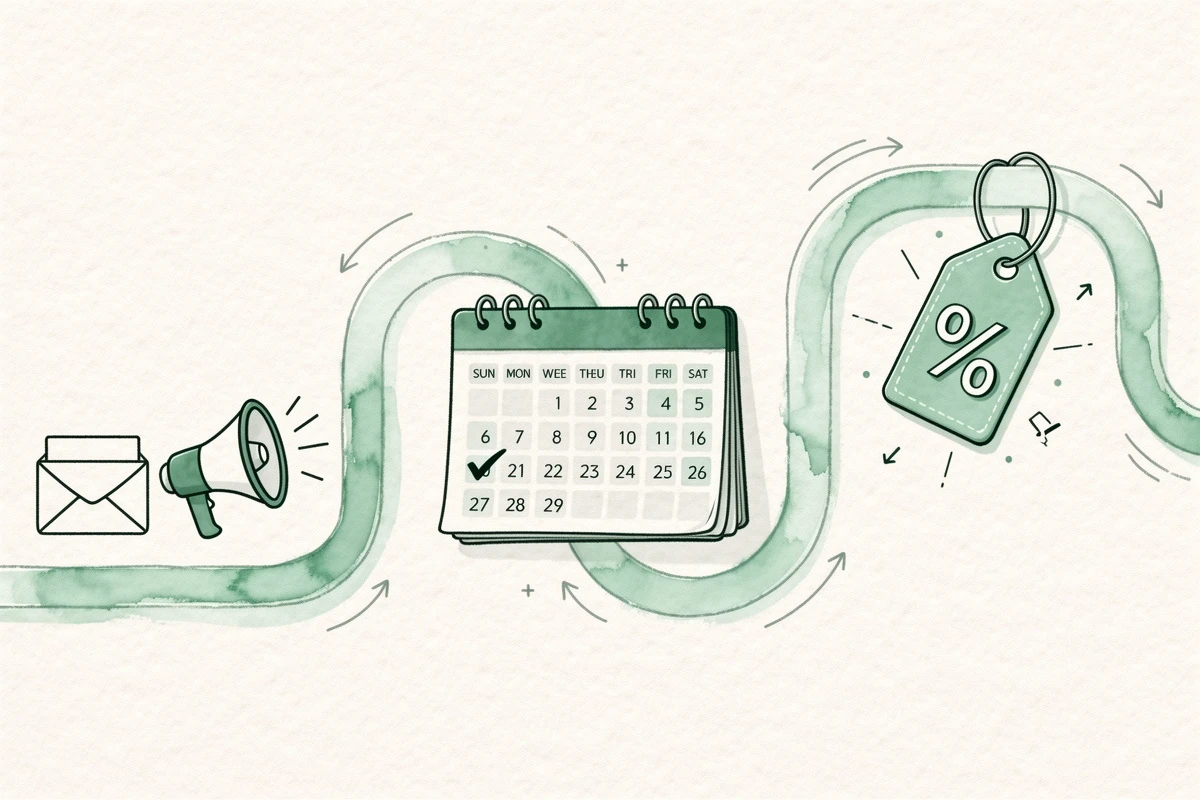
Traditionally, a Black Friday discount means creating an automatic discount in Shopify Admin, configuring combination rules, and remembering to deactivate it after the sale.
With a Discount (advanced) reward, you set the threshold and percentage in Cart Designer → Rewards, add a schedule, and the auto-discount system:
- Creates and manages the underlying Shopify discount automatically
- Applies it at checkout when the cart qualifies - no code needed
- Shows real-time progress in the reward bar ("You're $22 away from 15% off")
- Deactivates the discount when the schedule window closes
During BFCM you're already juggling email campaigns, ad spend, and fulfillment. One fewer manual process is worth the setup time.
What Happens on December 1
When the BFCM schedule window closes at midnight on November 30:
- BFCM rewards become invisible. The holiday gift, 15% discount, and $40 shipping threshold disappear from the storefront.
- The auto-discount stops applying. Carts that qualified during the sale but check out after midnight don't get the discount.
- Everyday rewards reactivate. Your Rule 2 schedule kicks in, and the standard reward bar returns with your normal tiers.
If a customer had a holiday gift in their cart from the BFCM window, gift eligibility enforcement catches the edge case at checkout.
Going Further: Layering the Campaign
Pair with a scheduled announcement banner
Schedule a matching announcement banner on the same BFCM date range - something like "BLACK FRIDAY: Free shipping, 15% off, and a free gift - limited time." The banner announces the campaign; the reward bar drives the behavior.
Use market targeting for international stores
If you sell globally, consider different BFCM stacks for different regions. US customers might get a $40 free shipping threshold while EU customers get €35. The Shopify Markets card on each reward lets you set market-specific visibility.
Add conditions for VIP customers
Create a fourth reward - say, 20% off at $80 - with a condition targeting the "VIP" customer tag, scheduled a day earlier than the public BFCM rewards. Your best customers get the deal first.
Campaign Setup Checklist
Before you close the laptop and wait for November:
- Test the schedule. Temporarily set dates to a few minutes in the future, verify rewards appear, then update to the real BFCM dates
- Verify reward text. Read the "away from" text out loud - does it sound like Black Friday? Generic text wastes the campaign framing
- Check the discount title. The checkout label (e.g., "Black Friday: 15% off") is what customers see at payment
- Confirm gift product inventory. If the gift goes out of stock mid-sale, that reward tier silently disappears
- Review tier spacing. If your BFCM AOV is $117, a $100 discount threshold means most carts already qualify. Set tiers 15-25% above expected order values
- Coordinate with other promotions. Only one automatic order discount applies per cart. If you're running other automatic discounts, the BFCM reward discount may override them or be overridden
Set It Up Now, Not the Week Before
The merchants who run the smoothest BFCM campaigns configured everything in October - schedule rules, reward text, gift products, and banner timing locked in weeks before traffic arrives.
Build your BFCM reward stack in Cart Designer → Rewards and add schedule rules for the sale window. For a full walkthrough, see the Rewards V2 guide.
Your Black Friday campaign should run itself. Set the date range, stack the rewards, and walk away. The reward bar activates on Black Friday, drives higher cart values through Cyber Monday, and auto-reverts on December 1 - no midnight toggles, no forgotten discounts, no manual cleanup.