
Multi-Language Carts: Selling Internationally Without Losing Conversions
A German shopper lands on your Shopify store, adds a product to their cart, and opens the cart drawer. The button says "CHECKOUT" in English. The reward bar reads "You're $15 away from free shipping" - in dollars. Every piece of text screams "this store isn't for you."
Multi-language carts aren't a luxury for stores selling internationally - they're a necessity. When 76% of online shoppers prefer to buy products with information in their native language, and conversion rates can increase by up to 70% after localizing site content, an English-only cart leaves significant revenue on the table.
Why Language Matters in the Cart
Your cart is the final decision point before checkout. Every element of uncertainty at this stage works against you. For international shoppers, unfamiliar language creates friction that compounds with other concerns about shipping, returns, and payment.
This isn't just about understanding - it's about trust. Research shows 40% of consumers will never buy from websites in other languages. A cart that speaks your customer's language signals that you've considered their needs and that buying from you is safe - similar to how trust badges build confidence at the point of purchase.
The cart abandonment rate for e-commerce sits at around 70%. International customers face additional barriers beyond the usual suspects like unexpected shipping costs: currency confusion, unclear return policies, and yes - lack of localization. When checkout doesn't feel familiar and intuitive, shoppers hesitate. And hesitation kills conversions.
The Three Pillars of Cart Localization
Effective international cart experiences rest on three foundations: translated interface text, market-appropriate reward thresholds, and clear currency display. Miss any one of these, and you create confusion.
Translated UI Text
Every piece of text in your cart needs translation - not just the obvious elements like the checkout button, but microcopy that's easy to overlook:
- Cart title and empty cart messages
- Subtotal, total, and savings labels
- Reward bar messaging ("You're
{amount}away from free shipping!") - Upsell headings and add-to-cart buttons
- Trust text and terms and conditions
- Error messages and availability notices
The challenge isn't just translation - it's maintaining accuracy across your store's language settings. When you update your reward messaging or change your upsell heading, that change needs to propagate to all your language variants.
EliteCart syncs with your Shopify language settings automatically. Navigate to Language & Translations in your EliteCart dashboard to access all translatable text strings organized by category - General, Product, Cart Summary, Reward Bar, Upsells, Trust, and more. Each text field shows the English default and allows you to add translations for every language your store supports.
For commonly used languages - English, German, Spanish, French, Swedish, Danish, and Norwegian - default translations are provided. For other languages, enter your own or use the AI translate feature.
Market-Specific Reward Thresholds
A $50 free shipping threshold makes sense for US customers. But when that same threshold applies to European shoppers and gets converted to €47.23 (fluctuating with exchange rates), it creates an awkward customer experience and an inconsistent marketing message.
International stores need control over reward thresholds by market. This means:
- Setting fixed thresholds in local currencies (€50, not €47.23)
- Communicating round, memorable numbers to customers
- Aligning reward messaging with your actual shipping cost structure per region
In EliteCart, navigate to Cart Designer → Rewards & free shipping → Shopify Markets Settings to configure market-specific thresholds. Understanding how reward bars drive higher order values helps you set thresholds that motivate customers across all markets. You can create zones by country, set specific threshold amounts, and choose whether to use market currency (the customer's local currency) or store currency (your store's base currency, converted at Shopify's current rate).
For example, if your base threshold is €100 for European customers but you want British shoppers to see a clean £90 threshold instead of a fluctuating converted amount, create a United Kingdom zone with the threshold set in market currency.
This approach aligns your reward bar with your Shopify shipping settings, where you can also define market-specific free shipping thresholds.
Currency Display That Reduces Confusion
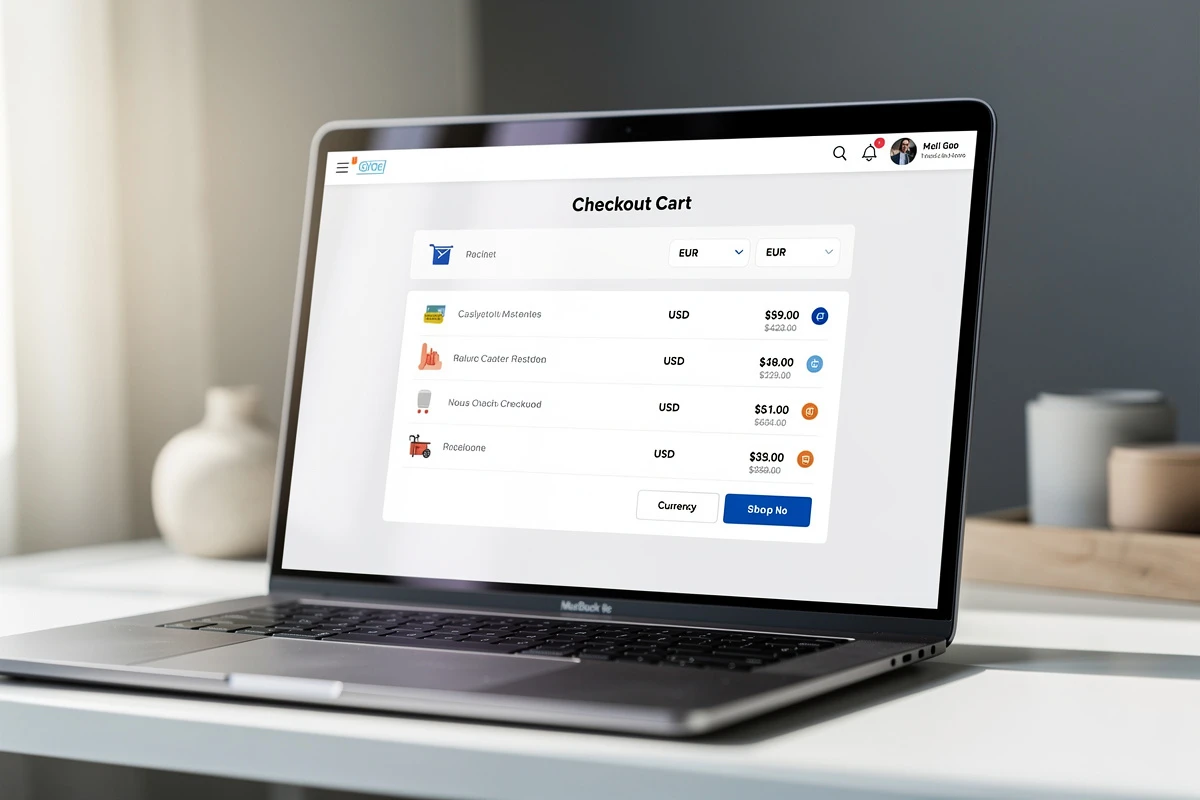
For stores using multiple currencies, price clarity becomes critical. A cart showing "$50" to both American and Canadian shoppers creates confusion - which dollar is it?
The solution is straightforward: use ISO currency codes (USD, CAD, EUR) rather than ambiguous symbols when customers could reasonably encounter multiple currencies with the same symbol.
In EliteCart, enable Use ISO currency (e.g. "USD") in your Cart Summary settings. This displays prices as "$50 USD" instead of just "$50" - matching how Shopify's checkout always displays totals for maximum clarity.
EliteCart uses your store's existing currency formatting, so prices display consistently between your product pages and cart.
Market-Specific Messaging
Language translation covers the interface, but what about promotional content? Your German customers might need different messaging than your US customers - different holidays, different shipping offers, different pain points.
Market-specific announcement banners let you run different promotions by region. Display a Black Friday banner to US customers while showing a local holiday promotion to German shoppers. Advertise free domestic returns only to markets where you offer that policy.
In EliteCart's Announcement Banner and Countdown settings, scroll to the "Advanced" section and expand "Shopify Markets settings." For guidance on effective banner strategies, see our article on when and how to use announcement banners. You can target specific countries with unique banner content in each language. If you leave a translation empty for a market, the banner won't display there - giving you precise control over what each audience sees.
Dynamic Variables in Translations
Not all text is static. Reward bar messaging needs to show real amounts: "You're {amount} away from free shipping." Addon titles might include product names and prices: "Add {title} for just {price}."
These dynamic variables must remain in English within your translations - they're placeholders that EliteCart fills with the appropriate values. Your German translation might read "Nur noch {amount} bis zum kostenlosen Versand!" - the {amount} stays in English but displays as "15,00 €" to the customer.
The translation interface shows previews with filled-in values, so you can verify that your translated text works correctly before publishing.
Translation Quality Matters
Machine translation gets you 80% of the way there, but the remaining 20% is what separates professional stores from amateur operations. Common pitfalls:
- Word-for-word translation that ignores cultural context
- Formal/informal mismatches (using "tu" vs "vous" inconsistently in French)
- Length issues where translated text overflows its container
- Untranslated edge cases like error messages or accessibility labels
If you're serious about a market, invest in native speaker review of your cart translations. A single awkward phrase can undermine the trust you've built with professional translations elsewhere.
Integration with Translation Apps
Some stores use third-party translation solutions like Weglot rather than Shopify's native translation features. If your store uses Weglot, EliteCart's internal translations won't apply - Weglot handles all text translation through its dynamic content feature instead.
For stores using Shopify's native translations or apps like Langify and Translate & Adapt, EliteCart's language settings work out of the box. The app detects your store's available languages and lets you configure translations for each.
The Business Case for Localization
The return on investment for localization is well-documented. Brands implementing multilingual websites see between 25% and 70% more sales. According to industry surveys, 96% of companies using translation technology report positive ROI from localization efforts.
But the real case is competitive. Cross-border e-commerce is growing faster than domestic sales in many regions. As global e-commerce continues its rapid expansion - with B2C sales expected to approach $7 trillion by 2026 - stores that make international shoppers feel at home will capture disproportionate share.
The checkout experience - including the cart - is where many stores still fall short. Currency, language, and region-specific requirements are expectations, not nice-to-have features.
Getting Started with Multi-Language Carts
If you're new to multi-language cart configuration, start with these steps:
-
Audit your current state - Open your cart from an international IP or using a VPN. What language displays? What currency? Are reward thresholds sensible?
-
Prioritize by revenue - Focus first on your highest-value international markets. If 30% of your revenue comes from Germany, German translations should be your first priority.
-
Configure language translations - In Language & Translations, work through each text category. Use the built-in defaults where available, and customize messaging for your brand voice.
-
Set market-specific thresholds - If you have different free shipping thresholds by region, configure them in Cart Designer → Rewards & free shipping → Shopify Markets Settings.
-
Enable ISO currency codes - If you sell in multiple currencies with similar symbols, enable Use ISO currency (e.g. "USD") in Cart Designer → Design → Cart Summary.
-
Review promotional content - Configure market-specific announcement banners for any region-specific offers or messaging.
-
Test thoroughly - Preview your cart in each language/market combination. Check that all dynamic variables display correctly and that no text overflows its container.
International growth requires international-ready infrastructure. Your cart is often the last touchpoint before checkout - make sure it speaks your customers' language, shows prices they understand, and offers rewards that make sense for their market.